DerZ Inventory Management System
User Guide
Everything you need to run your shop on DerZ: products and stock across branches and warehouses, sales and the POS, purchases, money, staff and payroll, and the reports that tie it all together.
Introduction
DerZ is an online inventory, sales and accounting system for shops, pharmacies, wholesalers and distributors. You open it in a web browser on a computer, tablet or phone. There is nothing to install, and your data is kept safely online.
What you can do with DerZ
How to use this guide
- The sidebar follows the menu of DerZ itself, part by part. Click a part to open its sections.
- Press / or use the search box at the top to jump to any feature.
- Click any screenshot to see it full size.
- Buttons and menu names are shown like Save. A menu path looks like this:
The screenshots show a demo business, “Abebe Pharmacy & Supplies” in Addis Ababa, with two branches (Bole, Piassa) and two warehouses. All names, phone numbers and figures are made up.
Who sees what
What you see in DerZ depends on two things:
- Your role. The business owner (Admin) sees everything. Staff see only what their role allows, for example a cashier may sell but not see the profit report. See Roles & permissions.
- Your plan. Some features, such as warehouses, extra users, batch tracking, HR or the accounting reports, depend on your subscription plan. See Plans & billing.
Part 1
Getting Started
Create your business account, sign in, and find your way around the screen.
Create an account
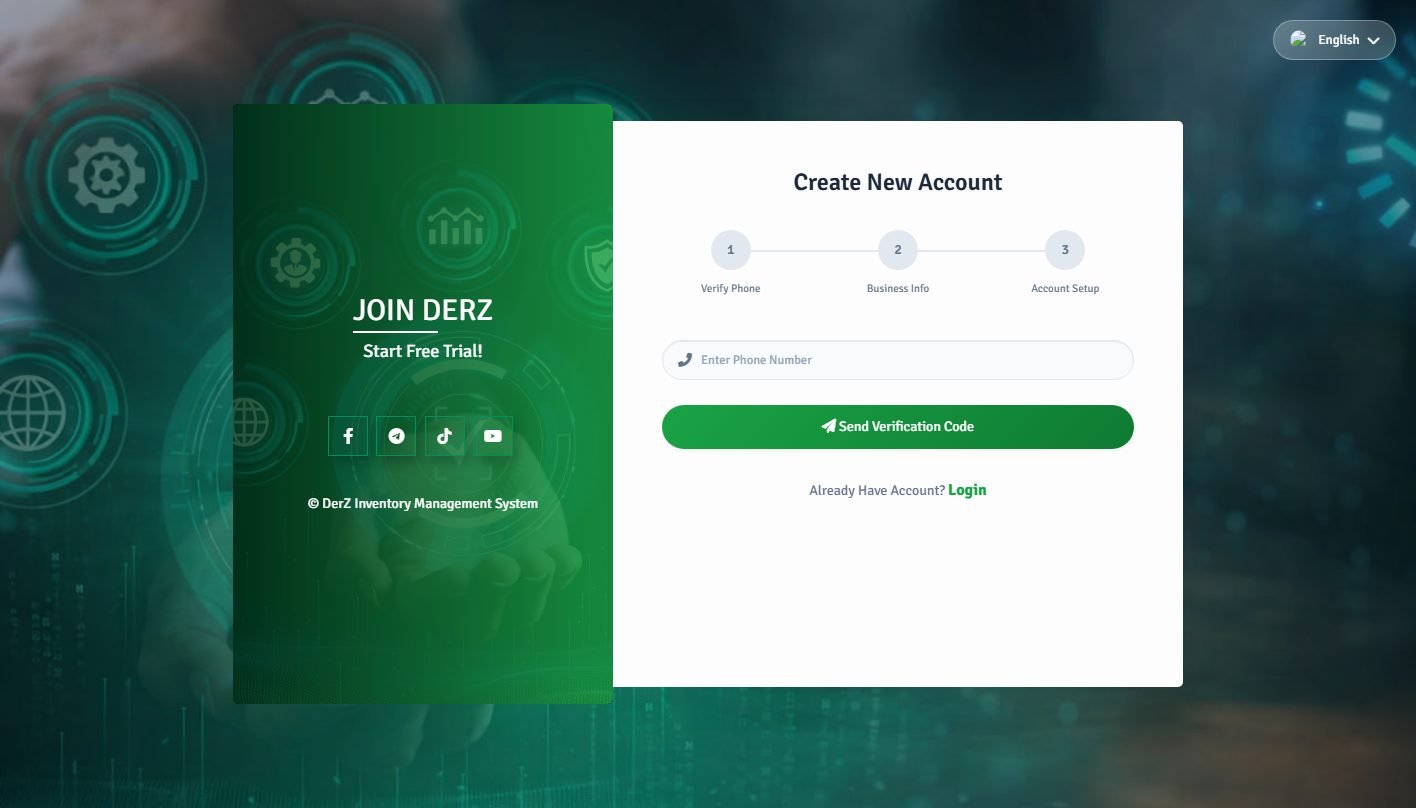
Open the DerZ website and click Sign Up. Registration takes three short steps:
- Verify your phone. Enter your phone number without the country code and click Send Verification Code. Type the code you receive by SMS. You can also sign up with Telegram instead.
- Business info. Your business name, city and contact details. You can change them later in Company profile.
- Account setup. Your name, username and password. You are then signed in and your free trial starts.
Sign in
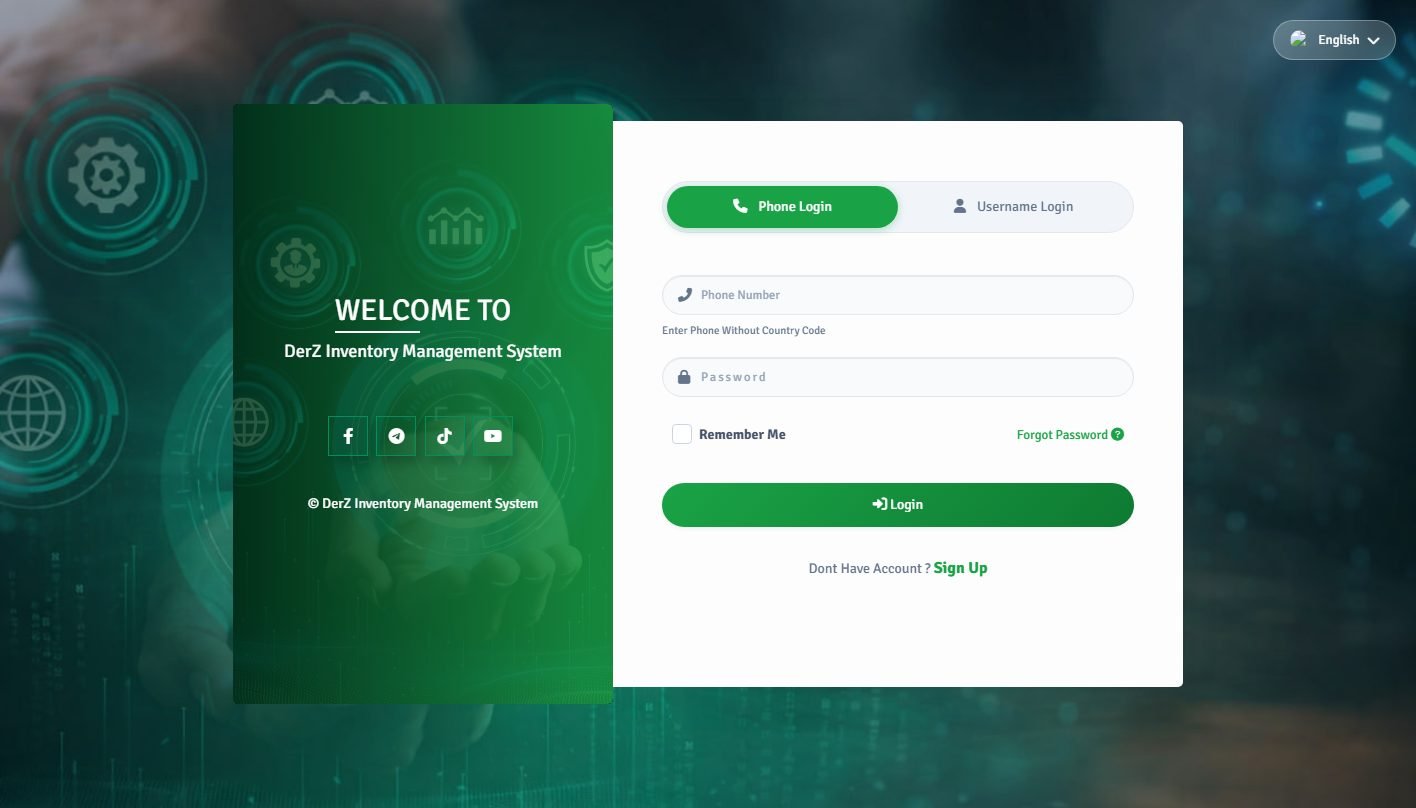
There are two ways to sign in. Choose the tab at the top of the form:
| Method | What to enter |
|---|---|
| Phone Login | Your phone number (without country code) and password. |
| Username Login | Your business name, your username and password. Staff usually sign in this way with the username the owner gave them. |
Tick Remember Me on your own device to stay signed in. If you forgot your password, click Forgot Password.
Your workspace
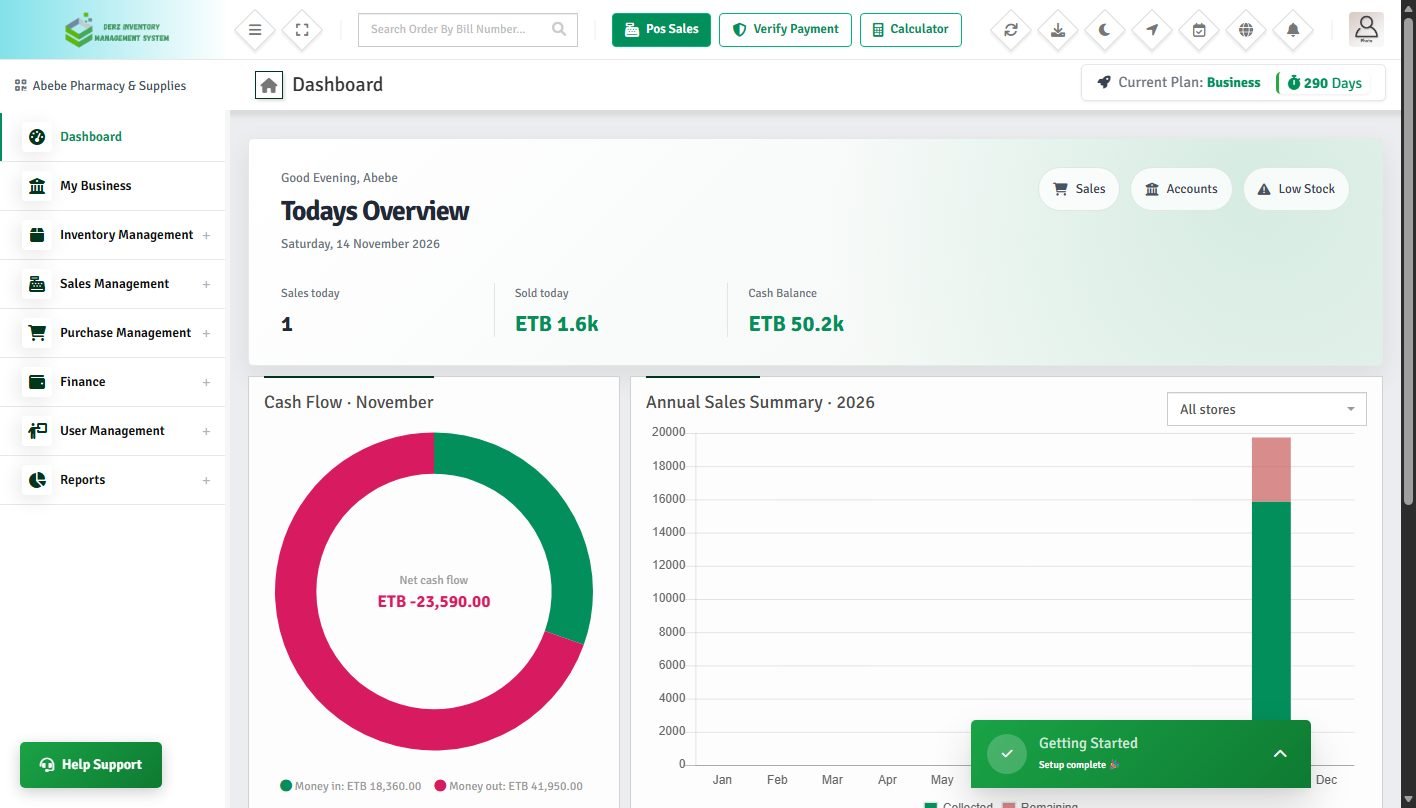
After signing in you land on the Dashboard. Every page has the same layout:
The sidebar menu
On the left: Dashboard, My Business, Inventory Management, Sales Management, Purchase Management, Finance, User Management and Reports. Click a group to open it. The button at the top makes the menu narrow to give pages more room.
The top bar
| Button | What it does |
|---|---|
| Search | Type an invoice number (e.g. INV-2026-000012) to open that sale directly. |
| POS Sales | Opens the point-of-sale screen. See POS. |
| Verify Payment | Checks a bank or telebirr receipt. See Verify payment. |
| Calculator | A calculator on top of any page (Alt+C). See Calculator. |
| Hard refresh | Reloads the page with the newest version of DerZ. |
| Install | Installs DerZ as an app on your computer or phone. |
| Night mode | Switches between the light and dark look. |
| Quick access | Shortcuts to the pages you use most. |
| Calendar | Shows dates in the Gregorian or the Ethiopian calendar. |
| Language | English or Amharic (አማርኛ). |
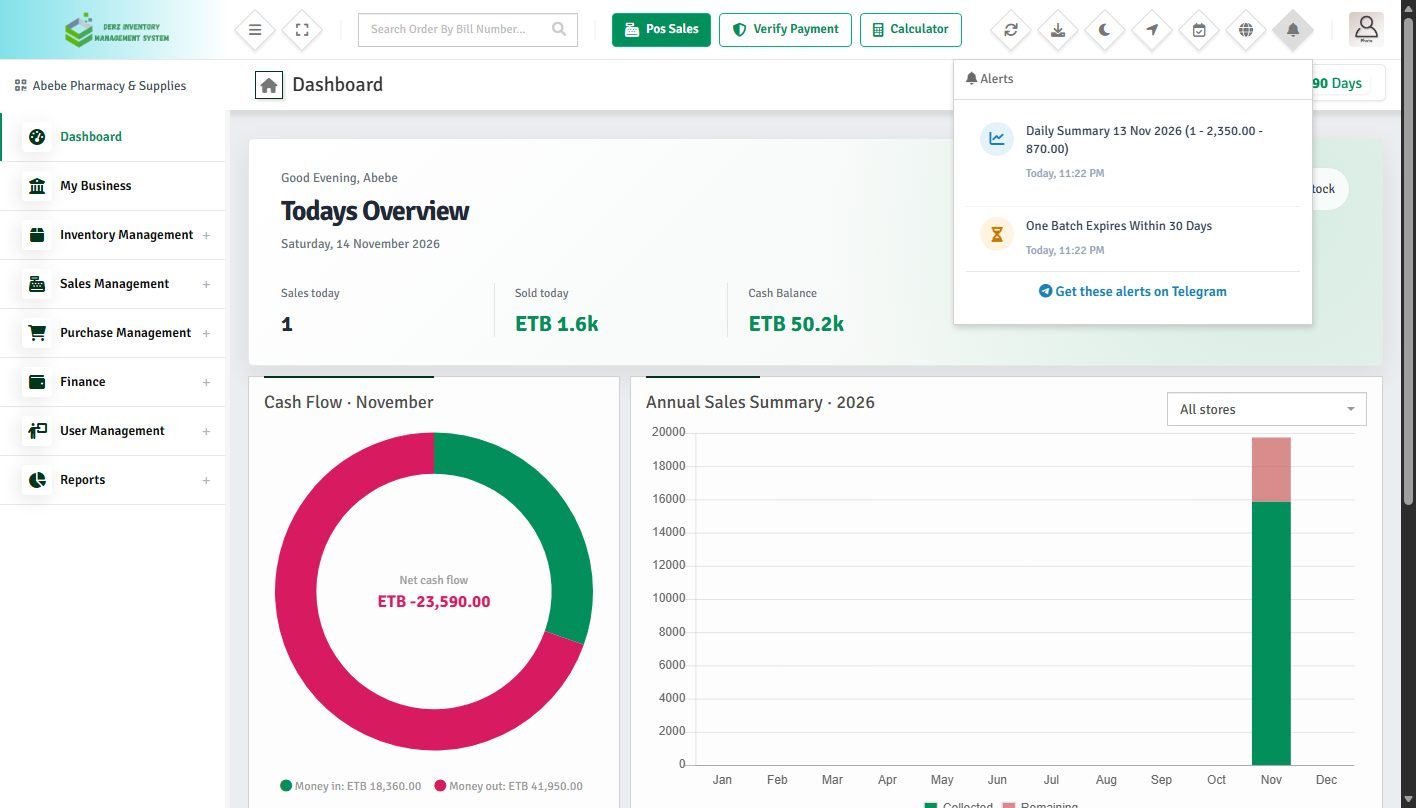
| Alerts | Low stock, expiring batches, overdue dues, the daily summary. See Alerts. |
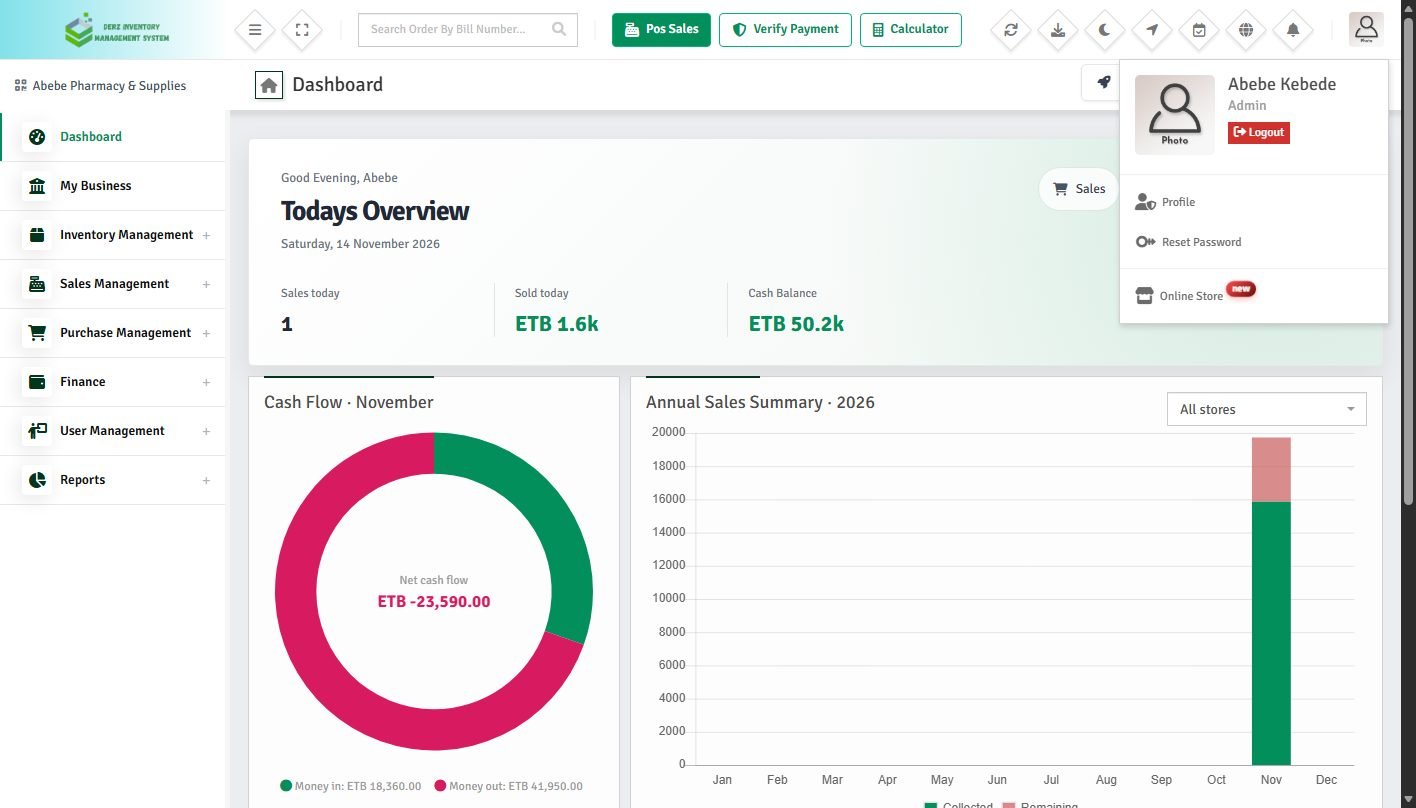
| Your profile | Your profile, password reset, the online store and log out. |
Plan badge
At the top right of every page you see your current plan and how many days are left. Click the days to renew or upgrade. The badge turns orange in the last 7 days and red when the plan has expired. After expiry the system is read-only: you can still see your data, but cannot add new records until you renew.
Getting started checklist
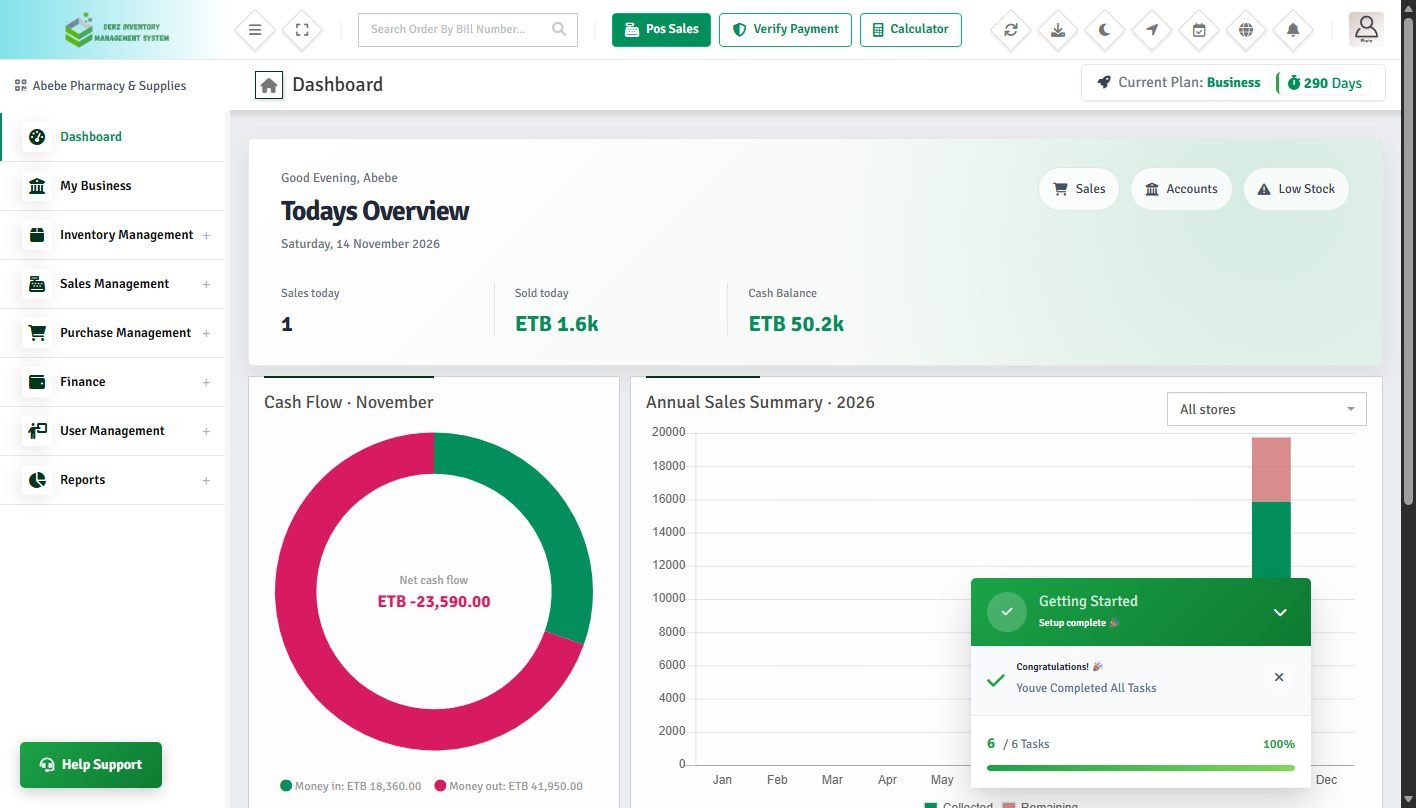
New businesses see a Getting Started checklist at the bottom right of the dashboard. It lists the first things to set up: your business profile, locations, products, opening stock, and so on. Each item ticks itself when you complete it.
Guided tour
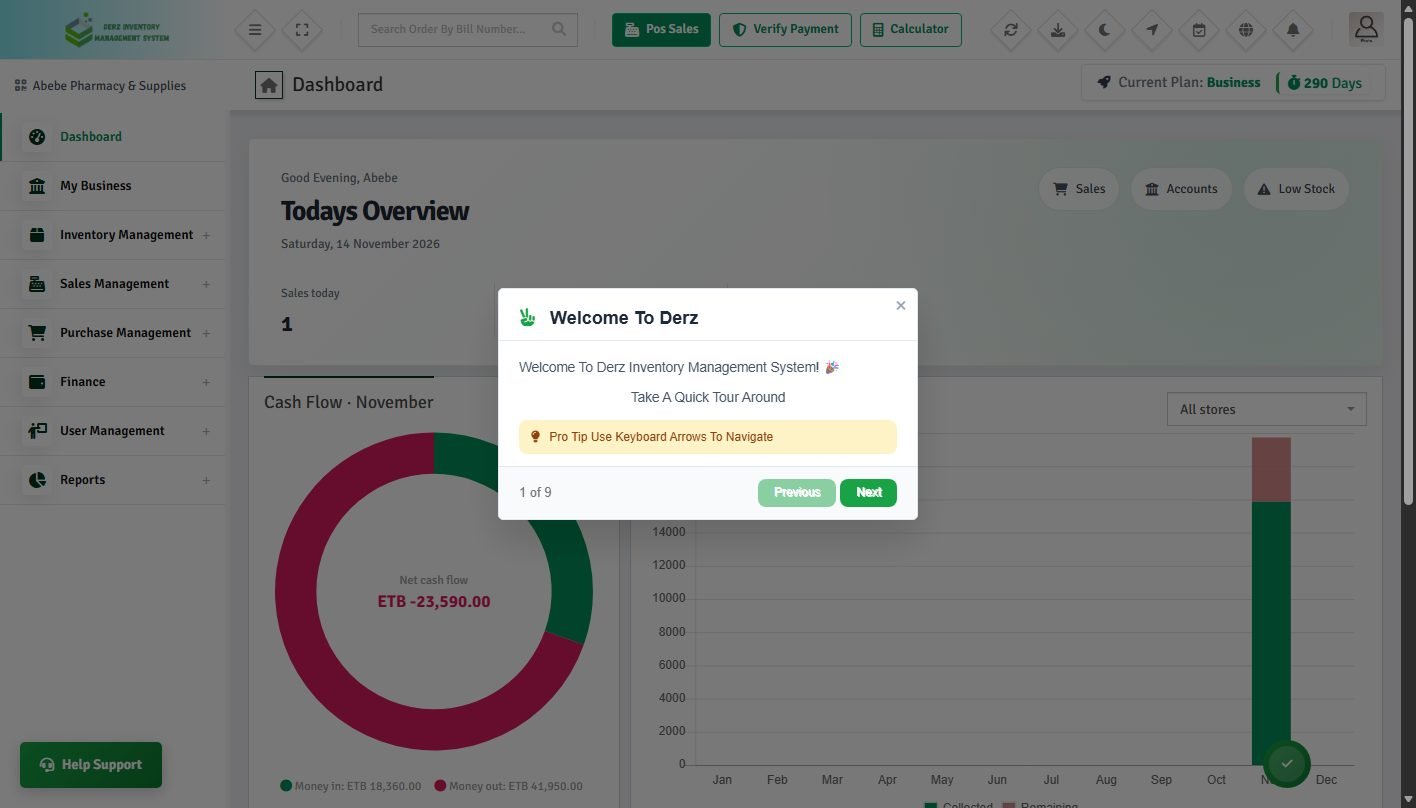
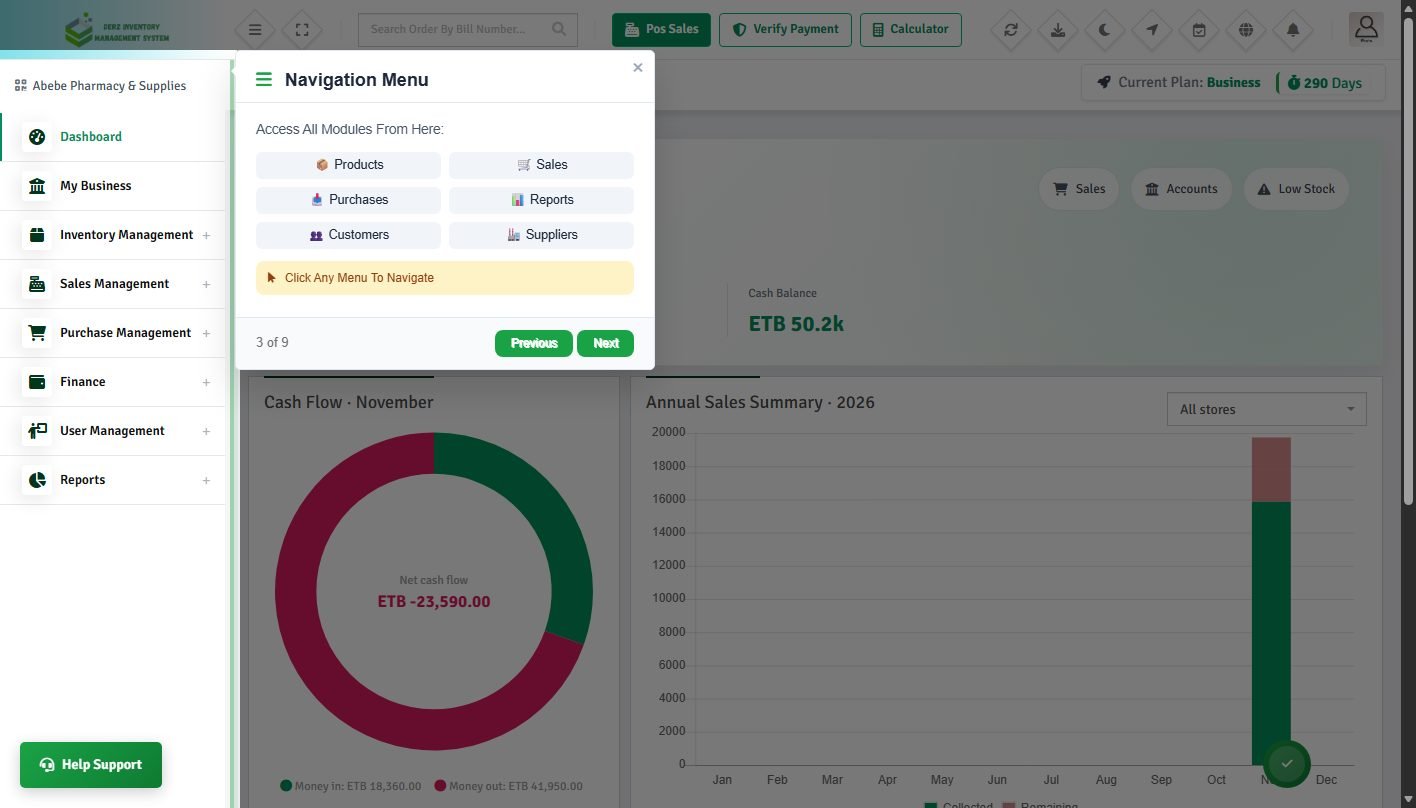
The first time the owner opens the dashboard, a short guided tour walks through the screen. Use Next and Previous or the arrow keys on your keyboard. You can replay the tour at any time from the help menu.
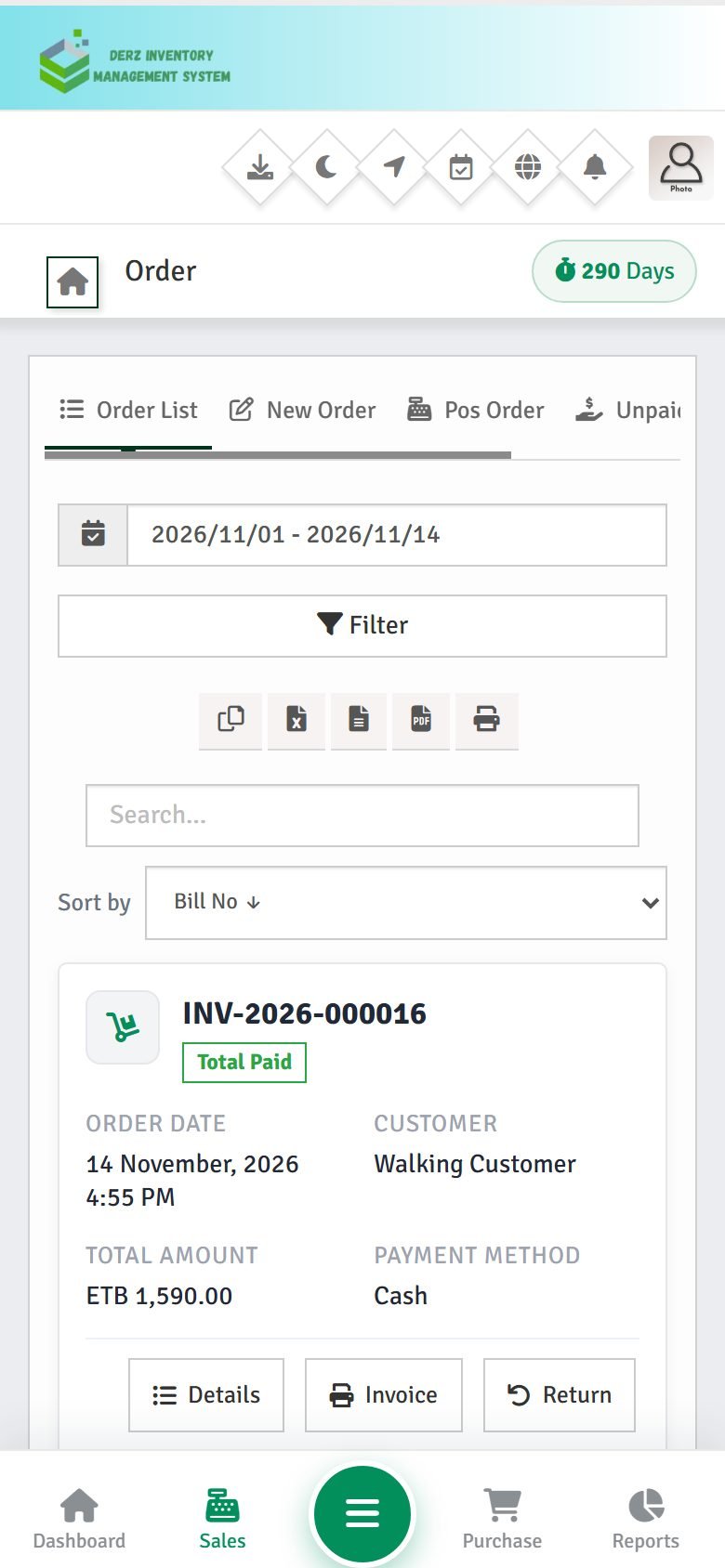
Using DerZ on a phone
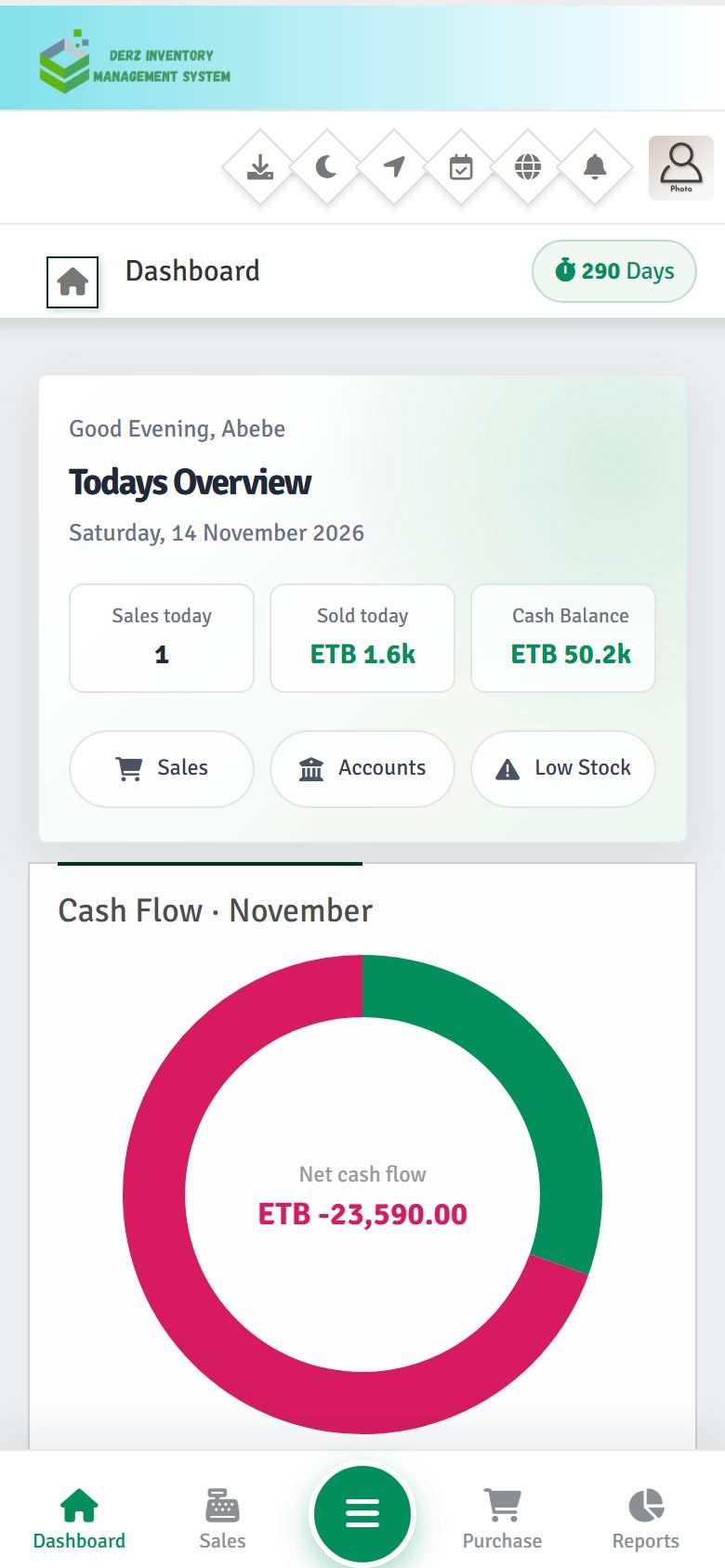
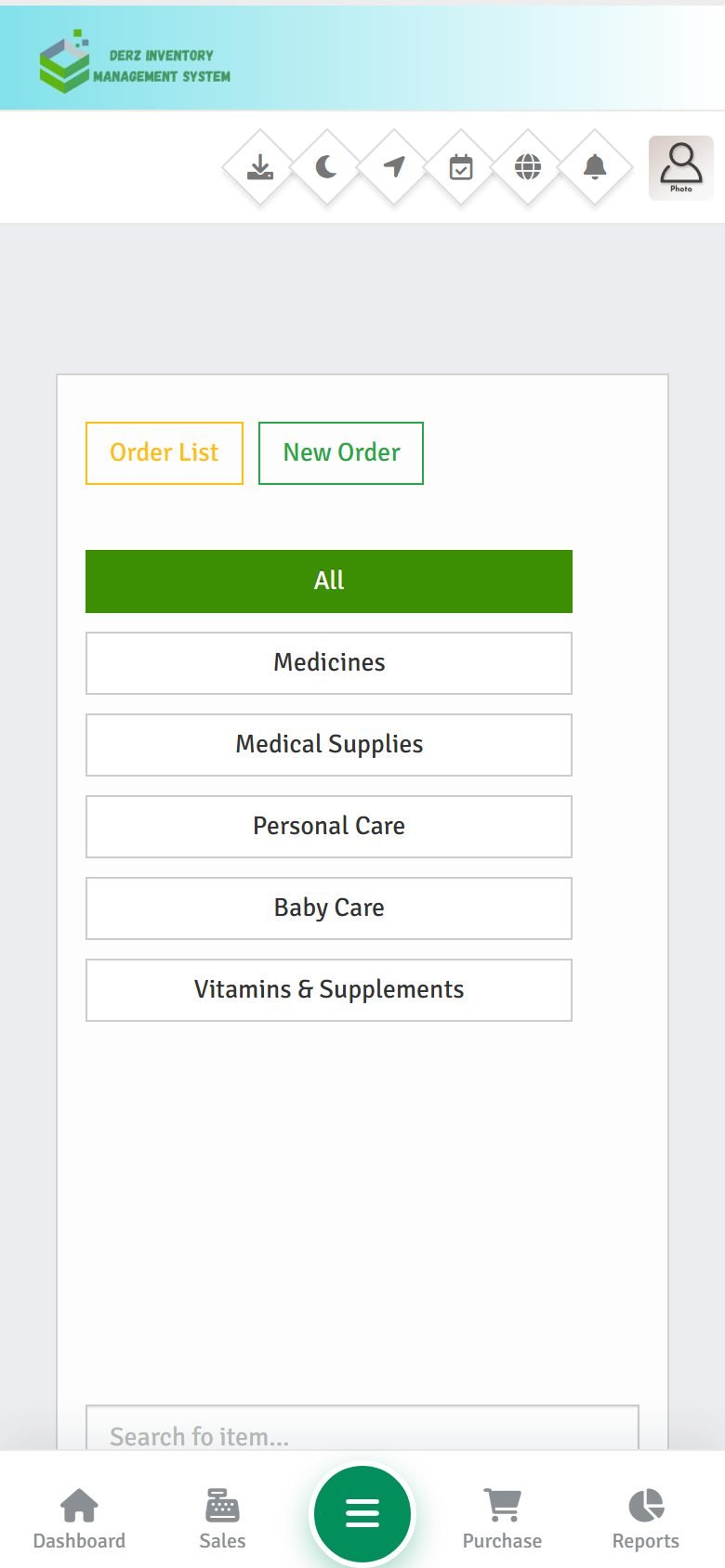
DerZ works on any phone browser. On a small screen:
- A bottom bar gives one-tap access to Dashboard, Sales, the menu, Purchase and Reports.
- Tables turn into easy-to-read cards, with the action buttons under each card.
- Use Install in the top bar to add DerZ to your home screen like an app.
Recommended first steps
- Complete your business profile (logo, phone, address, TIN).
- Check the business settings: tax, invoice prefixes, stock options.
- Add your stores and warehouses.
- Add accounts: cash till, bank, telebirr, with their current balances.
- Add products, one by one or with a bulk import.
- Enter the stock you already have as opening stock, and existing customer and supplier balances as opening due.
- Add your staff and give them roles.
- Start selling!
Part 2
My Business
Your business profile, the settings that change how DerZ works for you, your plan, Telegram alerts and the online store. These pages are in tabs along the top.
Company profile
The Profile tab shows your business card on the left and your plan on the right: plan name, price, expiry date, days remaining, billing cycle and your last and next payment. Below are the usage statistics: how many users, stores and warehouses you use out of what your plan allows.

Edit your profile
Click Edit Profile to change:
- Business identity: name and logo. The business name is also the name staff type when they sign in with a username, so tell them when you rename it.
- Contact: phone, email, website, city and address. They appear on invoices and on your online store.
- Tax: TIN and VAT number, printed on invoices.
- Invoice note: a line printed at the bottom of every invoice, e.g. your return policy or bank account.
A Verified business badge appears on your profile once the DerZ team has verified your business.
Business settings
The settings are grouped in six tabs. Change what you need and click Save. If something is wrong, DerZ opens the tab with the problem and points to the field.
Business defaults
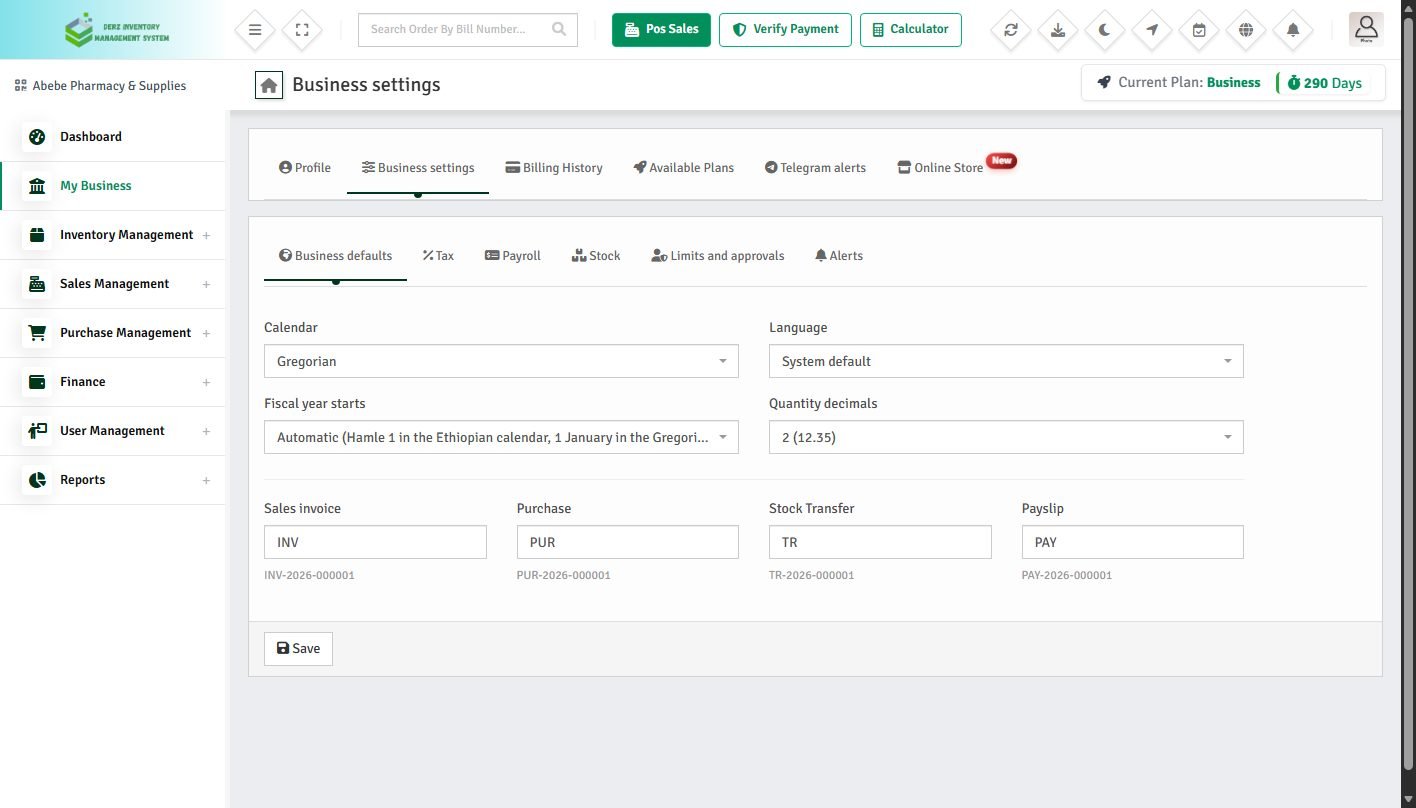
| Setting | Meaning |
|---|---|
| Calendar | Show dates in the Gregorian or Ethiopian calendar for everyone in the business. |
| Language | The default language for your staff. |
| Fiscal year start | When your financial year begins: Hamle, Meskerem, July or January (or automatic). Used by the financial reports. |
| Quantity decimals | How many decimals quantities may have, e.g. 2 to sell 1.25 kg. |
| Number prefixes | The start of each document number: sales invoice (INV), purchase (PUR), stock transfer (TR), payslip (PAY). The preview below each box shows the result, e.g. INV-2026-000001. |
Tax
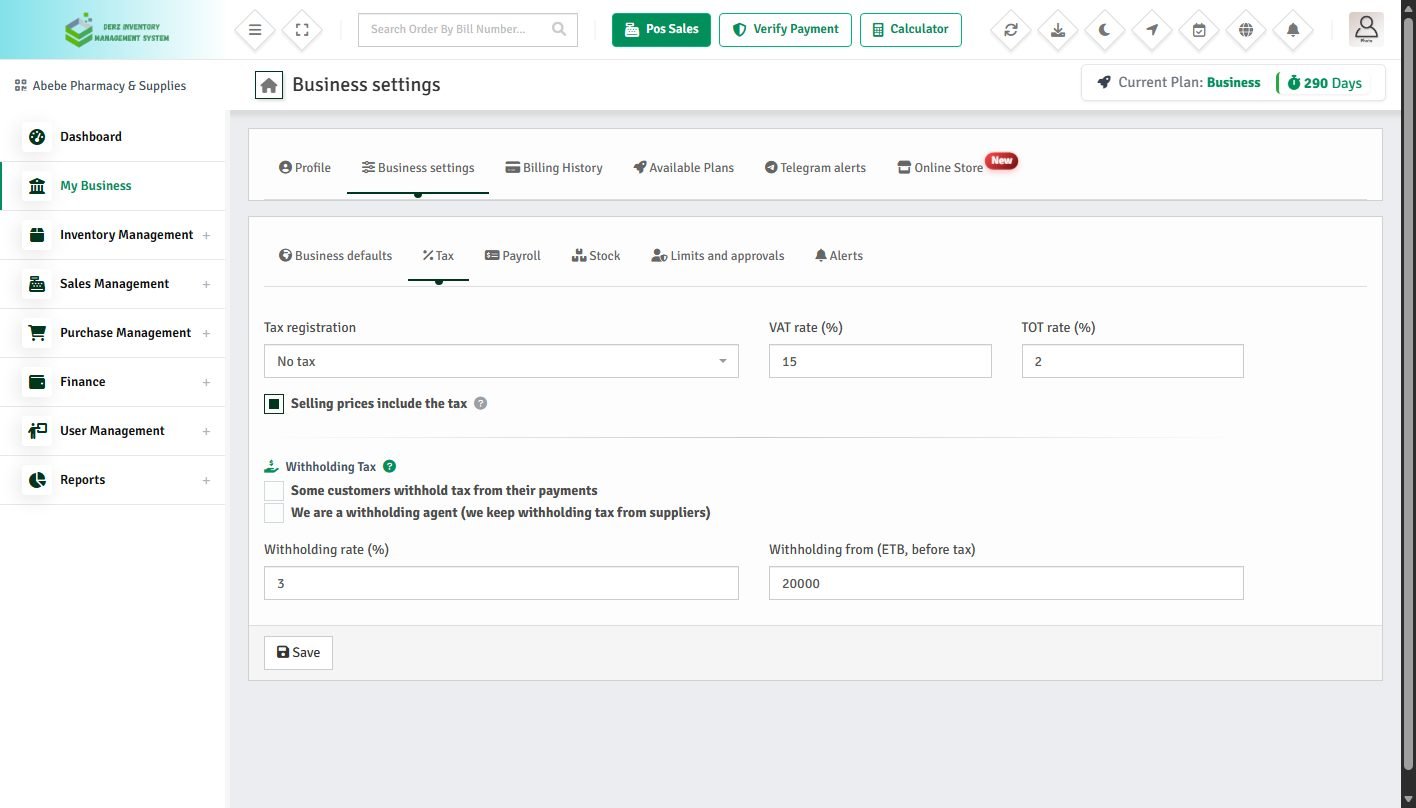
- Tax registration: No tax, VAT (15%) or TOT (2%). With No tax, every store sells without tax, the per-store tax choice is hidden and so is the tax report.
- Prices include tax: tick it if your selling prices already include VAT or TOT.
- Withholding tax: if your customers withhold tax from you, or you are a withholding agent yourself, with the rate (e.g. 3%) and the threshold above which it applies.
A single product can be marked tax exempt on its product page. It is then sold without VAT or TOT.
Payroll
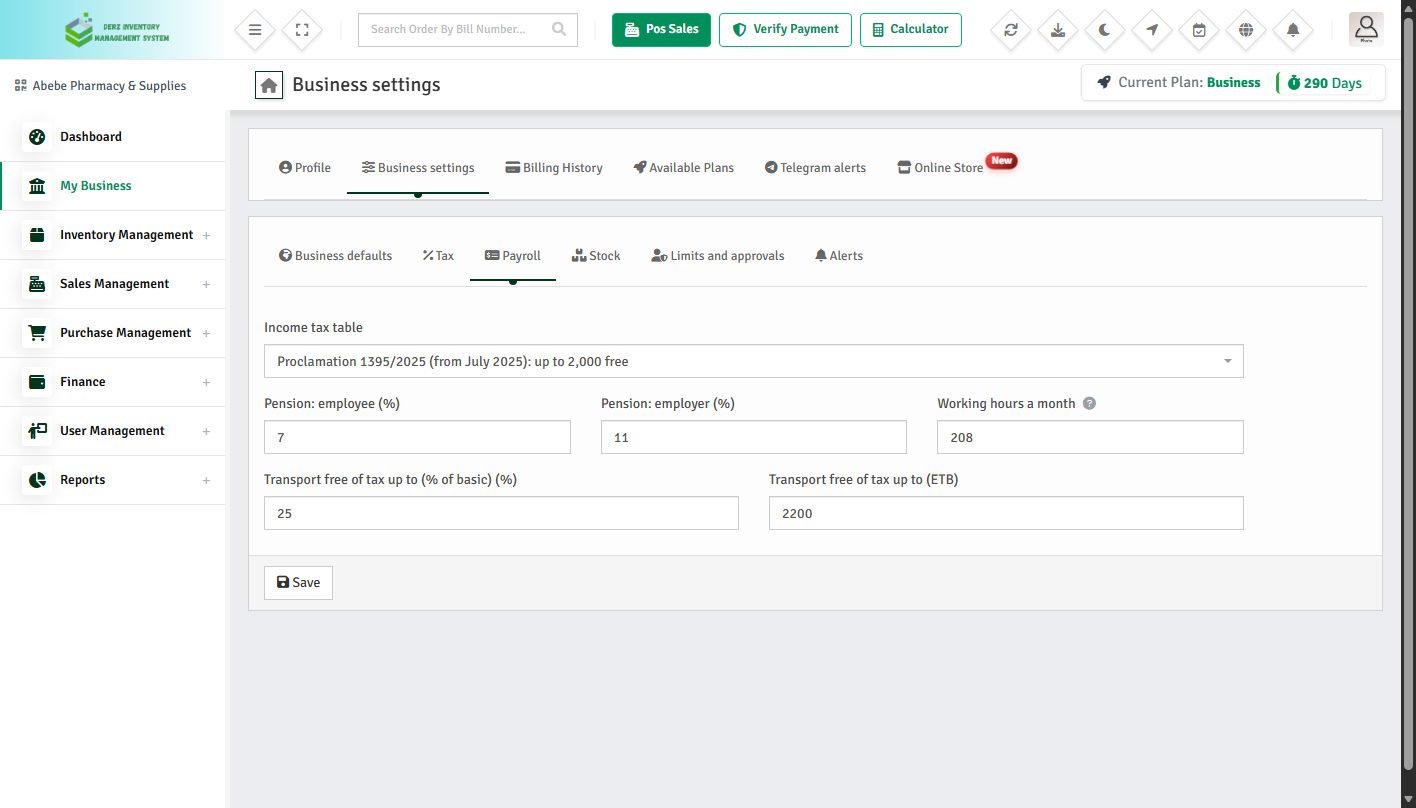
The income tax table (2025 or the older 2016 table), pension rates (employee 7%, employer 11%), monthly work hours (for overtime) and the tax-free part of the transport allowance. The defaults follow Ethiopian law; check them with your accountant.
Stock
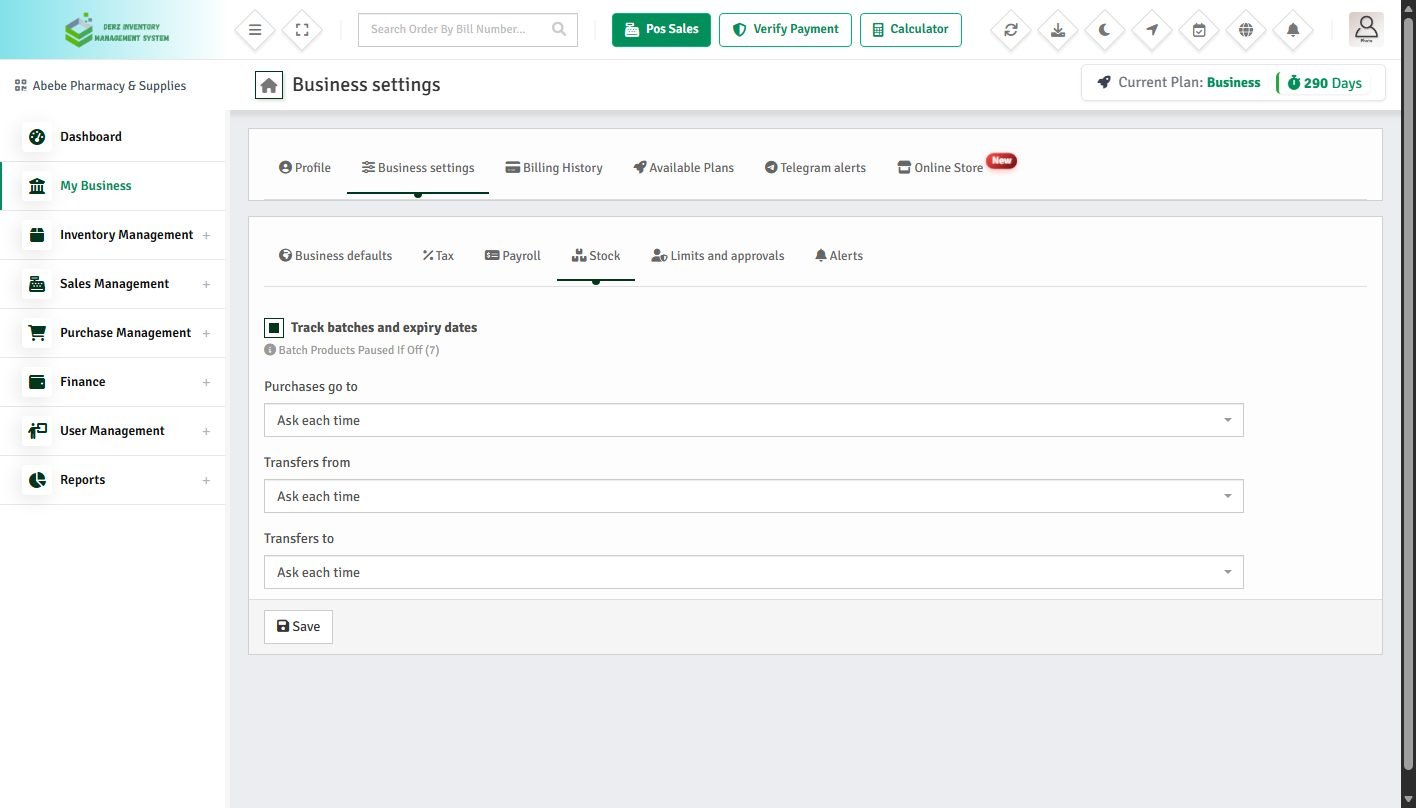
- Batch tracking: turn it on to record batch numbers and expiry dates (pharmacies, food). Products that track batches then ask for the batch on every sale, purchase and transfer.
- Default purchase location, Default stock transfer from / to: the location chosen beforehand on those forms, or Ask each time.
Limits and approvals
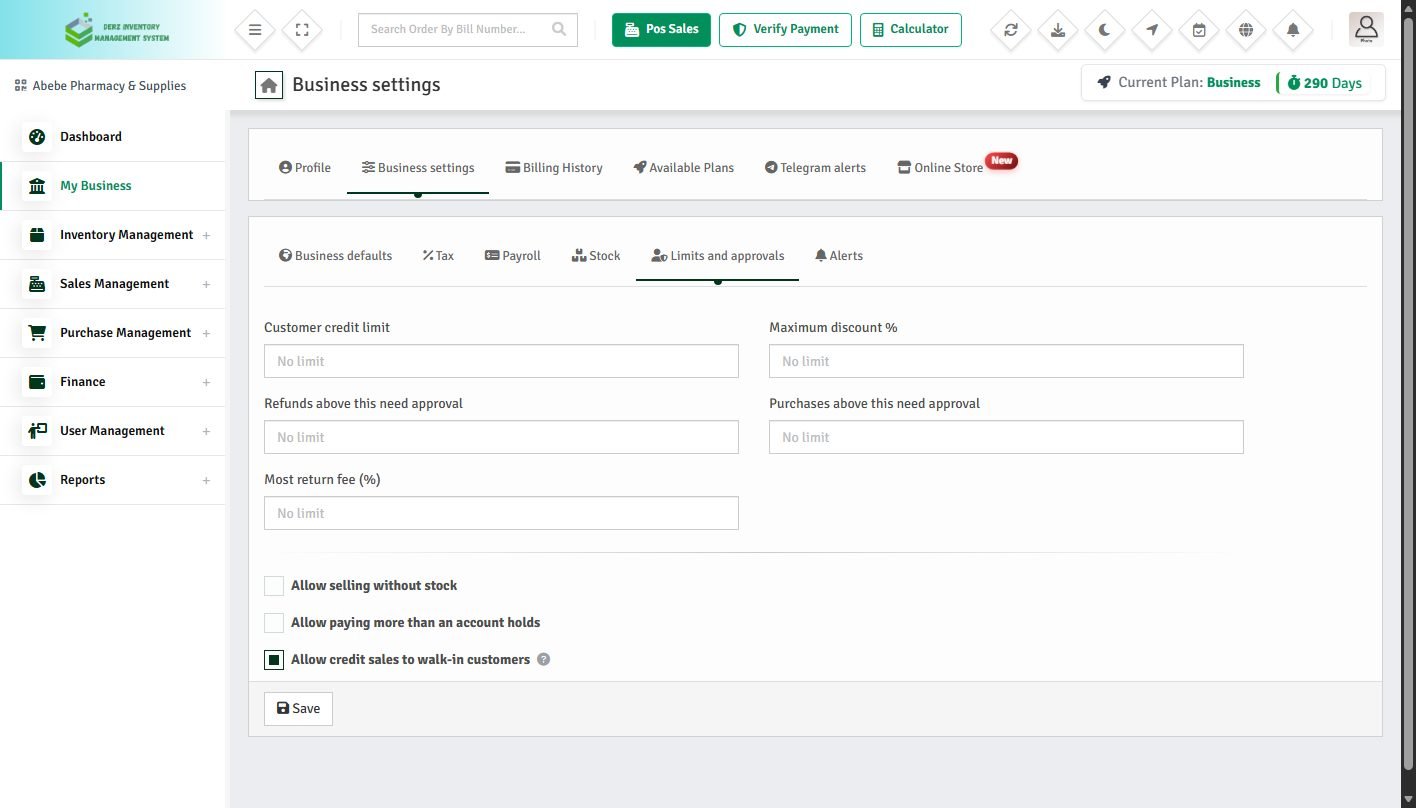
| Setting | Meaning |
|---|---|
| Customer credit limit | The most a customer may owe. A sale that goes above it is refused. Empty = no limit. |
| Maximum discount % | The largest discount staff may give on a sale. |
| Approvals | Refunds and purchases above an amount need approval by the admin. |
| Maximum return fee % | The largest part of a refund that may be kept as a return fee. |
| Allow negative stock | Allow selling more than the system shows in stock. Off by default. |
| Allow negative balance | Allow paying from an account with too little money in it. |
| Allow credit sales to walk-in customers | When off, a sale to “Walking Customer” must be paid in full; credit is only for named customers. |
Alerts
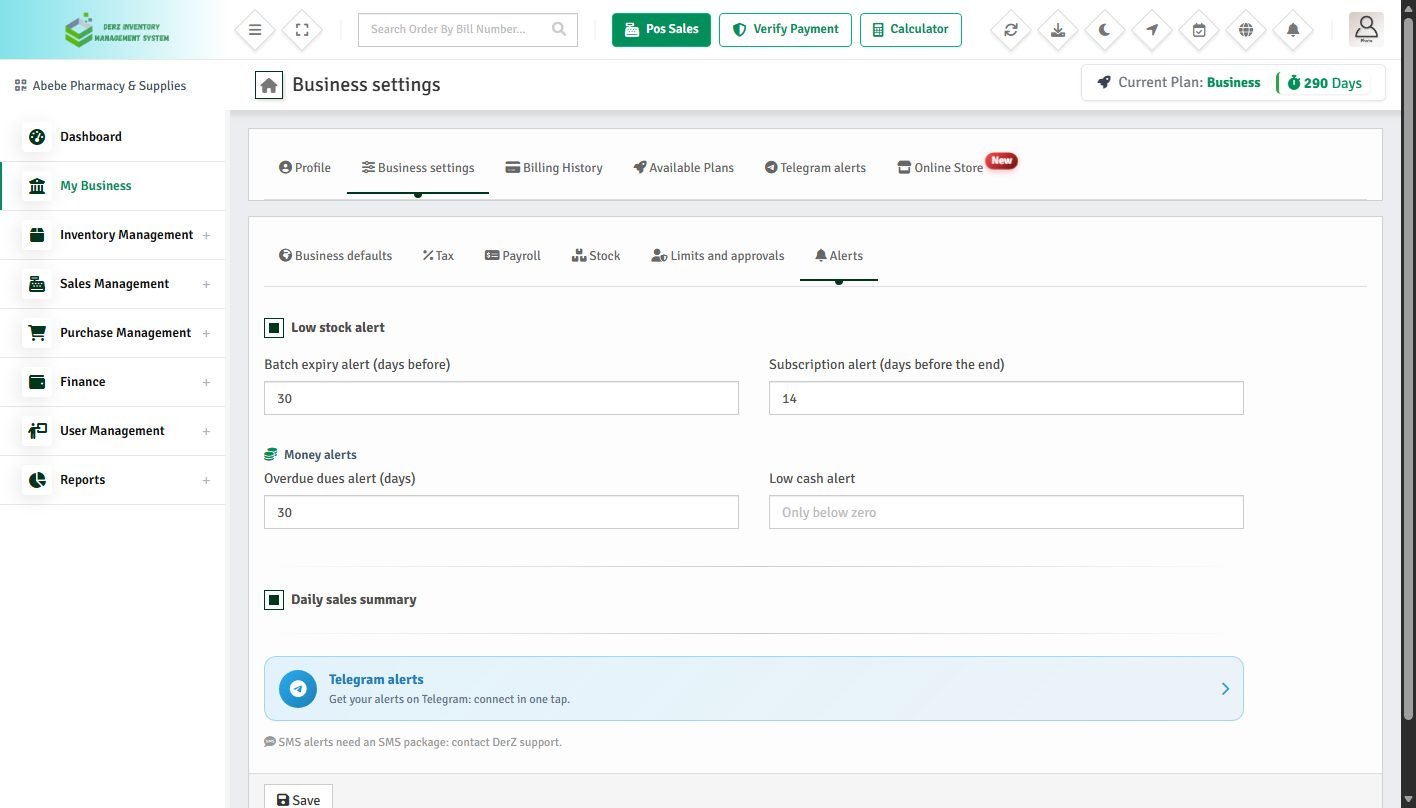
Low stock alerts, how many days before expiry a batch is reported, the subscription reminder, money alerts (overdue dues after N days, low cash below an amount), and a daily summary. Alerts appear under in the top bar, and on Telegram if you connect it.
Telegram alerts
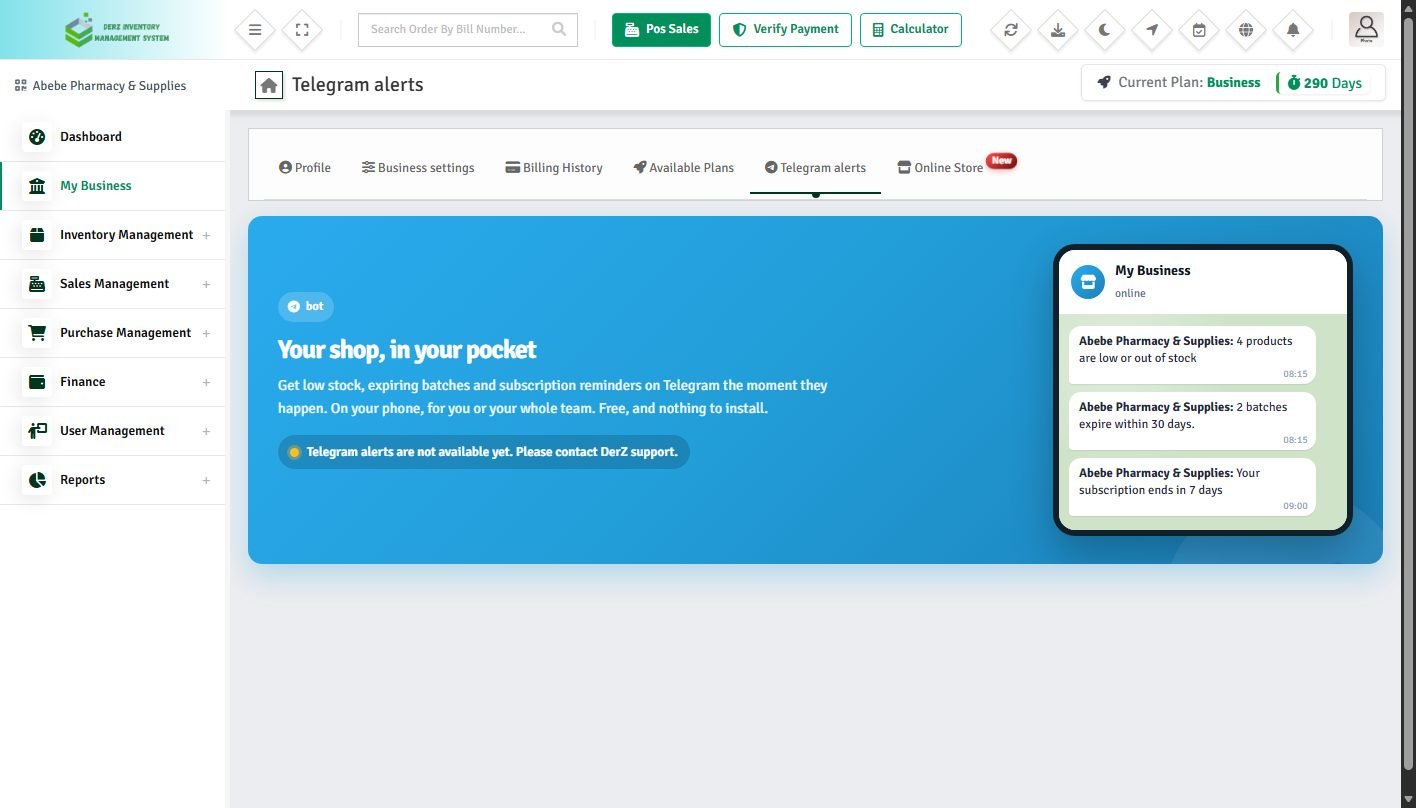
Connect the DerZ Telegram bot to receive alerts on your phone: the daily sales summary, low stock, expiring batches and overdue payments. Click the connect button, open the bot in Telegram and press Start.
Plans & billing
Compare the plans: each lists its price, how many users, stores and warehouses it includes, and which modules (batches, HR, accounting reports…). The bar at the top shows what you use now. To upgrade or renew:
- Click the plan and choose the period (e.g. one year or 4 months).
- Pay by bank transfer or telebirr to the account shown.
- Give the payment reference, a photo or PDF of the receipt, or both. Your plan is activated once the payment is confirmed.

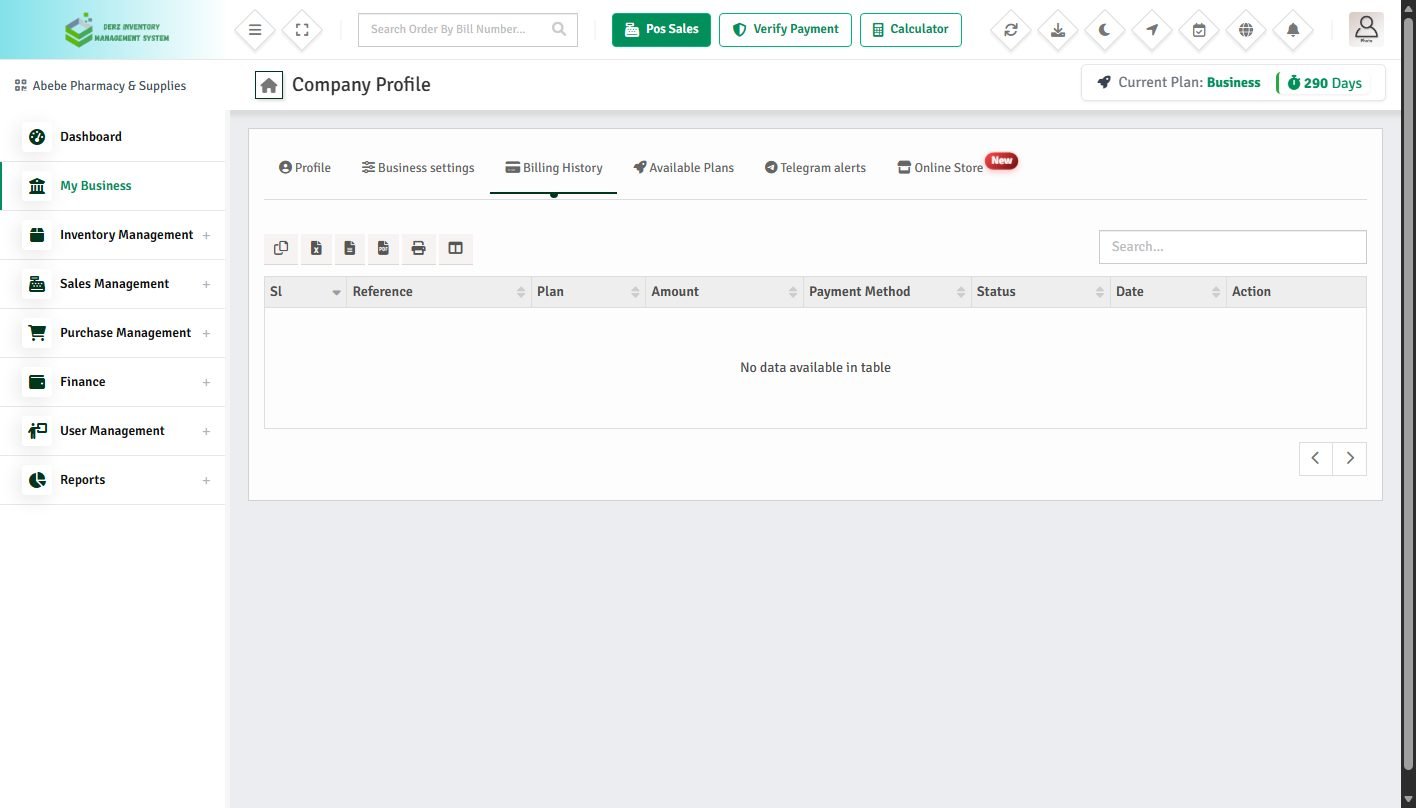
Billing History lists every payment with its reference, amount, status, receipt and invoice. Add-ons are extra modules you can buy on top of your plan.

Online store
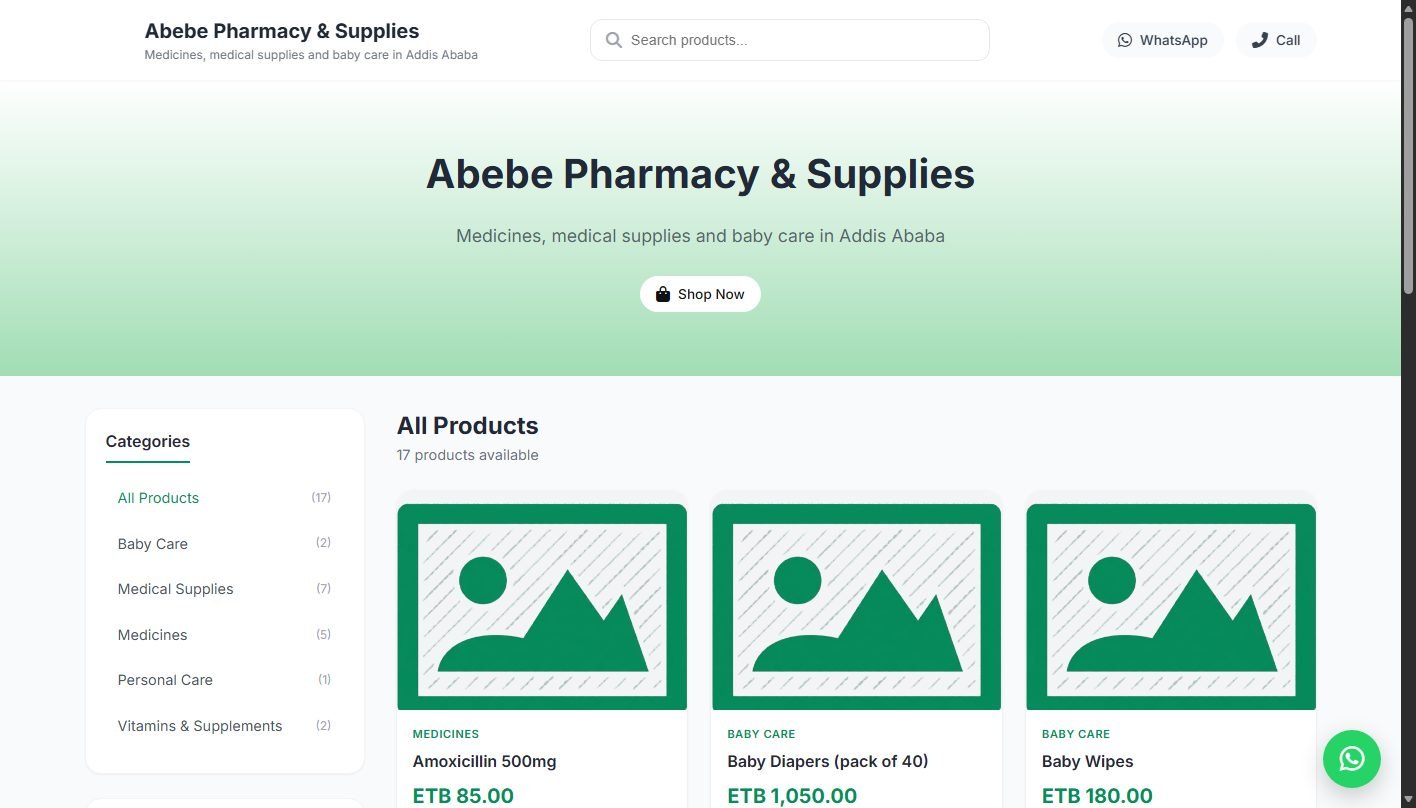
Give your customers a public web page with your products, prices and contact buttons. No website needed.
- Tick Show my online store and save. DerZ creates your page address from your business name, e.g.
…/catalog/abebe-pharmacy. Use Copy to share it, or Open Store to see it. - Your phone, email, address and website come from your business profile, so there is nothing to type twice. The WhatsApp button uses your business phone unless you enter another number.
- Pick a theme and colour, add your social links, business hours and a page title and description for Google.
- In Catalog Products, choose which products show on the website, which are featured, and an optional discounted price.

Part 3
Inventory Management
Where you keep stock, what you sell, and how much of it you have.
Locations: stores & warehouses
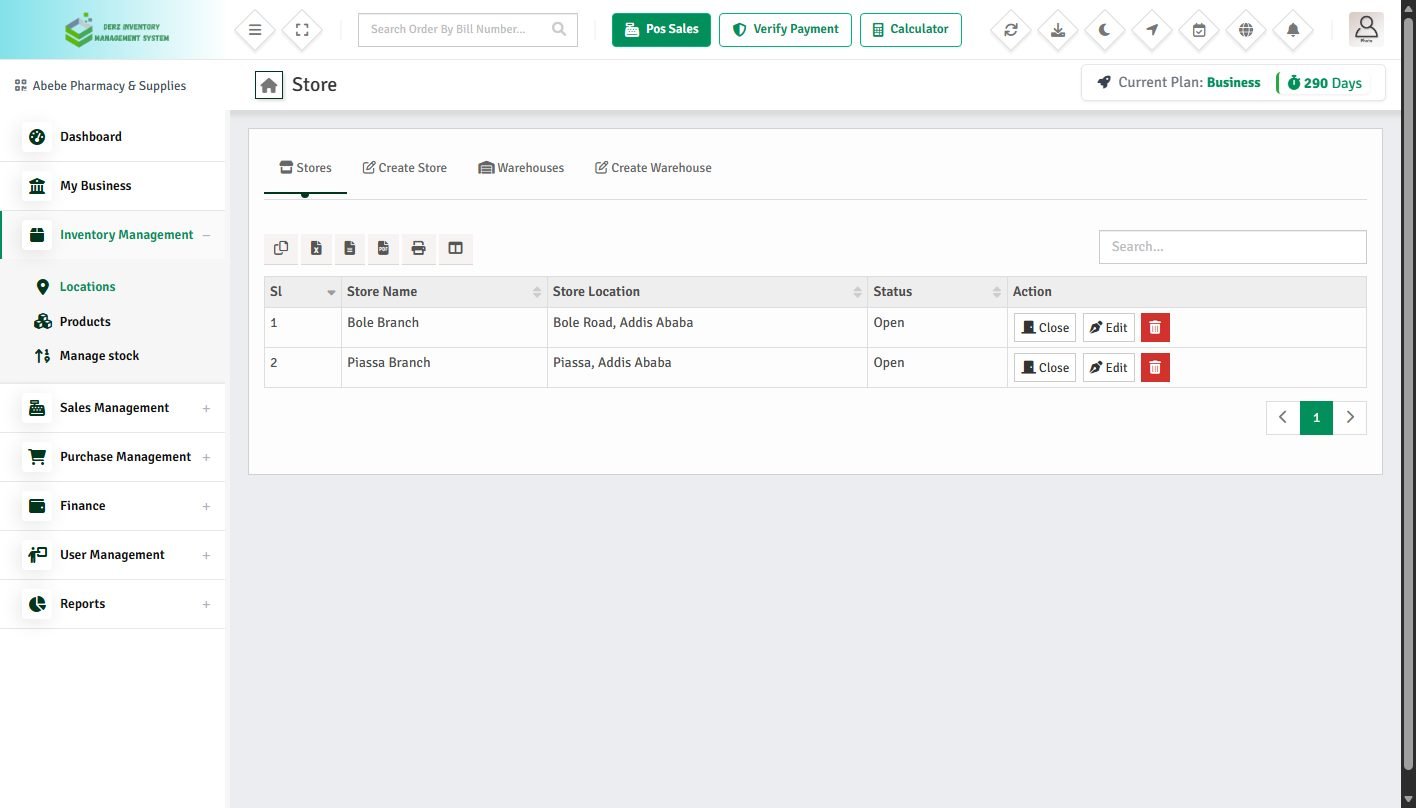
A store is a place where you sell (a shop or branch). A warehouse is a place where you only keep stock. Each sale comes out of a store; purchases can go into a store or a warehouse.
Add a store or warehouse
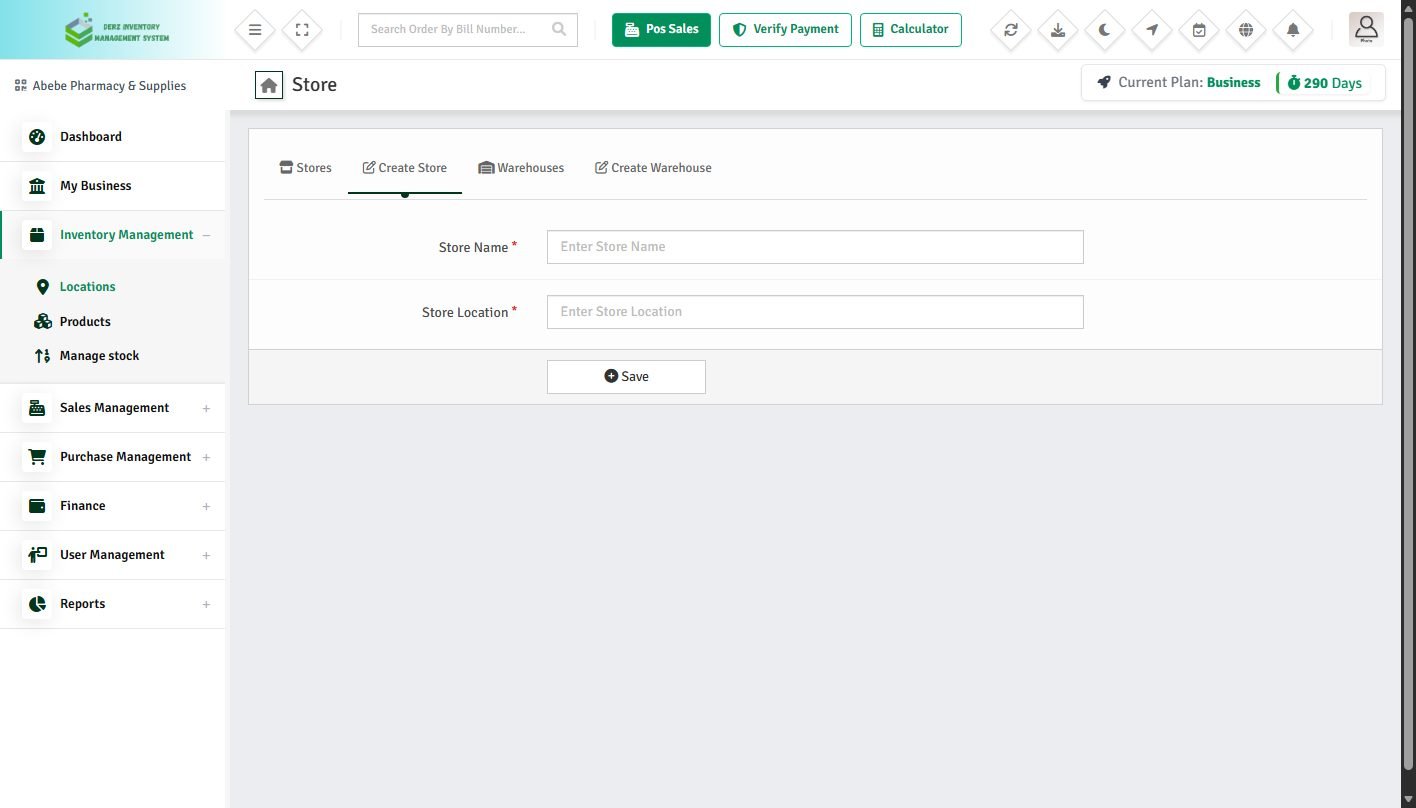
Open Create Store or Create Warehouse, enter the name and location, and save. How many you may have depends on your plan. For each store you can also choose its tax type (unless the business has No tax).
Close a location
Click Close to stop using a store or warehouse, for example when a branch shuts. A closed location is shown greyed out; it can no longer be chosen for sales, purchases or transfers, but its history stays in your reports. You can open it again later.
With only one store and no warehouse, DerZ runs in simple mode: purchases go straight into the store, and the transfer and warehouse screens are hidden.
Products
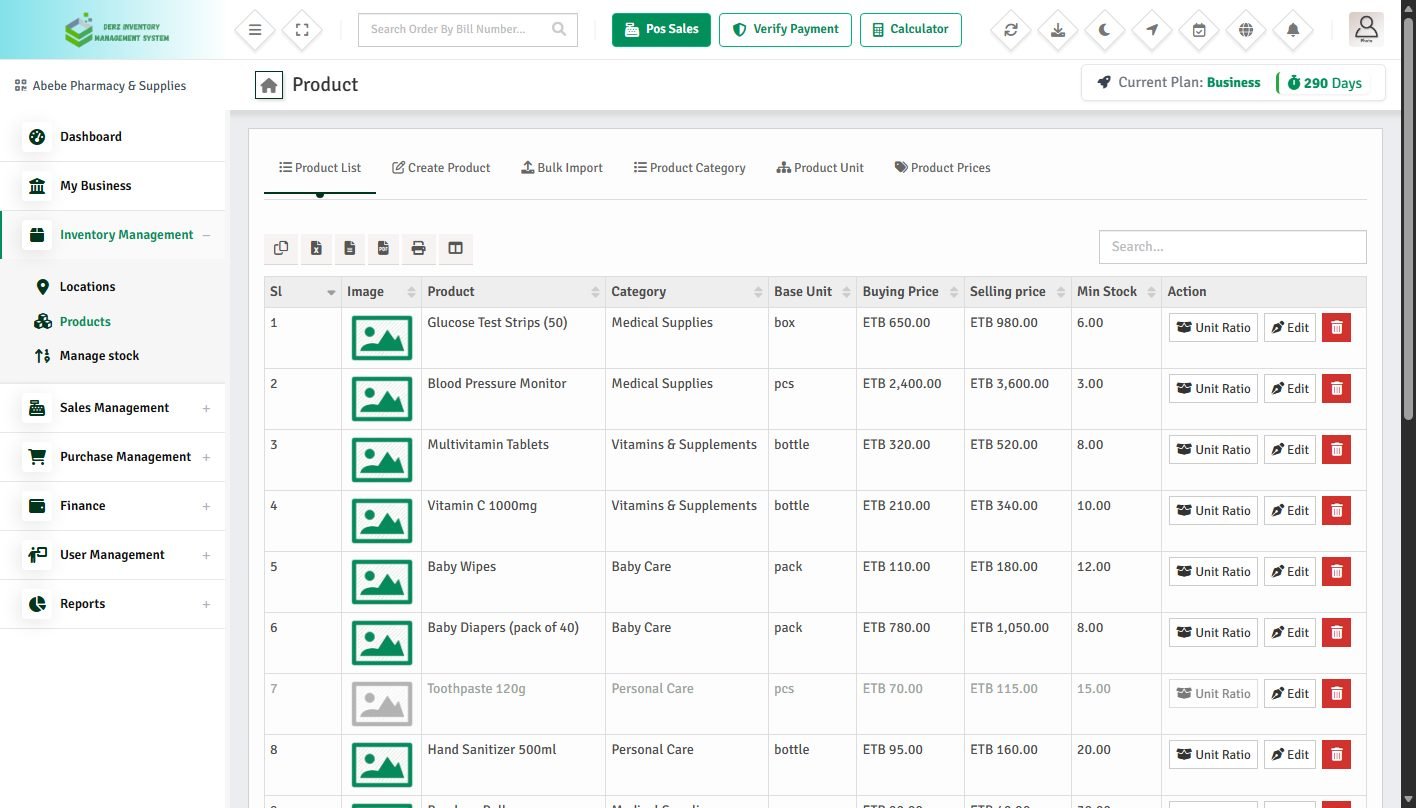
The product list shows each product’s image, category, base unit, buying and selling price and minimum stock. Search, sort, and export the list to Excel, CSV, PDF or print with the buttons above the table.
Create a product
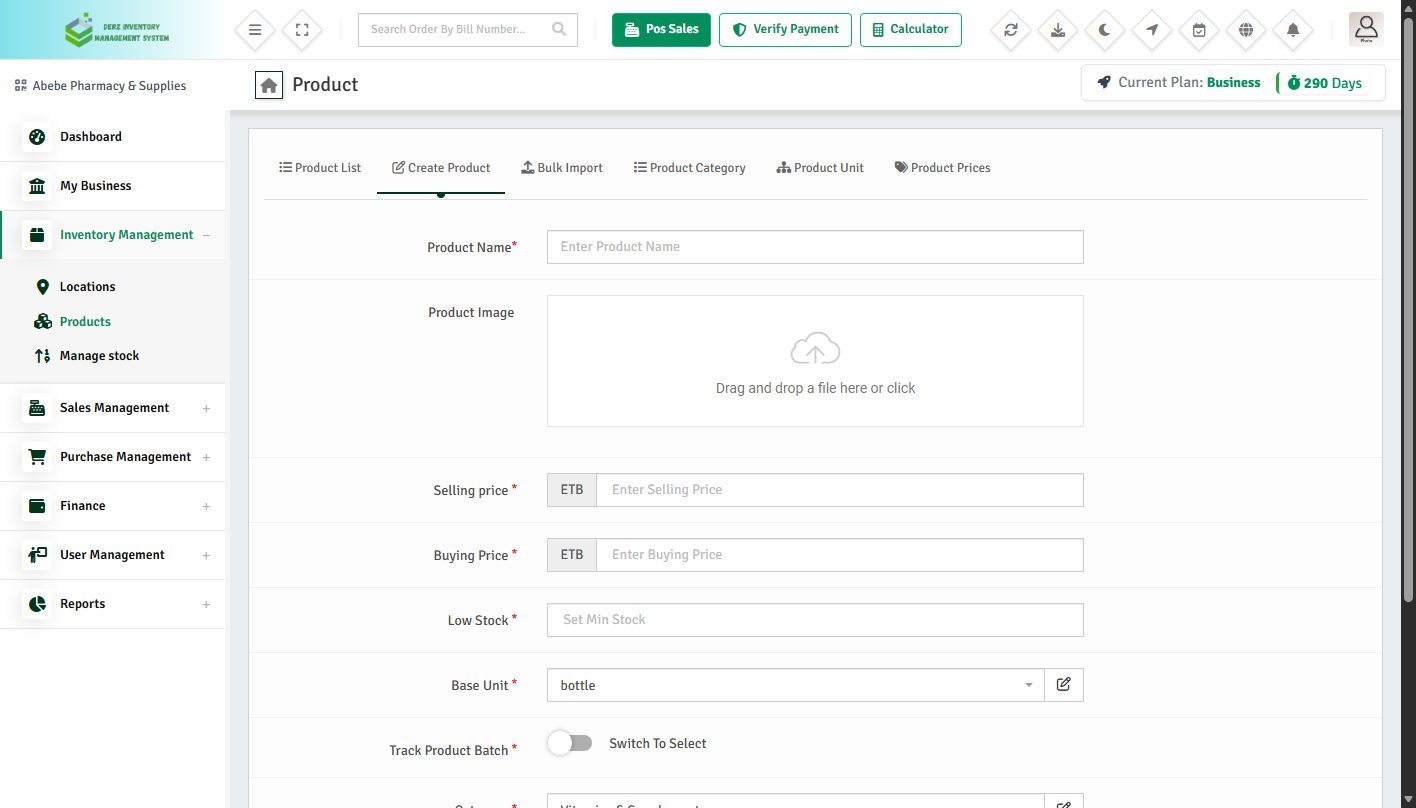
| Field | What to enter |
|---|---|
| Product name | As it should appear on invoices, e.g. “Paracetamol 500mg”. |
| Image | Optional photo, shown in the POS and the online store. |
| Selling price | The price per base unit. |
| Buying price | What you usually pay. Purchases update the stock value; this is used for profit. |
| Low stock | The minimum quantity. Below it the product shows in the low stock report and alerts. |
| Base unit | The smallest unit you count, e.g. strip, pcs, bottle. |
| Category | For grouping in reports, the POS and the online store. |
| Track product batch | Record batch numbers and expiry dates for this product (needs batch tracking on in settings). |
| Tax exempt | Sold without VAT / TOT. |
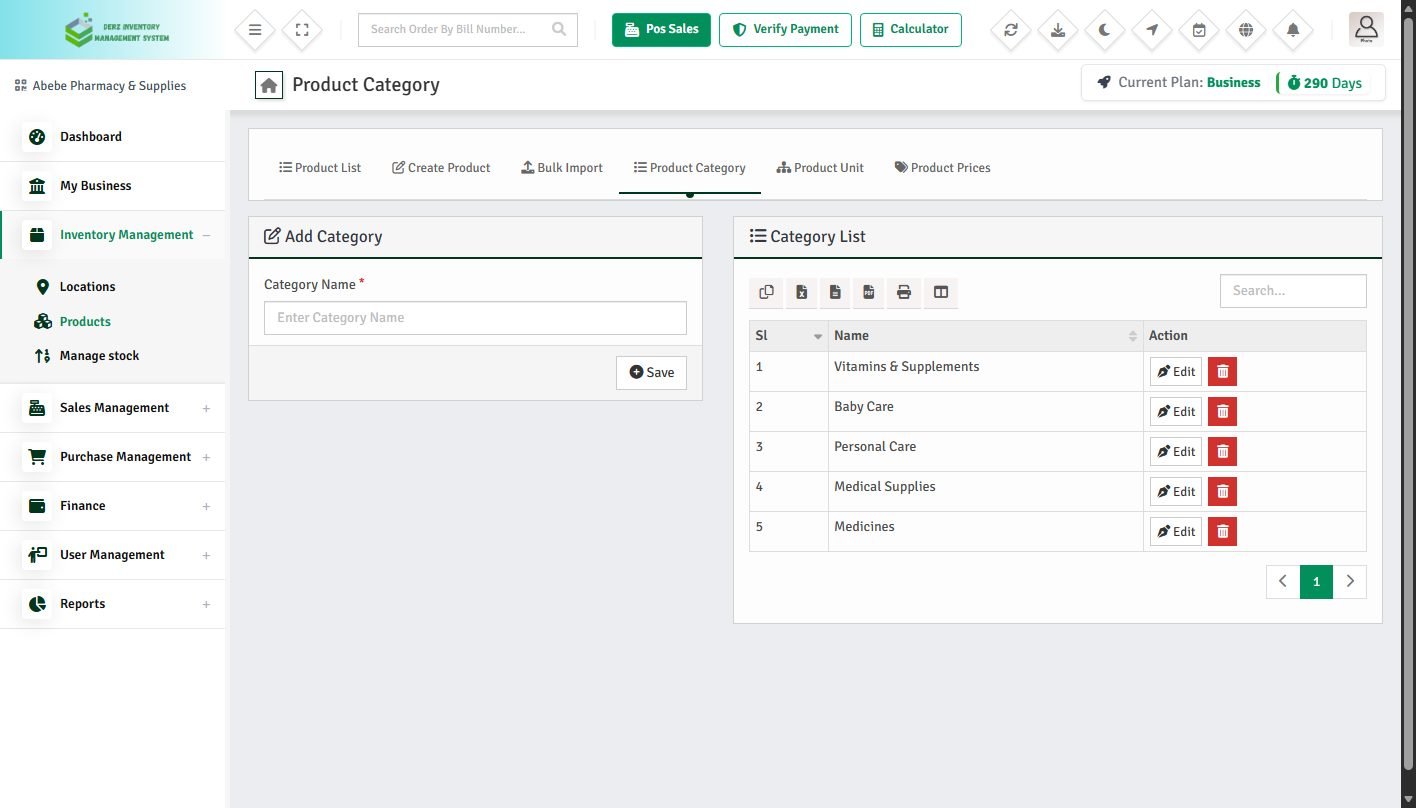
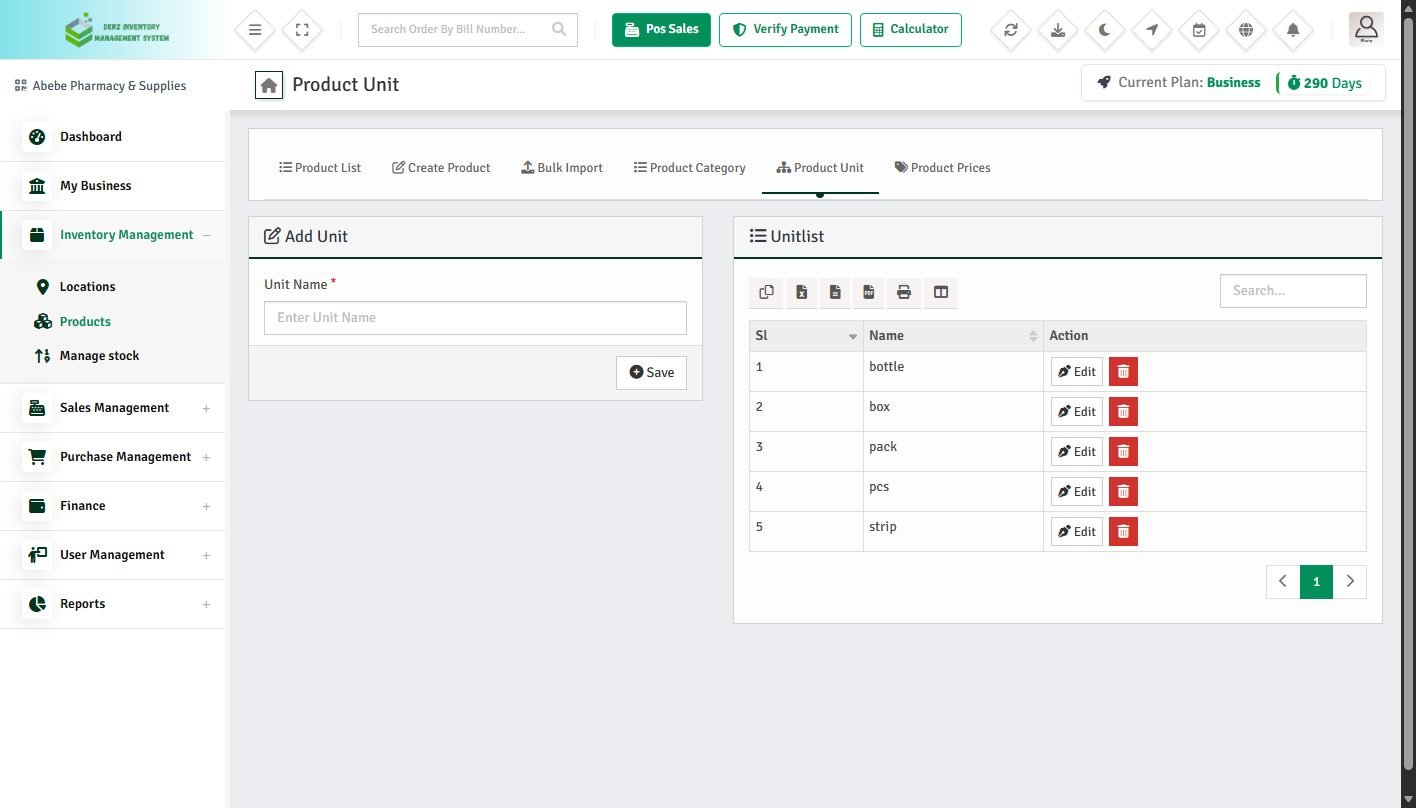
Missing a category or unit? Click the button next to the list to add one without leaving the form. See Quick create.
Units & conversions (Unit Ratio)
Sell the same product in more than one unit, e.g. by the strip and by the box of 10 strips. On the product list click Unit Ratio, add the unit, its size against the base unit (1 box = 10 strips) and its own price. At the sale you then choose the unit, and DerZ takes the right quantity out of stock. For a smaller unit (1 kg = 1000 g) use the swap button.
Categories and units
Bulk import
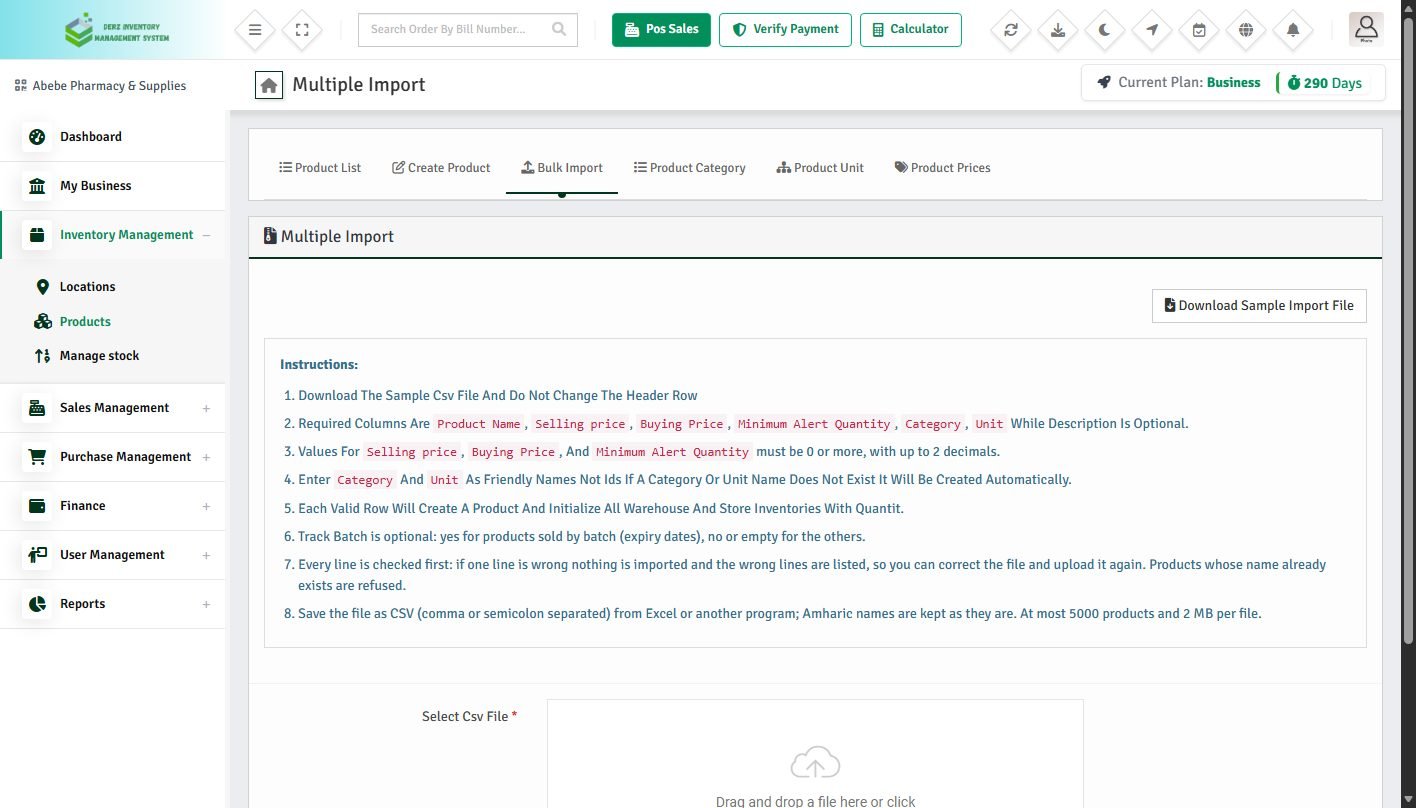
Add many products at once from a spreadsheet:
- Click Download Sample Import File and fill it in Excel. Do not change the header row.
- Required columns: product name, selling price, buying price, minimum alert quantity, category and unit. New categories and units are created automatically.
- Save as CSV, choose the file and click Import. If any row has a mistake, nothing is imported and DerZ tells you which row to fix.
Bulk update prices
Change many prices in one go: pick a category, click Filter, edit the buying and selling prices in the table and save.

Manage stock
See and correct what is in each location, move stock between locations, write off damaged goods and record the stock you started with.
Store stock and warehouse stock
Choose a store (or warehouse) and optionally a category, then click Filter. You see each product with its quantity. To correct a count, type the real quantity and save; only the rows you change are saved, with an optional reason. Batch-tracked products are corrected per batch with the button.
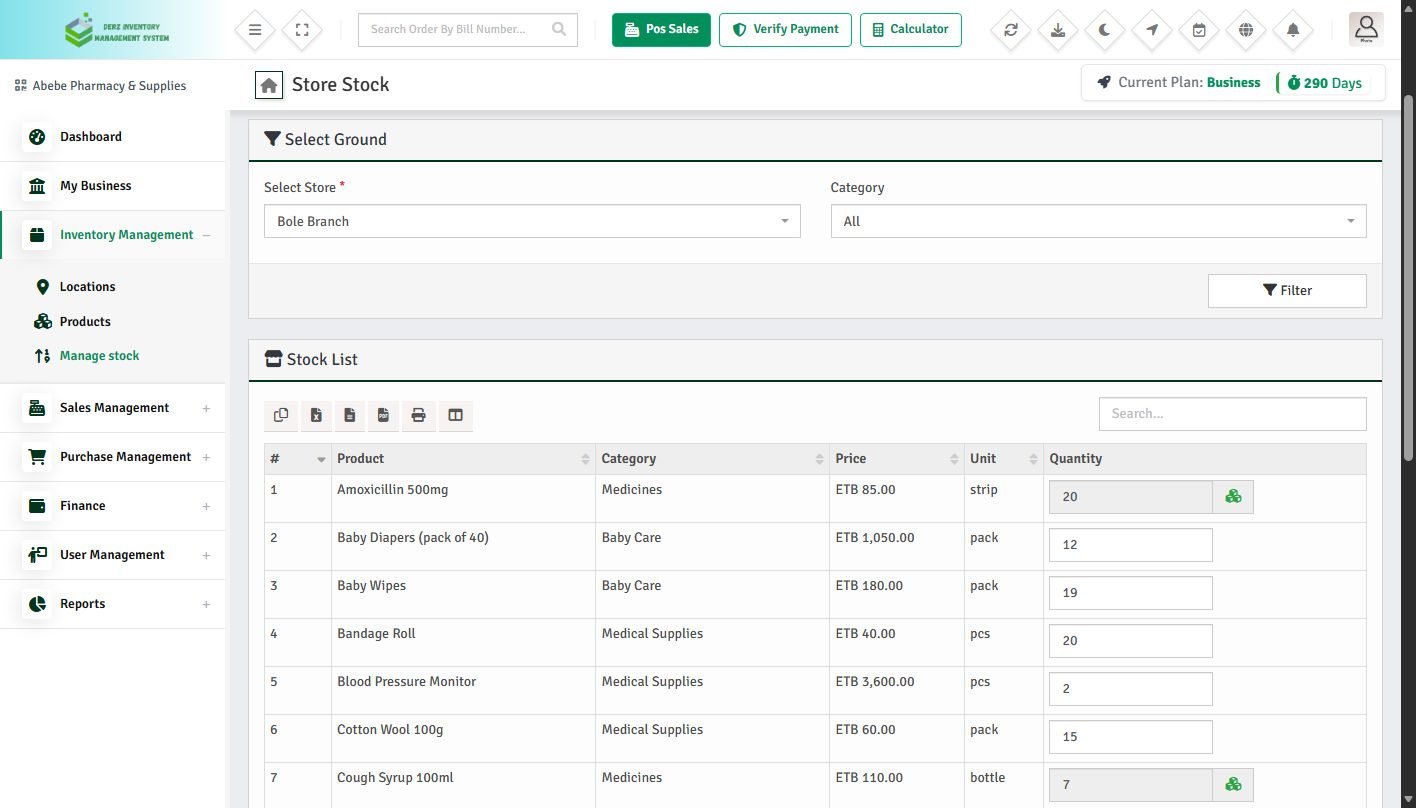
Stock you owned before you started using DerZ belongs in Opening stock, not here. Opening stock is booked as the owner’s capital; a count correction here is booked as a gain or loss.
Stock transfer
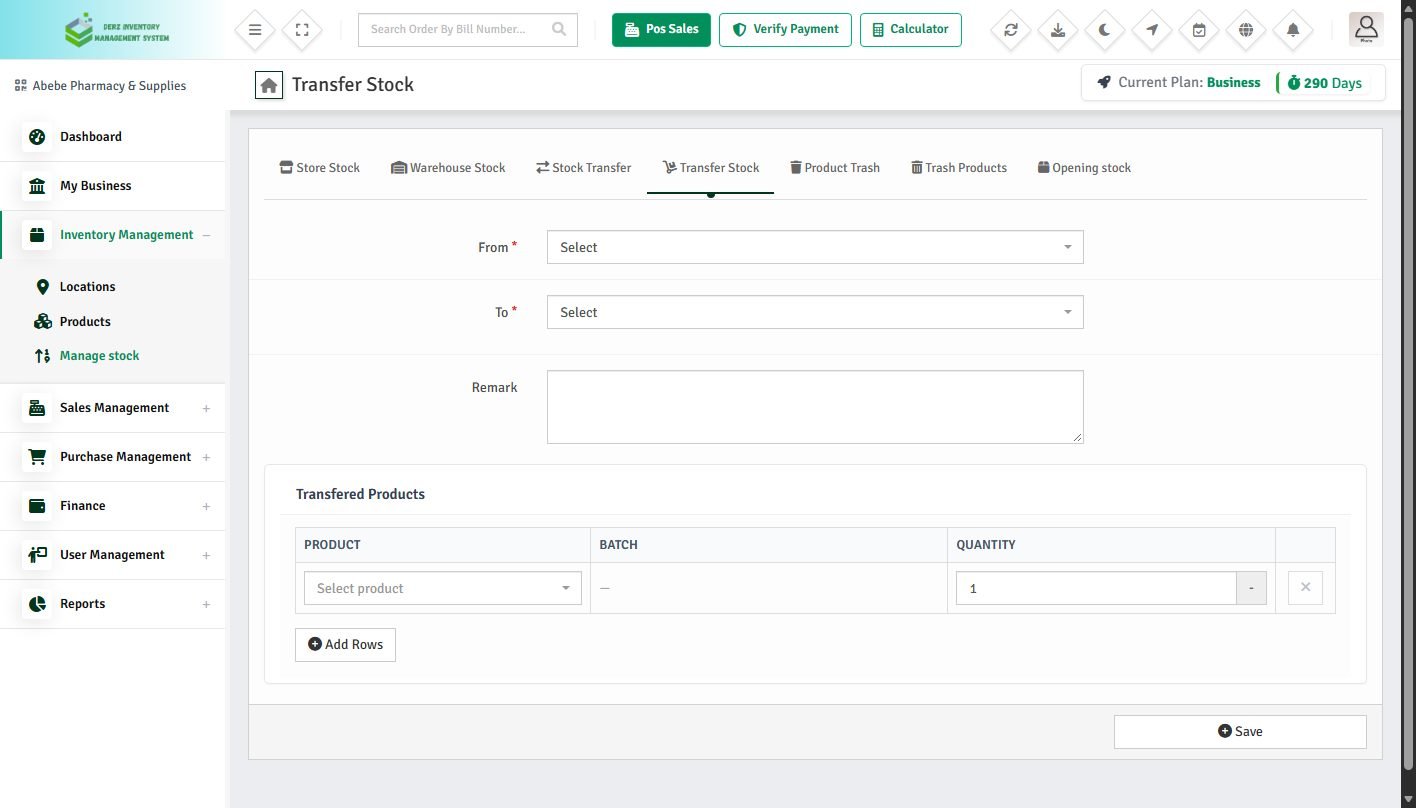
Move stock from one location to another: warehouse to store, store to warehouse, store to store, or warehouse to warehouse.
- Open Transfer Stock.
- Choose From and To. Both lists contain all your open stores and warehouses; the kind of transfer (e.g. “Store to store”) is shown under the To field.
- Add the products, the batch (for batch products) and the quantity. You can only send what is in stock at the From location.
- Add a remark if you like and click Save.
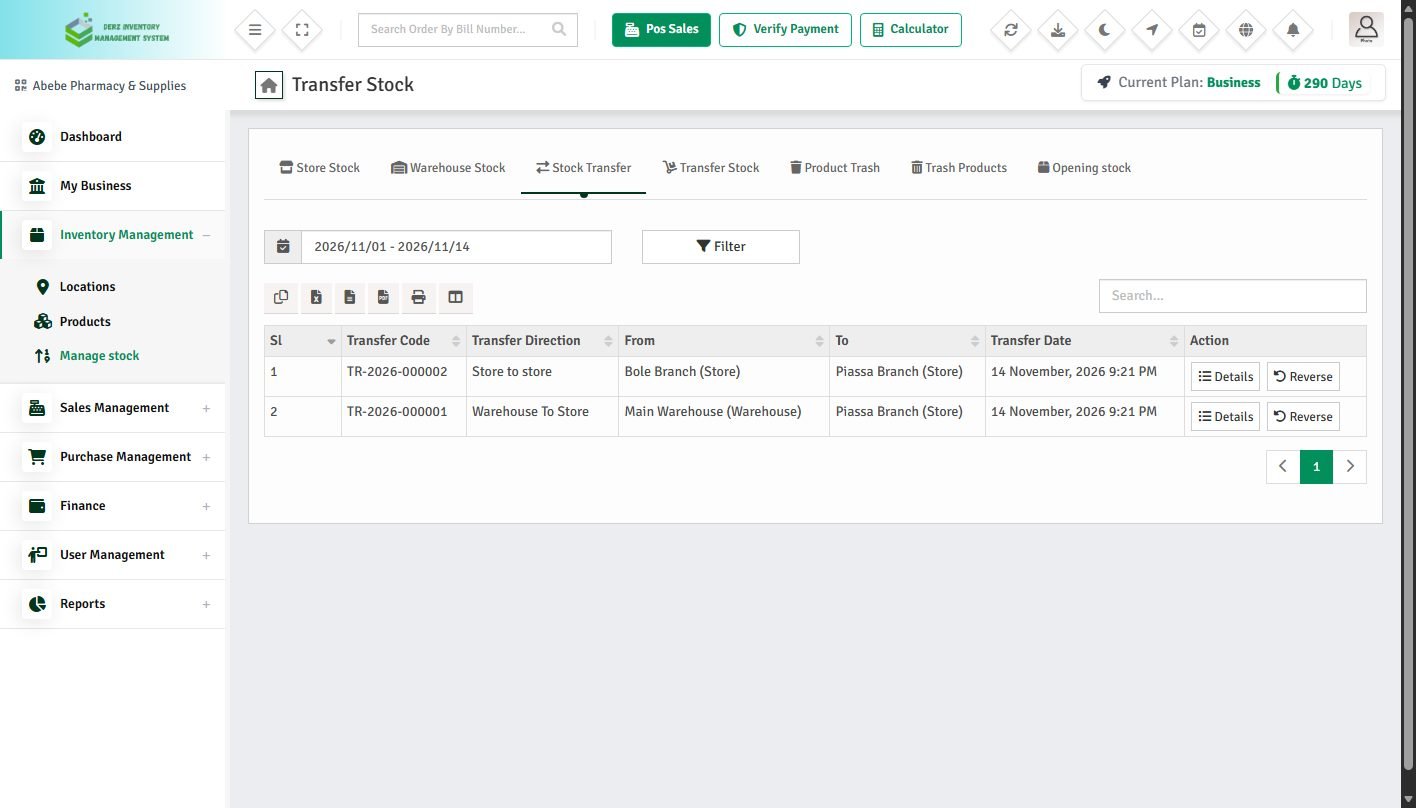
A transfer made by mistake can be undone with Reverse. You give a reason, and the stock goes back. The transfer stays in the list marked as reversed.
Product trash (write-offs)
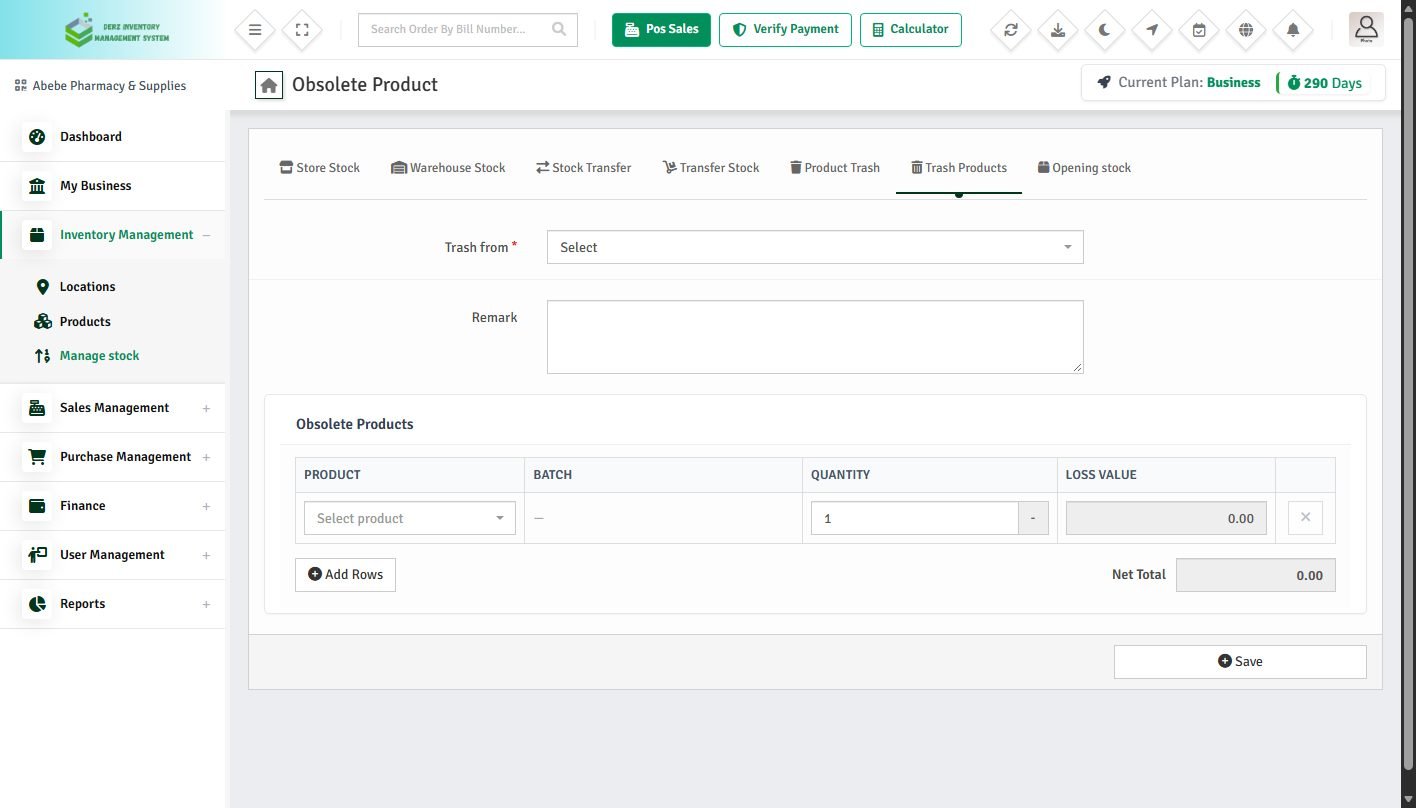
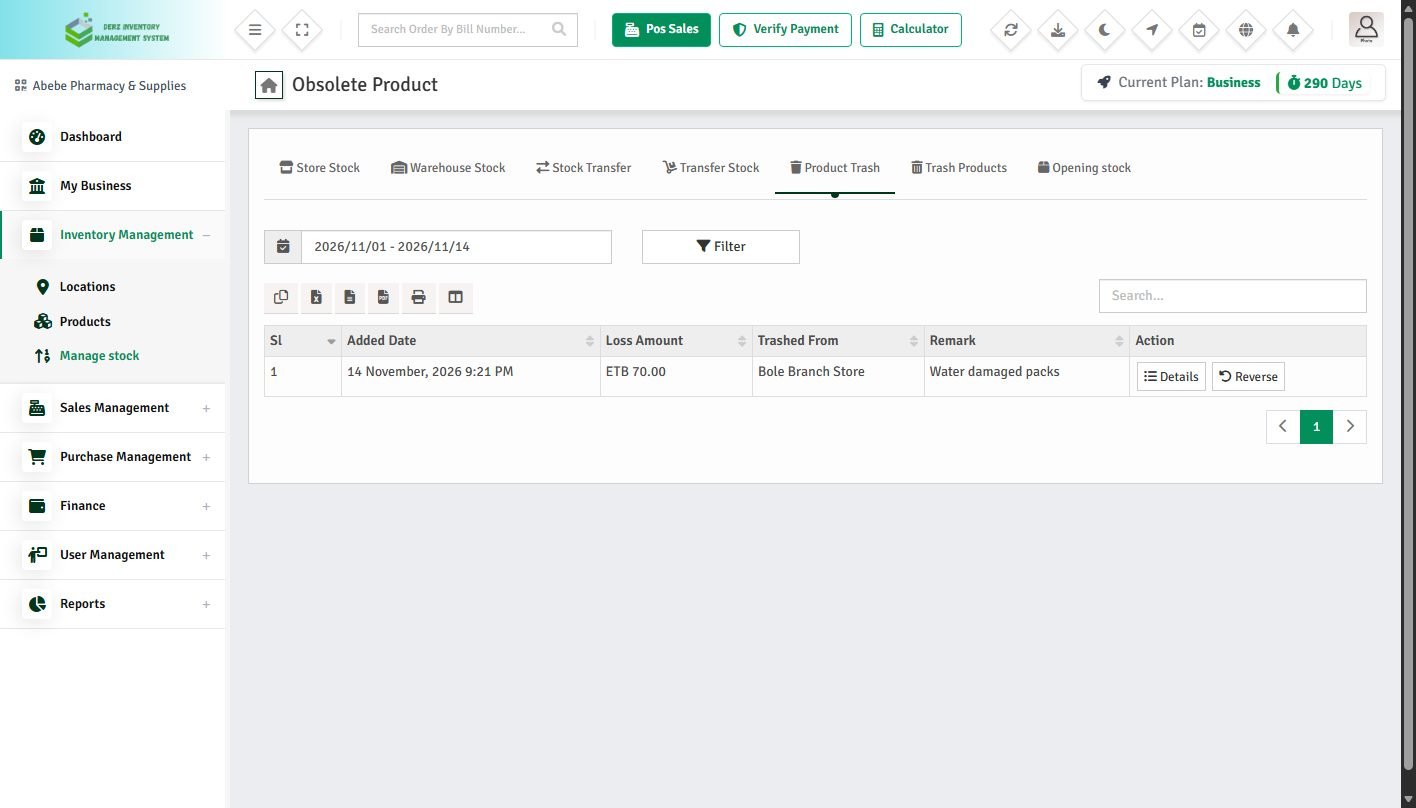
Remove stock that is damaged, expired or lost. Choose the location in Trash from, add the products and quantities, and a remark. The loss value is calculated from the buying price and shows in the reports as a write-off.
Opening stock
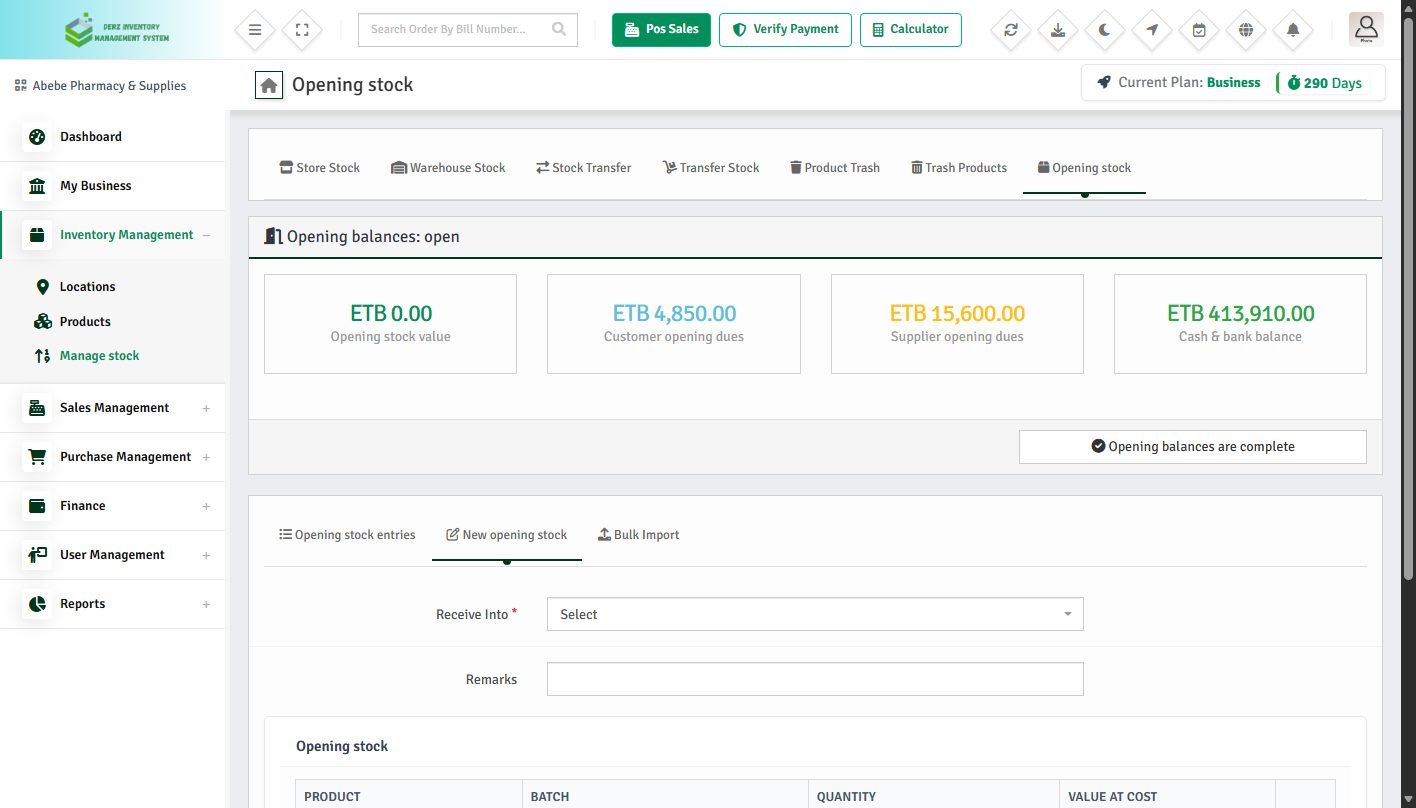
When you start on DerZ, enter the stock you already have. The panel at the top shows your opening balances: opening stock value, customer and supplier opening dues, and cash and bank balances.
- Open New Opening Stock.
- Choose where the stock is (Receive into) and add each product with its quantity and value at cost (batch and expiry for batch products).
- Save. For a long list use Bulk Import with the sample file.
- When everything is entered, click Opening Balances Are Complete.
Part 4
Sales Management
Customers, invoices, the POS, credit and returns.
Customers
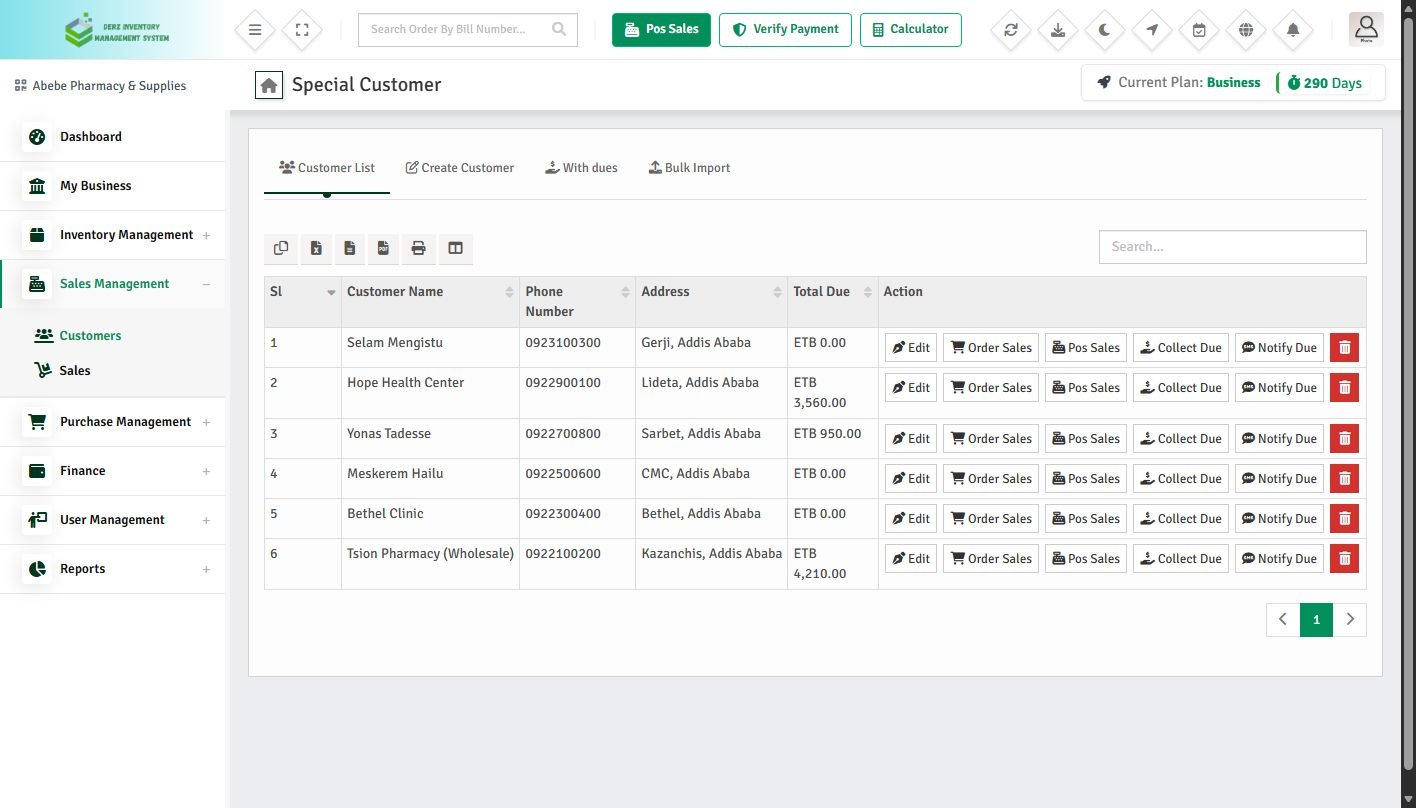
Customers you sell to regularly or on credit. (For one-off cash sales you do not need a customer: use Walking Customer.) The list shows each customer’s total due and buttons to sell, collect a due or send a reminder.
Add a customer
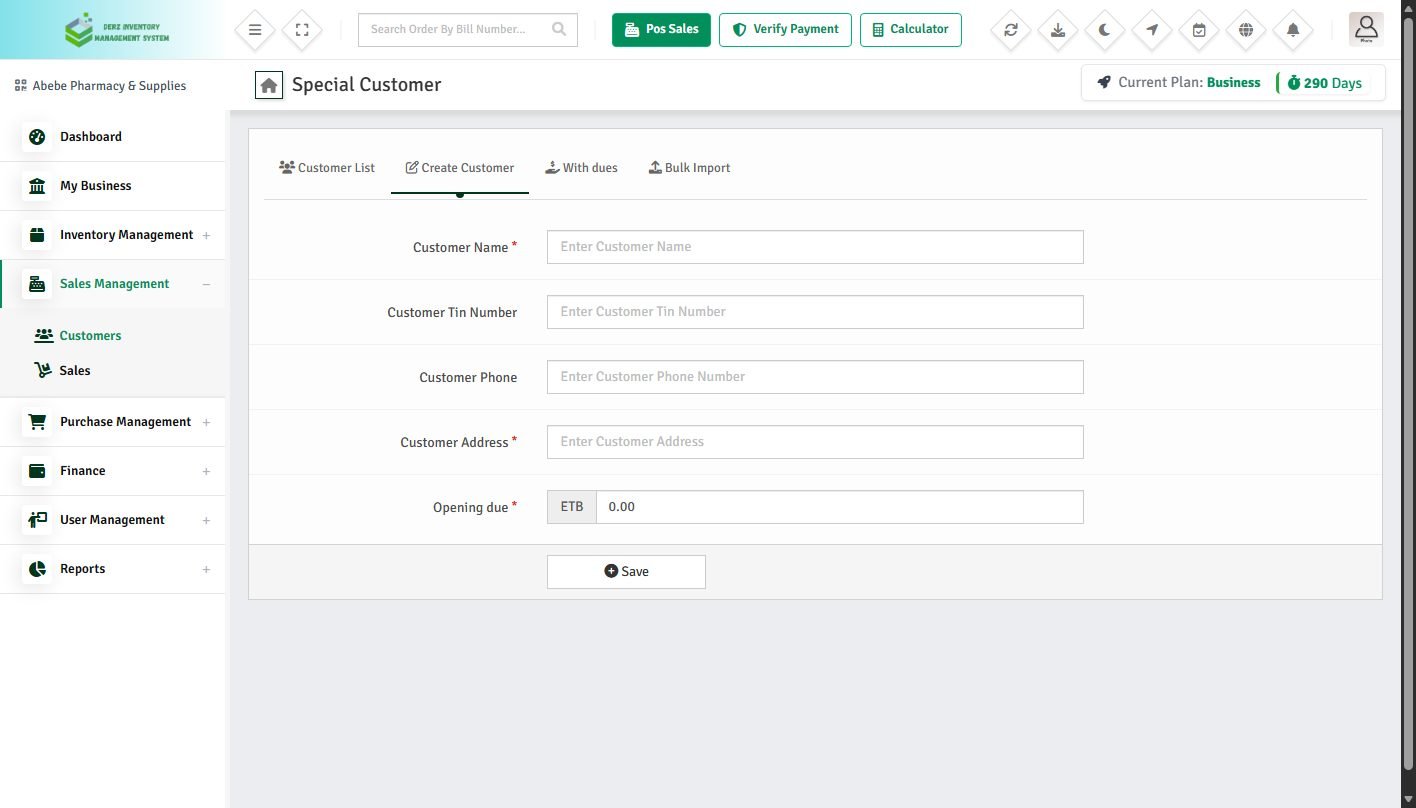
Enter the name, TIN, phone and address. Opening due is what the customer already owed you before you started on DerZ.
Import customers
Use Bulk Import with the sample file: name, phone, TIN, address and opening due.
Customers with dues
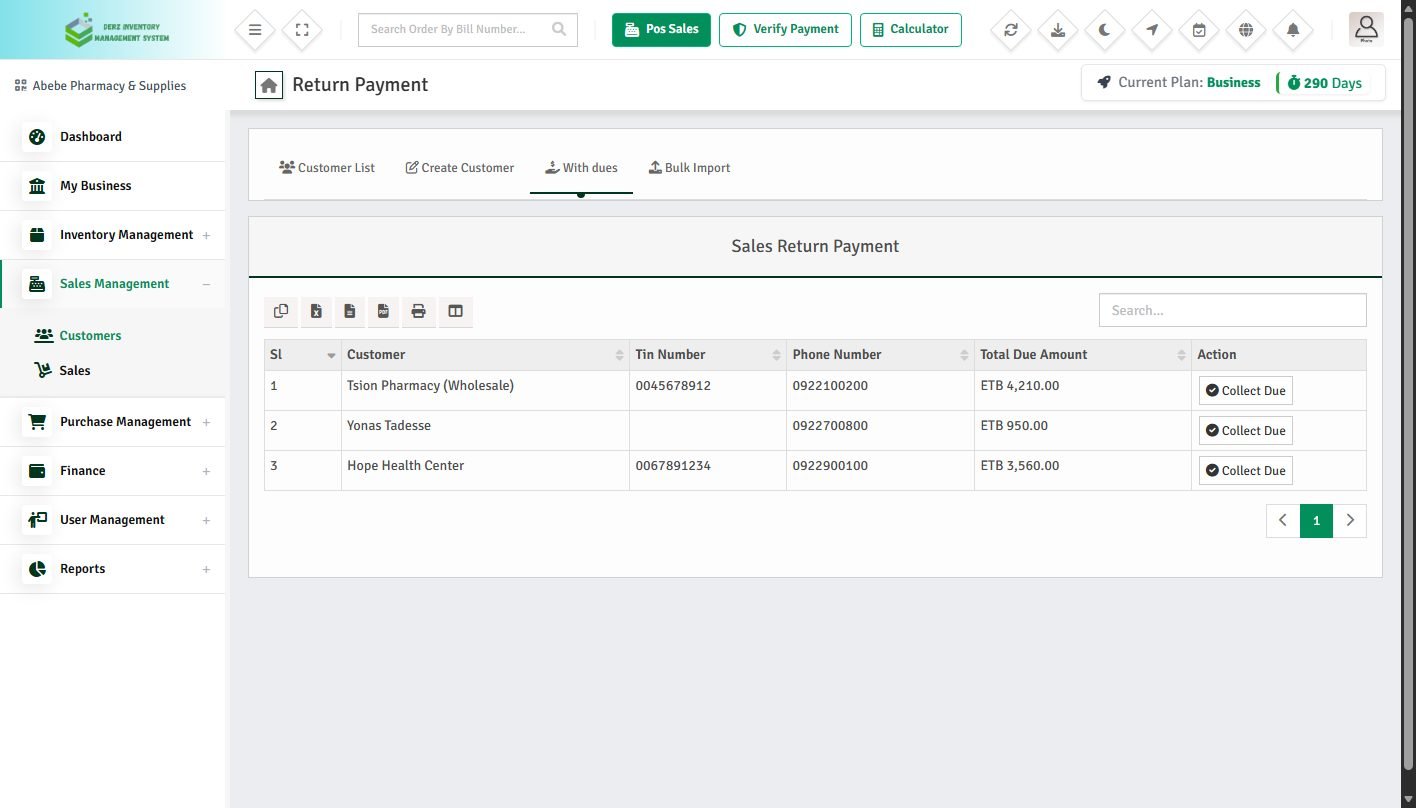
The With Dues tab lists every customer who owes you. Click Collect Due to see what the customer still owes, invoice by invoice, and record the payment. Notify Due sends the customer a reminder by SMS (needs an SMS package).
New sale (invoice)
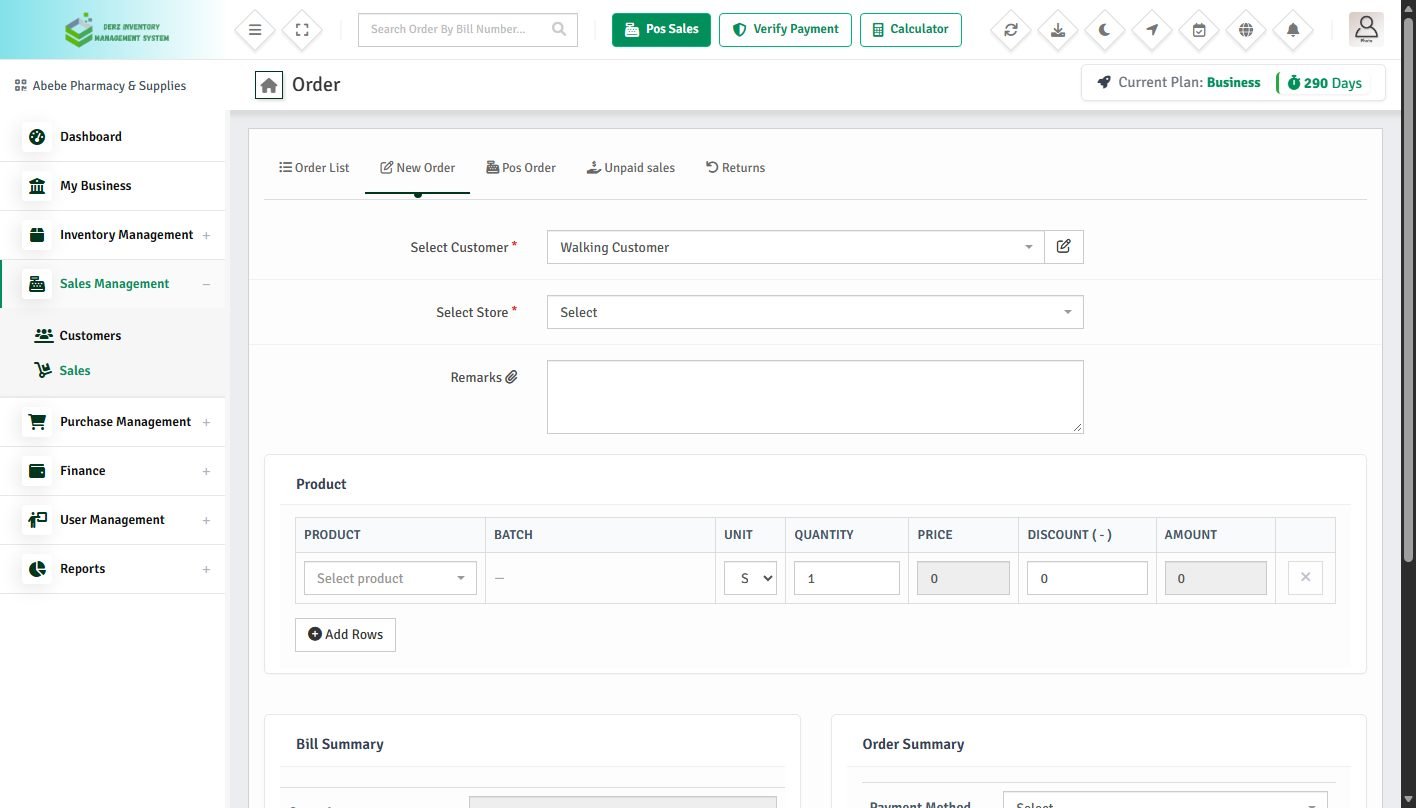
- Choose the customer (or Walking Customer) and the store the goods come from.
- Add products. For each line choose the batch (batch products), the unit, quantity and any discount. The price fills in by itself.
- Check the bill summary: gross amount, discount, tax and net total.
- In the order summary choose the payment method (Cash, Bank transfer, telebirr…) and the account that receives the money, and enter the amount paid. Anything not paid becomes the customer’s due; with cash, the change to give back is shown.
- Click Save. The invoice is ready to print.
A sale on credit needs a named customer unless Allow credit sales to walk-in customers is on. The customer credit limit and maximum discount from Limits and approvals apply.
POS (point of sale)
The POS is made for speed at the counter:
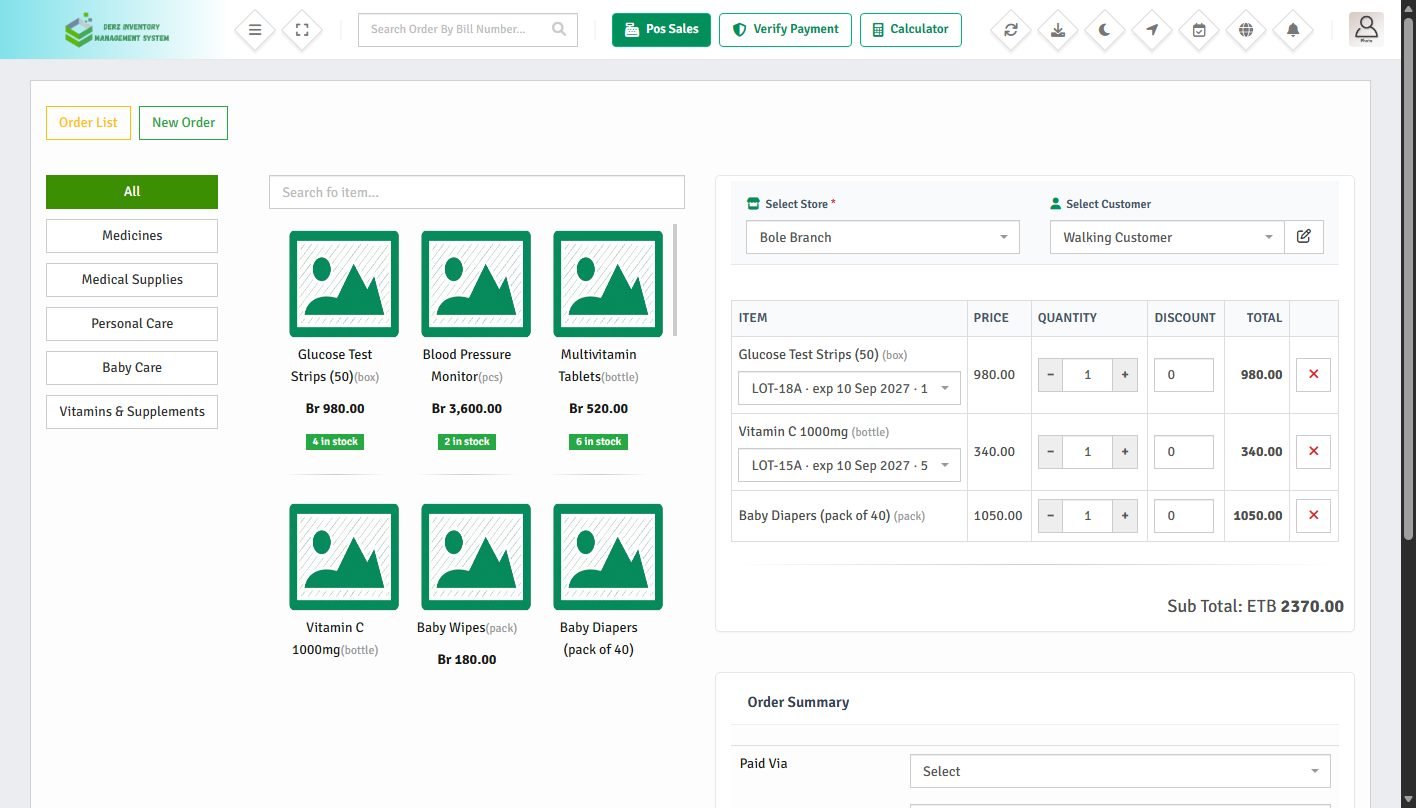
- Choose the store and the customer at the top right.
- Tap products on the left (filter by category or search) to add them to the cart. Change quantity with + / −, set a discount, or remove a line with ×.
- Below the cart choose how the customer pays, the account, and the amount received. Save to print the receipt.
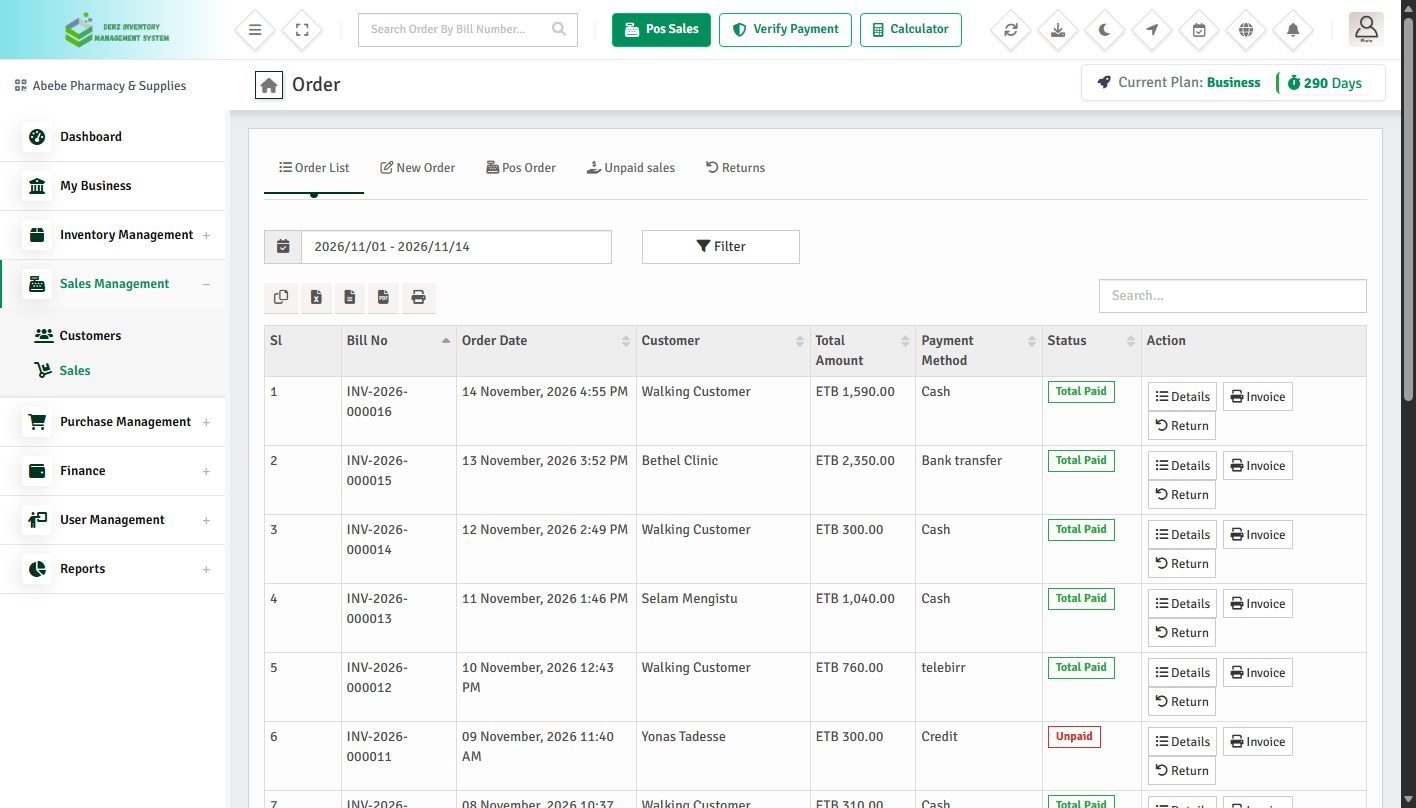
Sales list
All sales for the chosen dates, with bill number, customer, total, payment method and status (Total Paid, Partially Paid, Unpaid). Each row has buttons for Details, Invoice, Collect Due and Return.
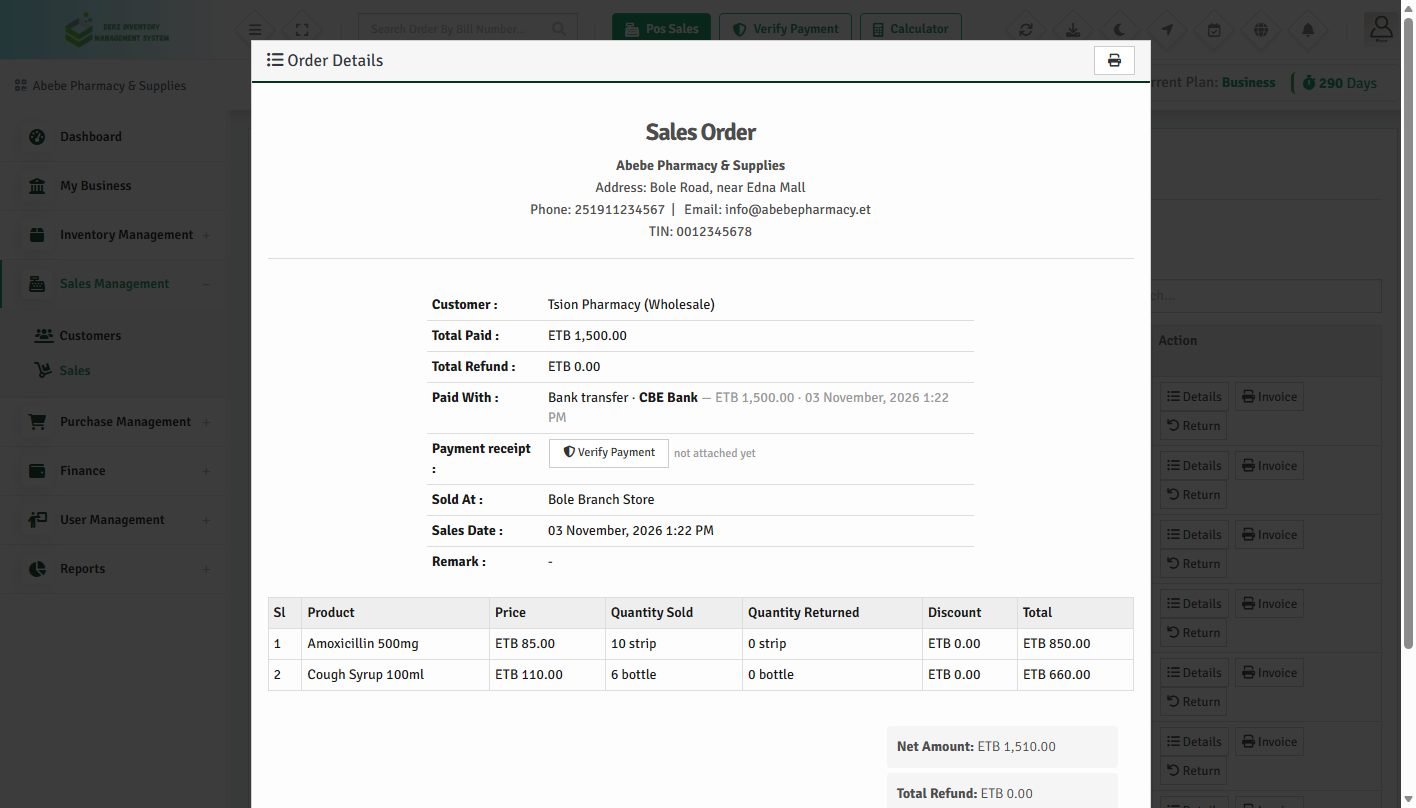
Sale details
Details shows the whole sale: customer, store, the products with any quantities already returned, totals and every payment. For a bank or telebirr payment you can Verify Payment right there to check the receipt.
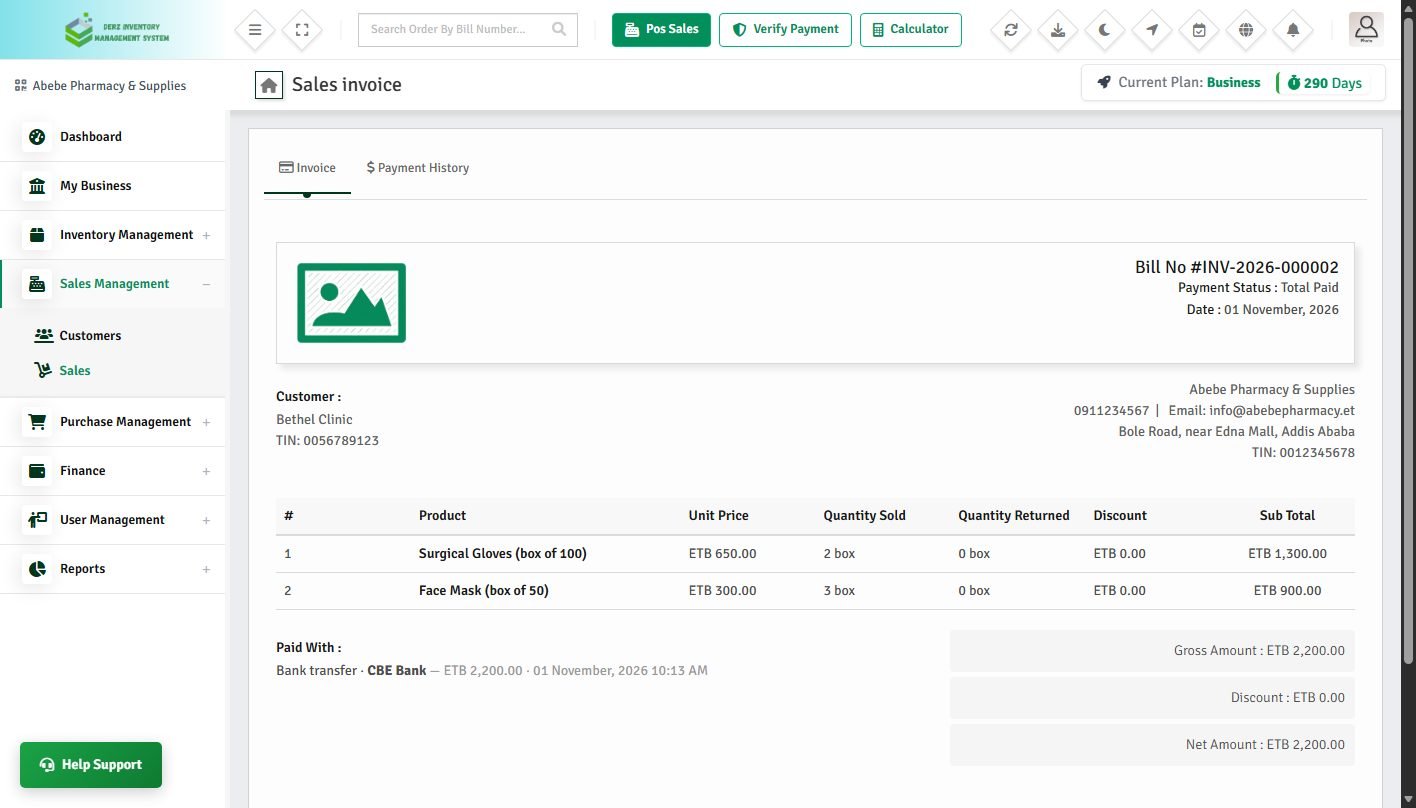
Invoice
Invoice opens a printable invoice with your logo, TIN and invoice note. Print it, or save it as a PDF. The Payment History tab lists each payment received.
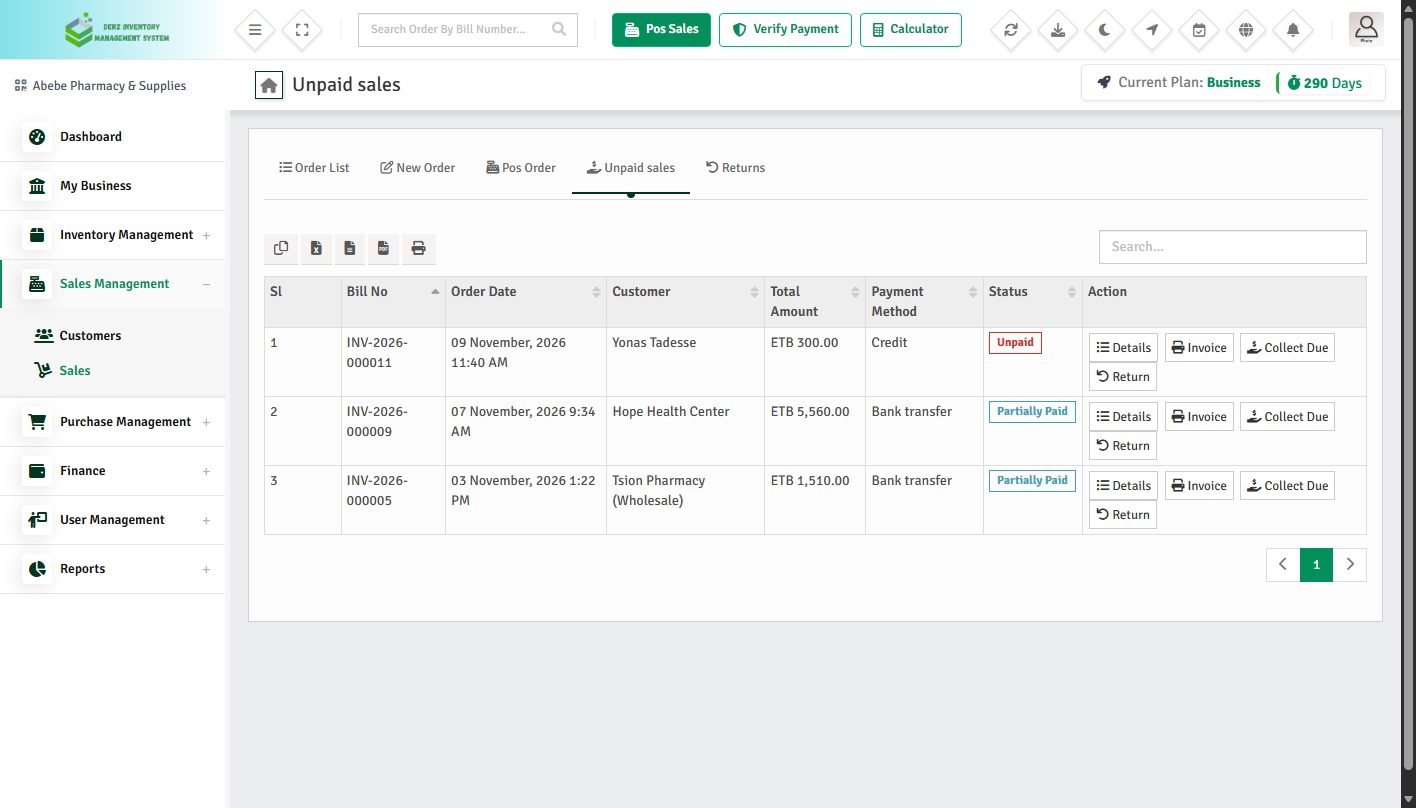
Unpaid sales & collecting dues
The Unpaid Sales tab shows unpaid and partly paid invoices of any date, newest first. Click Collect Due, enter the amount, the payment method and account, and save.
Sales returns
When a customer brings goods back, click Return on the sale. Choose the products and quantities returned (and the batch), then the refund:
- The returned goods go back into stock at the store.
- Enter the customer refund and the account it is paid from. For a credit sale the return lowers what the customer owes.
- If you pay back less than the value (your return policy, e.g. 50% back), the difference is kept as a return fee and recorded as other income.
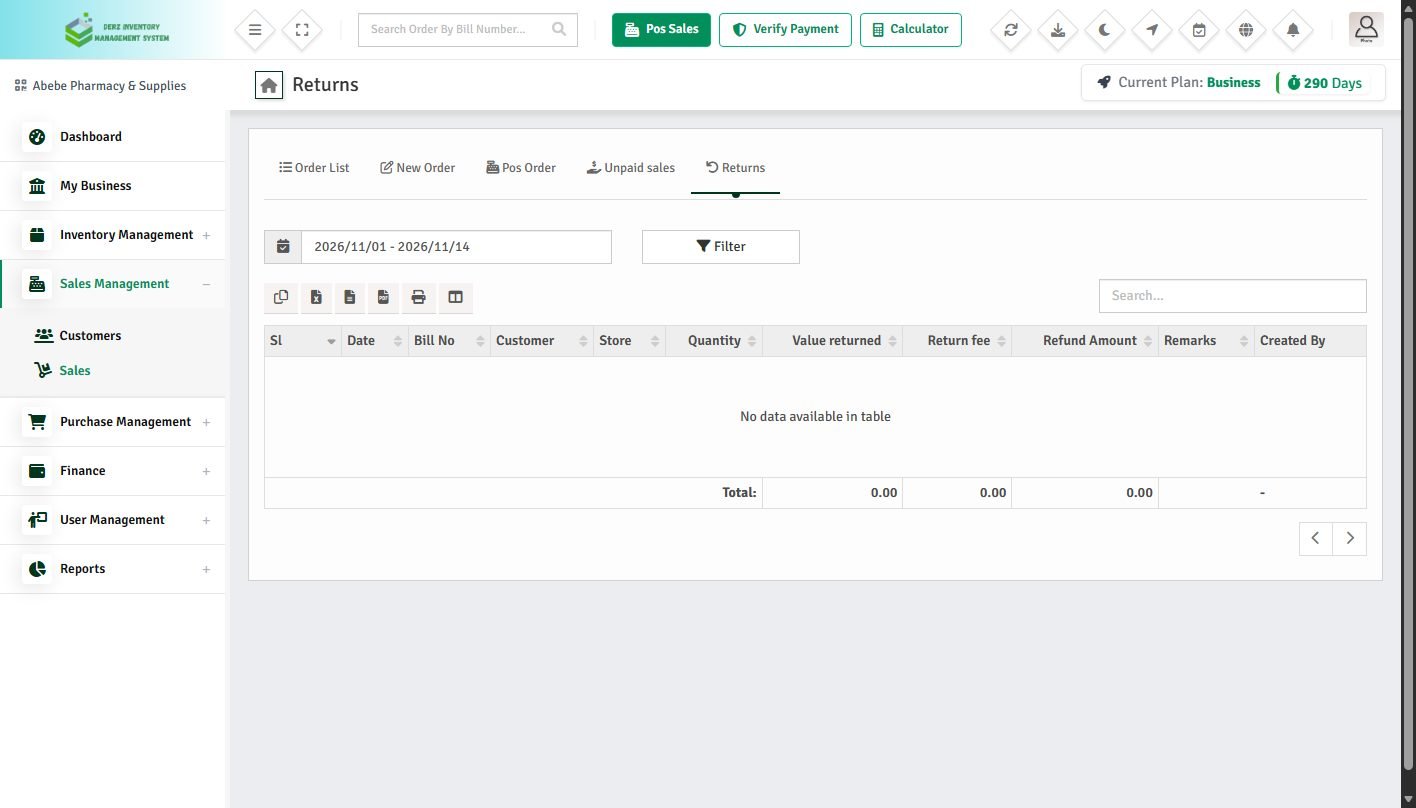
The Sales Returns tab lists all returns.
Part 5
Purchase Management
Suppliers, buying stock, paying suppliers and returning goods.
Suppliers
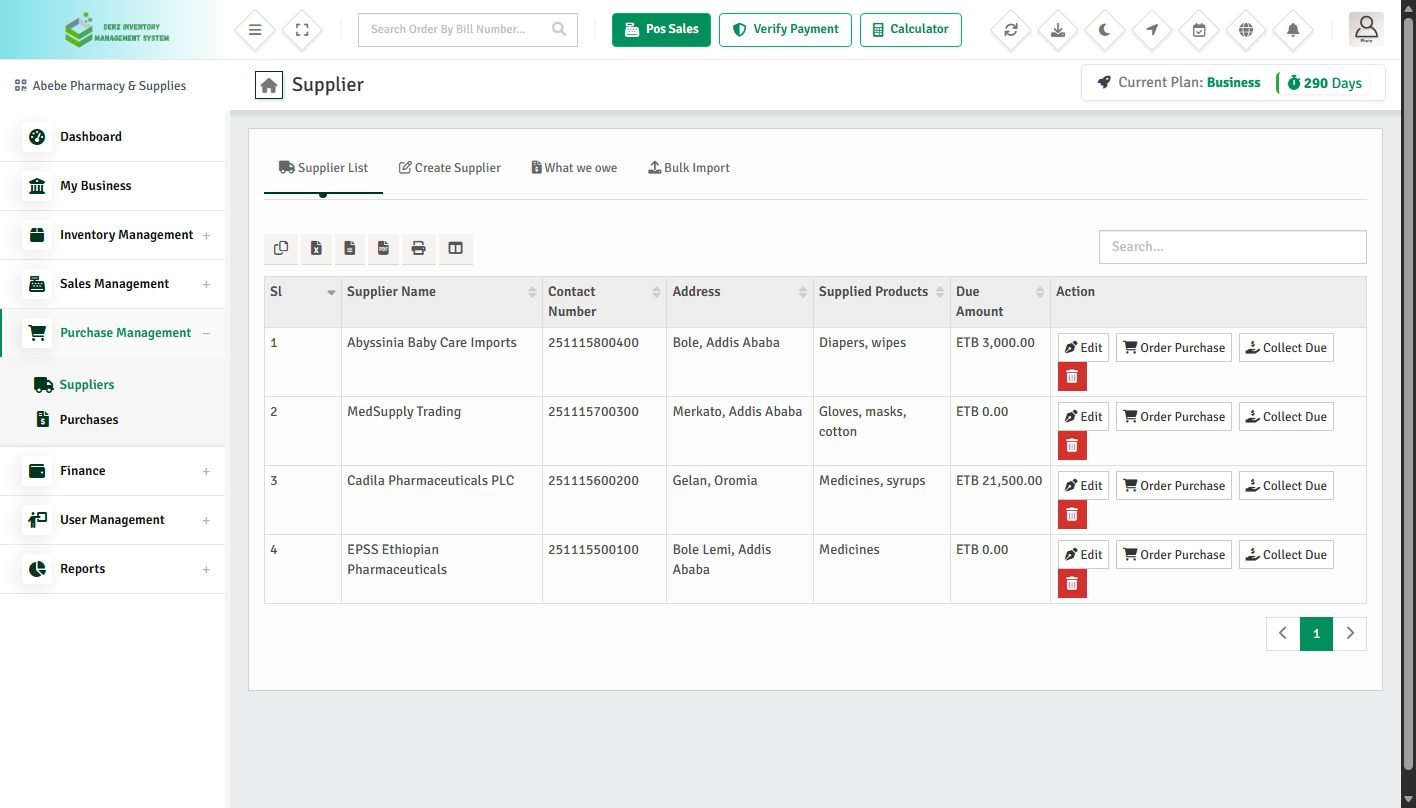
The supplier list shows contact details, what each supplier supplies and how much you owe them. Add a supplier with their name, TIN, phone, address, the products they supply and an opening due (what you owed them before DerZ). Suppliers can also be imported from a file.
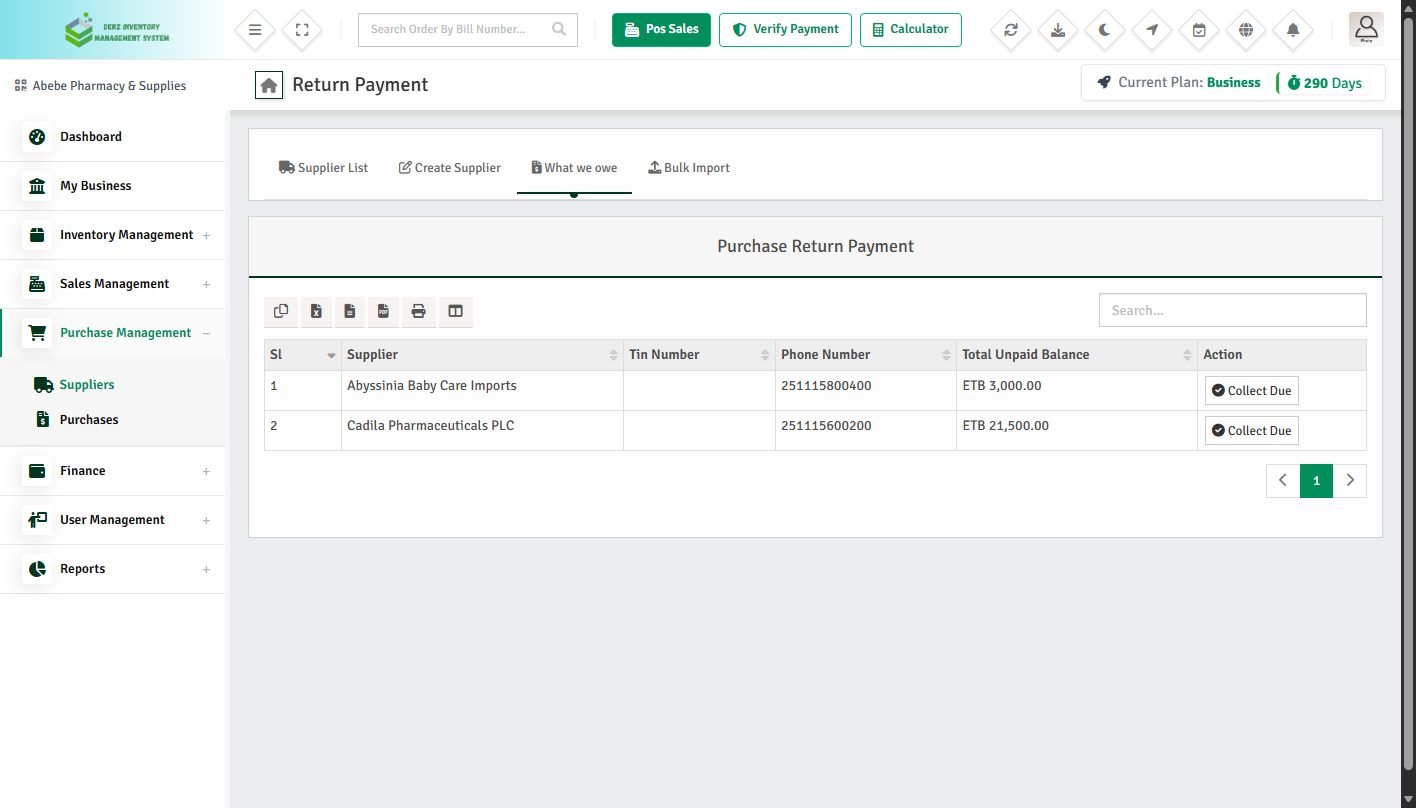
The What We Owe tab lists the suppliers you owe, with a Collect Due (pay) button.
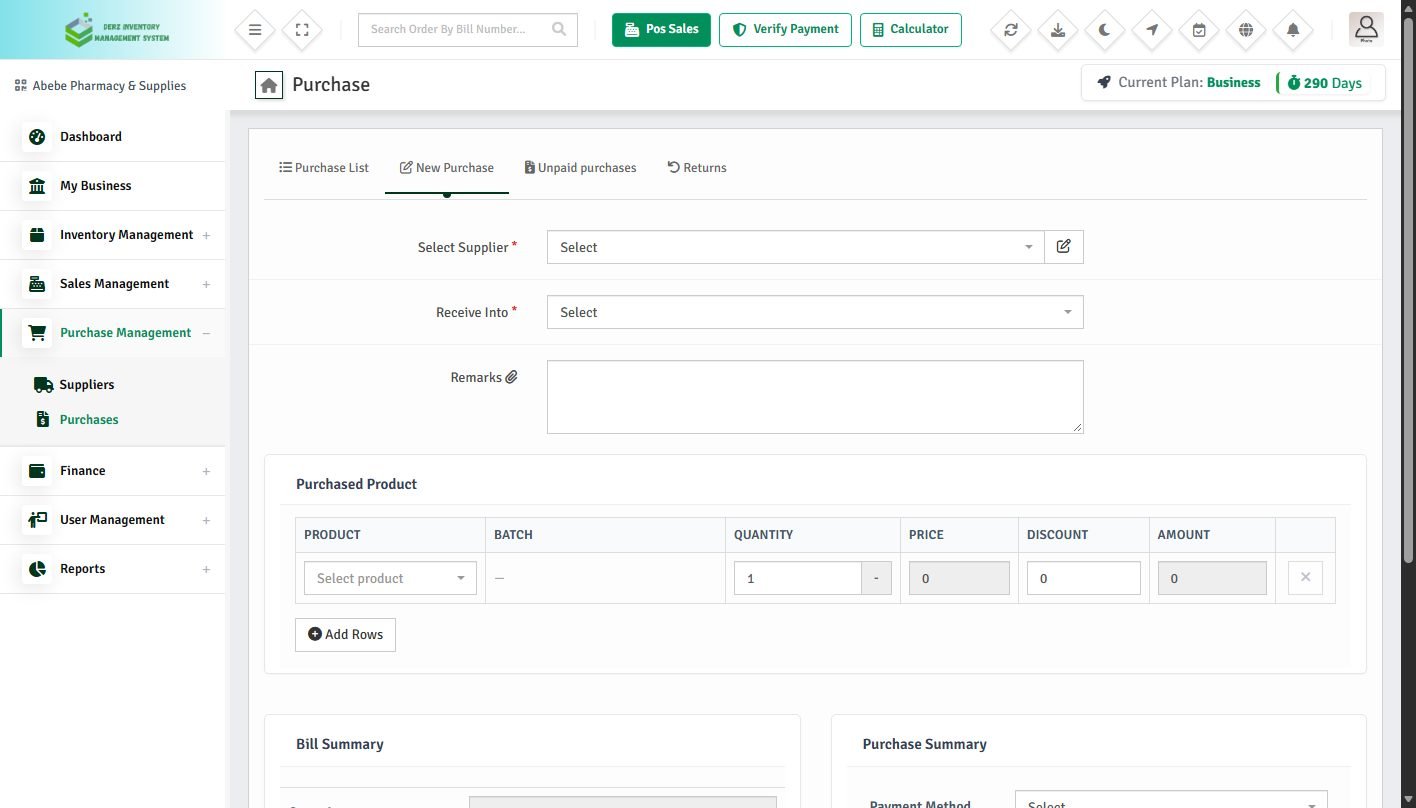
New purchase
- Choose the supplier and where the goods are received (Receive into): any open store or warehouse, in one list.
- Add each product with the quantity, the price you paid and any discount. For batch products enter the batch number, manufacture date and expiry date.
- Choose the payment method and account and the amount paid now. The rest is owed to the supplier.
- Save. The stock is added to the location, and the buying price updates the stock value.
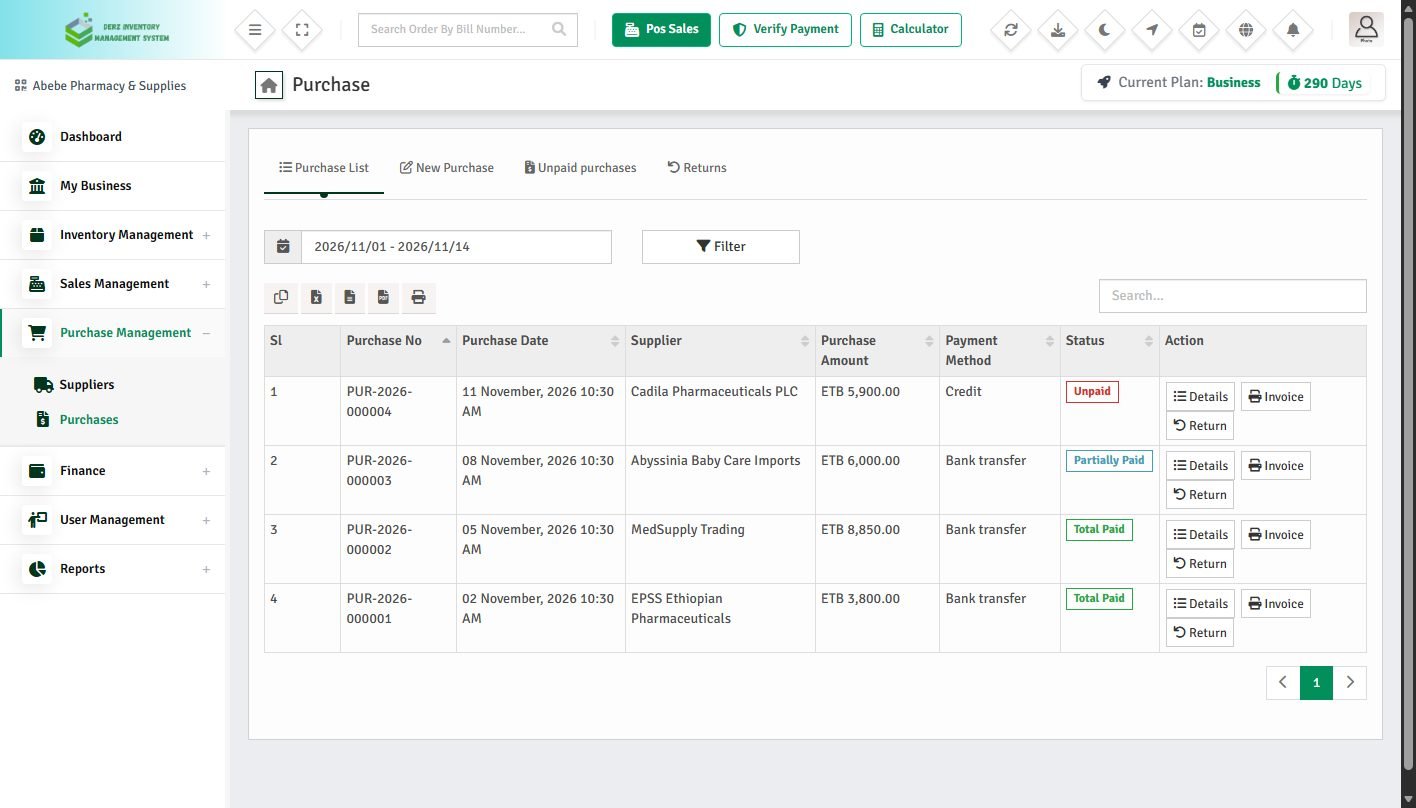
Purchase list & details
The purchase list works like the sales list: Details, Invoice, Pay Due and Return.

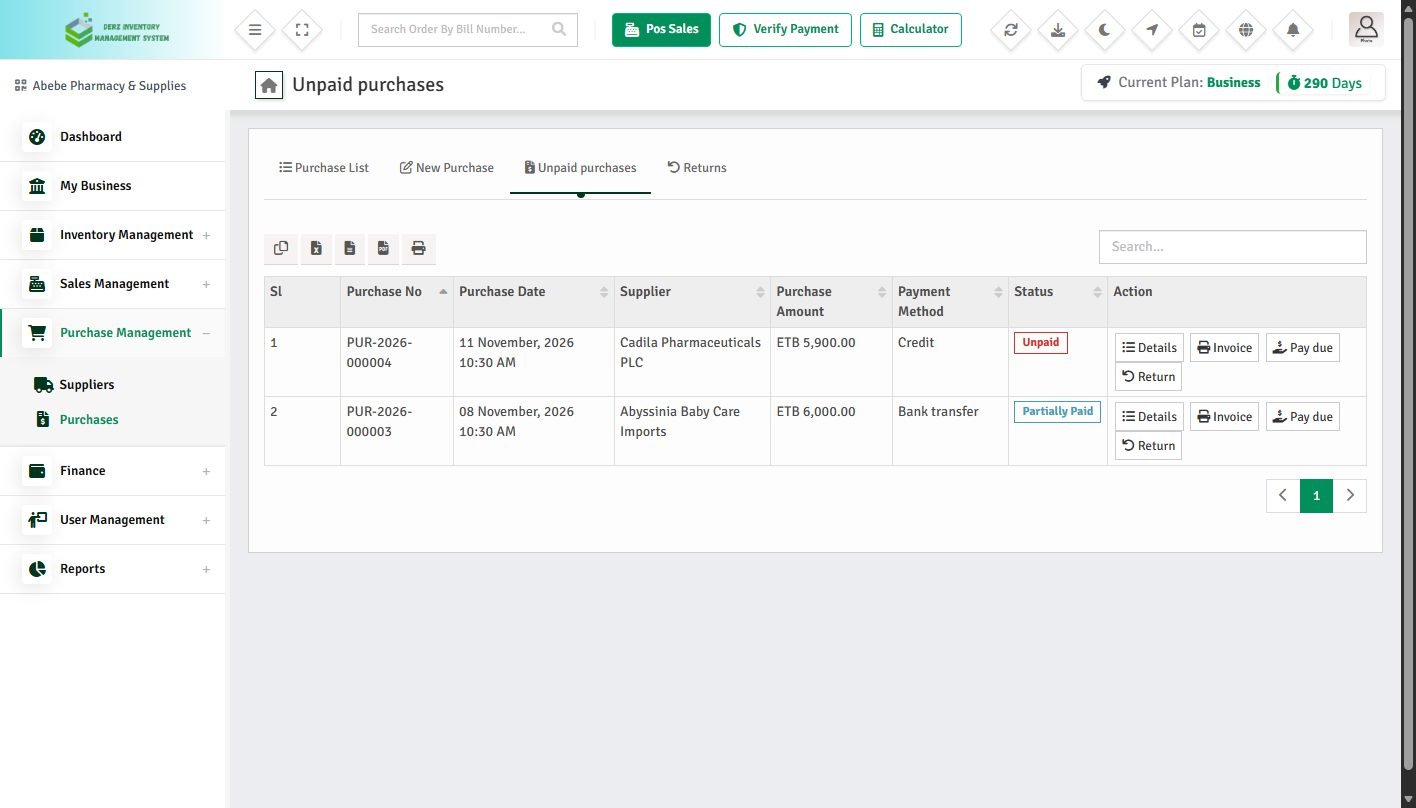
Unpaid purchases
Purchases not yet fully paid. Click Pay Due to pay the supplier.
Purchase returns
Send goods back to a supplier with Return on the purchase. The stock leaves the location, and the supplier refunds you or the amount you owe goes down.

Part 6
Finance
Where the money is: cash, bank and mobile money accounts, other income, expenses and the owner’s own money.
Accounts
An account is any place you keep money: a cash till, a bank account, telebirr. Every sale, purchase, payment and expense moves money in or out of an account, so the balance is always up to date.
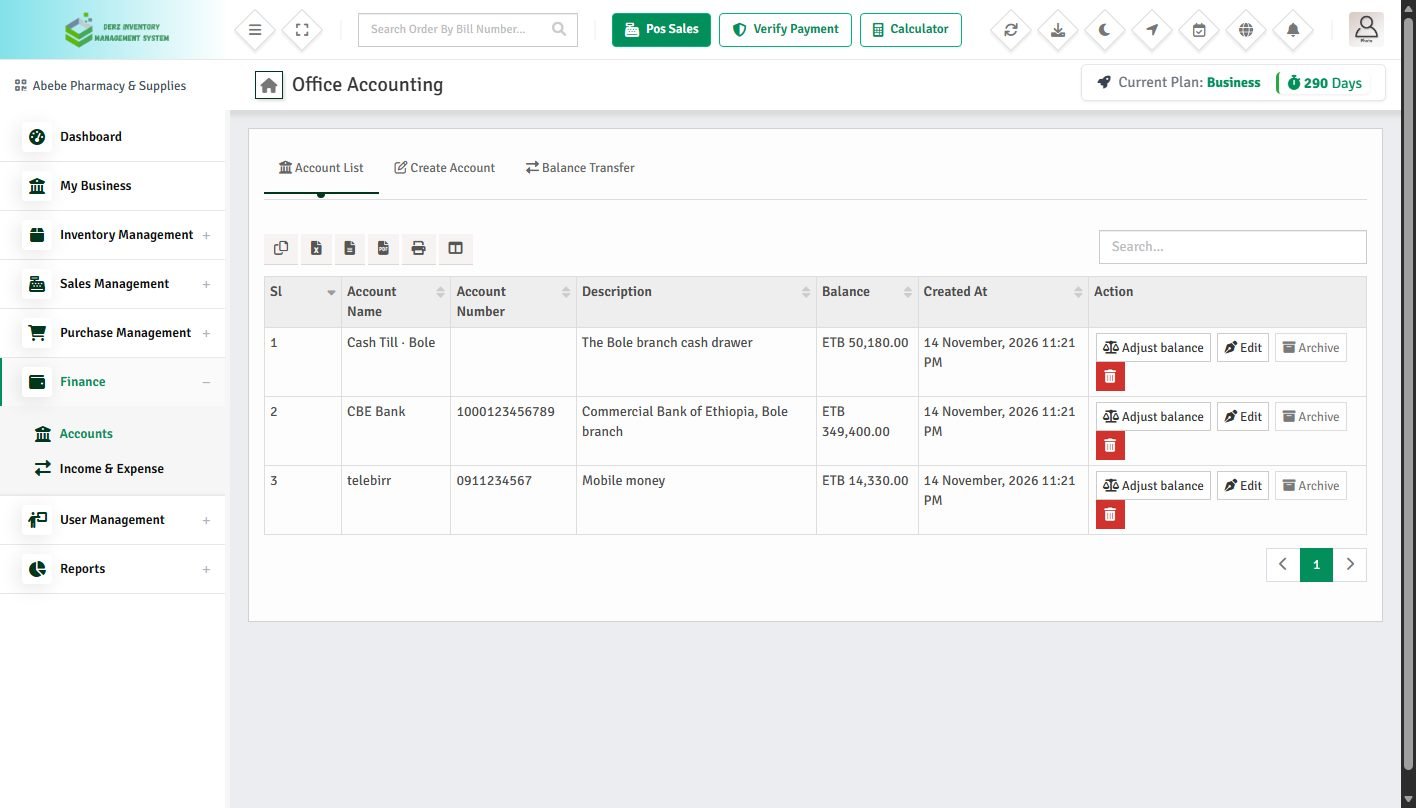
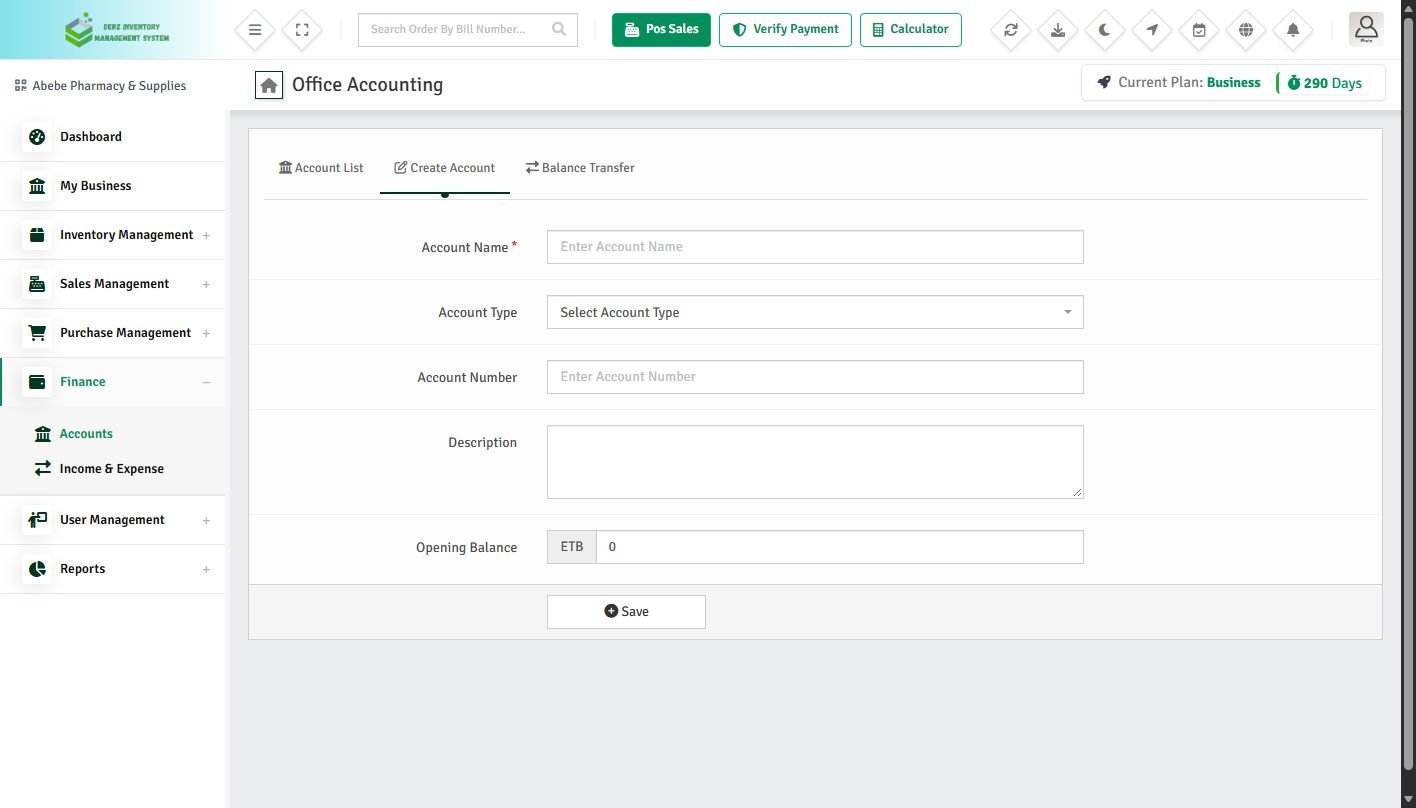
Create an account
Enter the name, the account type (cash, bank or mobile money; it decides which payment method uses the account), the account number, a description and the opening balance, the money in it today.
Adjust balance
Count the cash or check the bank statement, then click Adjust Balance and enter the real balance with a reason. DerZ books the difference as a deposit or an expense.
Archive an account
An account you no longer use can be archived once its balance is zero. It is then greyed out and can be restored.
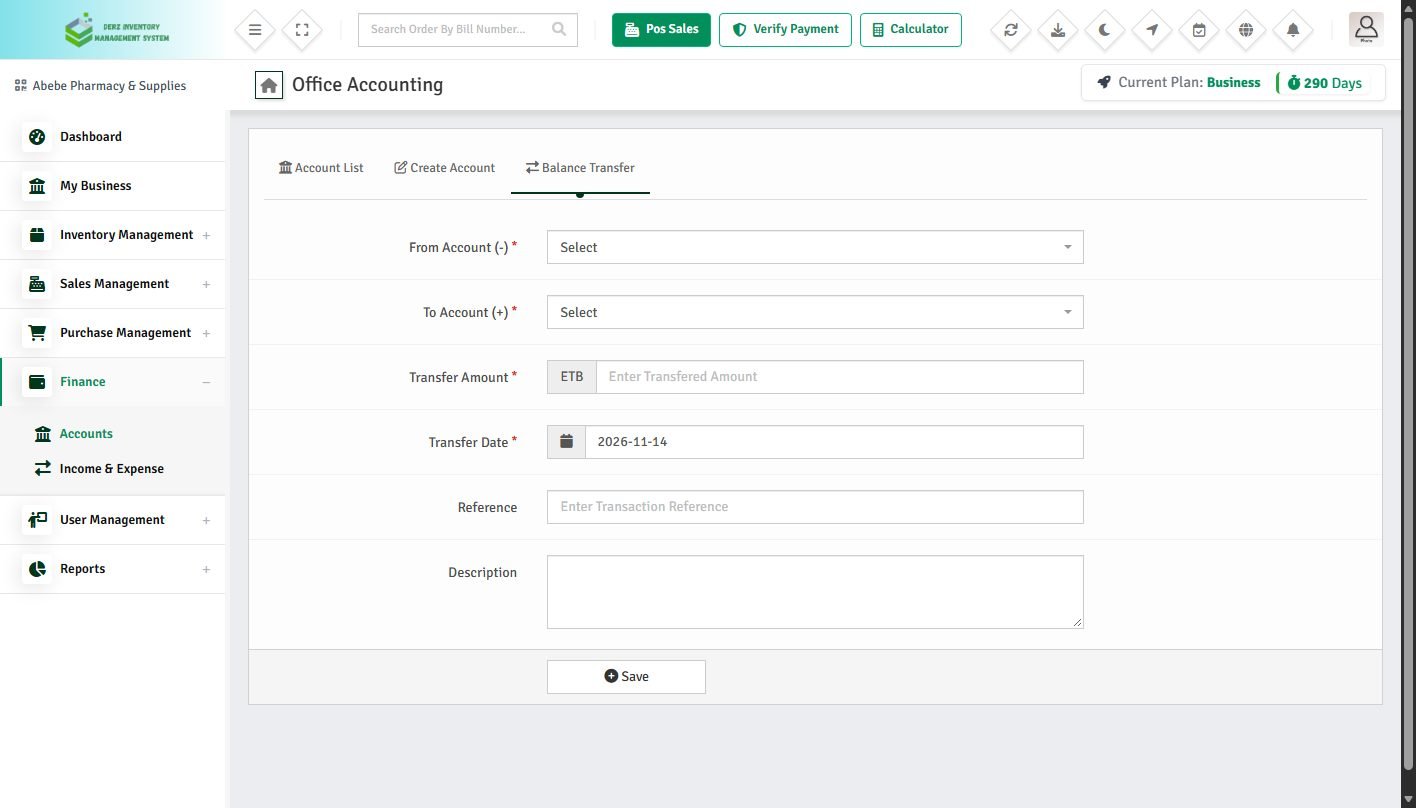
Balance transfer
Move money between your own accounts, e.g. depositing the day’s cash in the bank. Choose from and to, the amount, date and a reference.
Income & expenses
Money that is not a sale or a purchase: rent, electricity, transport, salaries paid outside payroll, or income such as service fees.
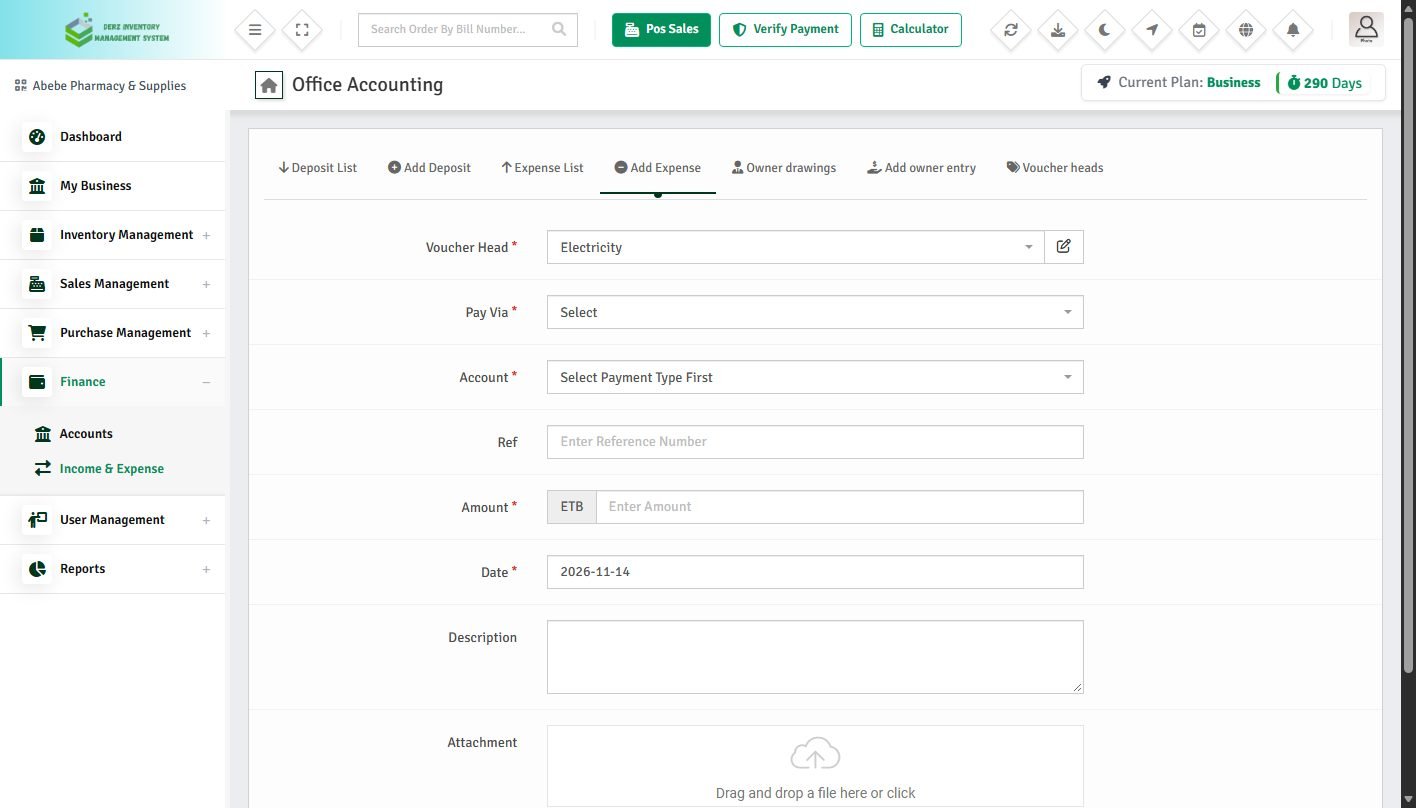
Add an expense
- Open Add Expense.
- Choose the voucher head (the kind of expense, e.g. Shop Rent). Use to add a new one; it is created as an expense head.
- Choose how it was paid and from which account, the amount, the date, an optional reference and description.
- Attach the receipt (photo or PDF) if you have it, and save.

Add a deposit (income)
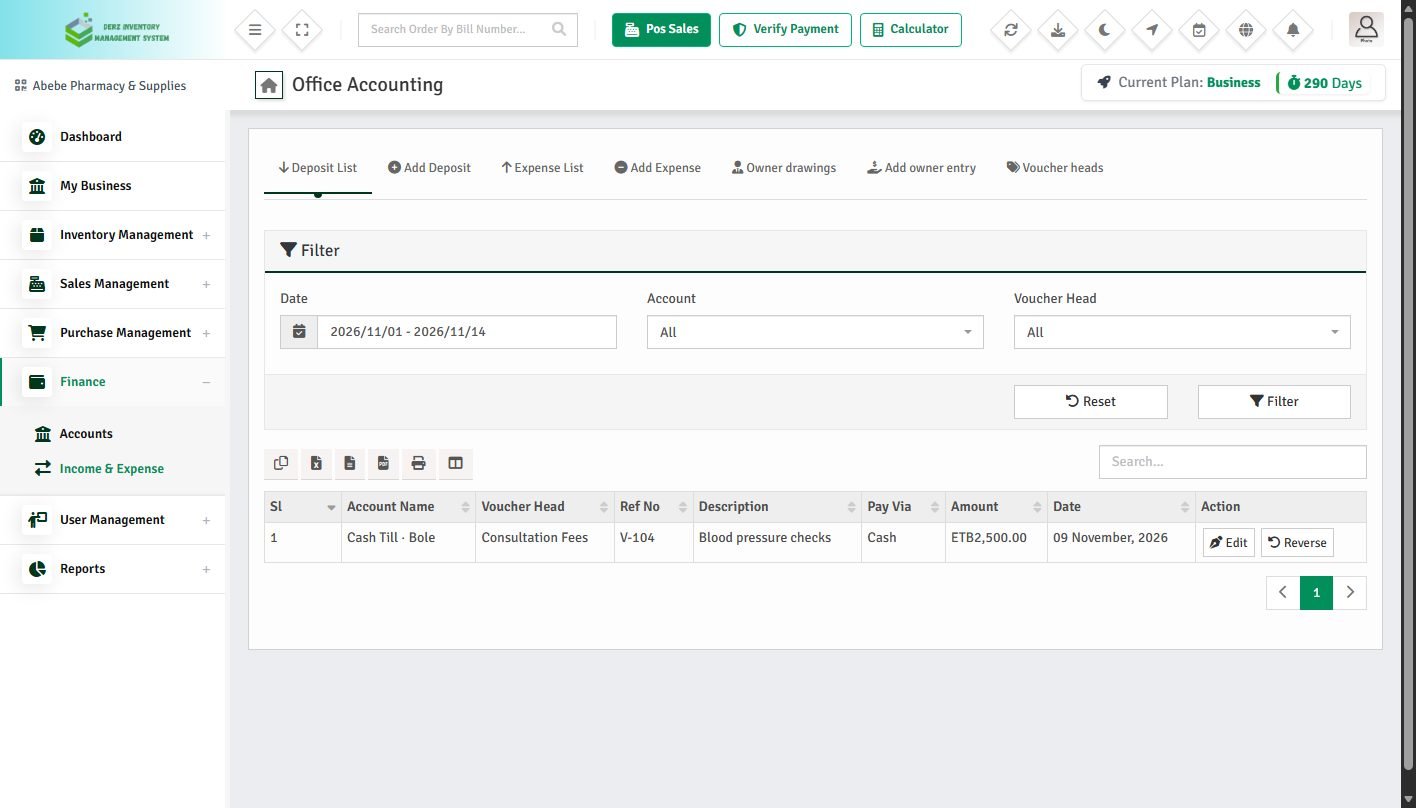
The same as an expense, for money coming in. Deposits are listed under Deposit List.
Voucher heads
The kinds of income and expense you use. Heads created by DerZ itself (e.g. the purchase expense) are not shown and cannot be chosen by hand.

Correcting a mistake
A deposit or expense entered wrongly is not deleted: click Reverse and give the reason. The money returns to the account and both entries stay visible, so your books remain honest.
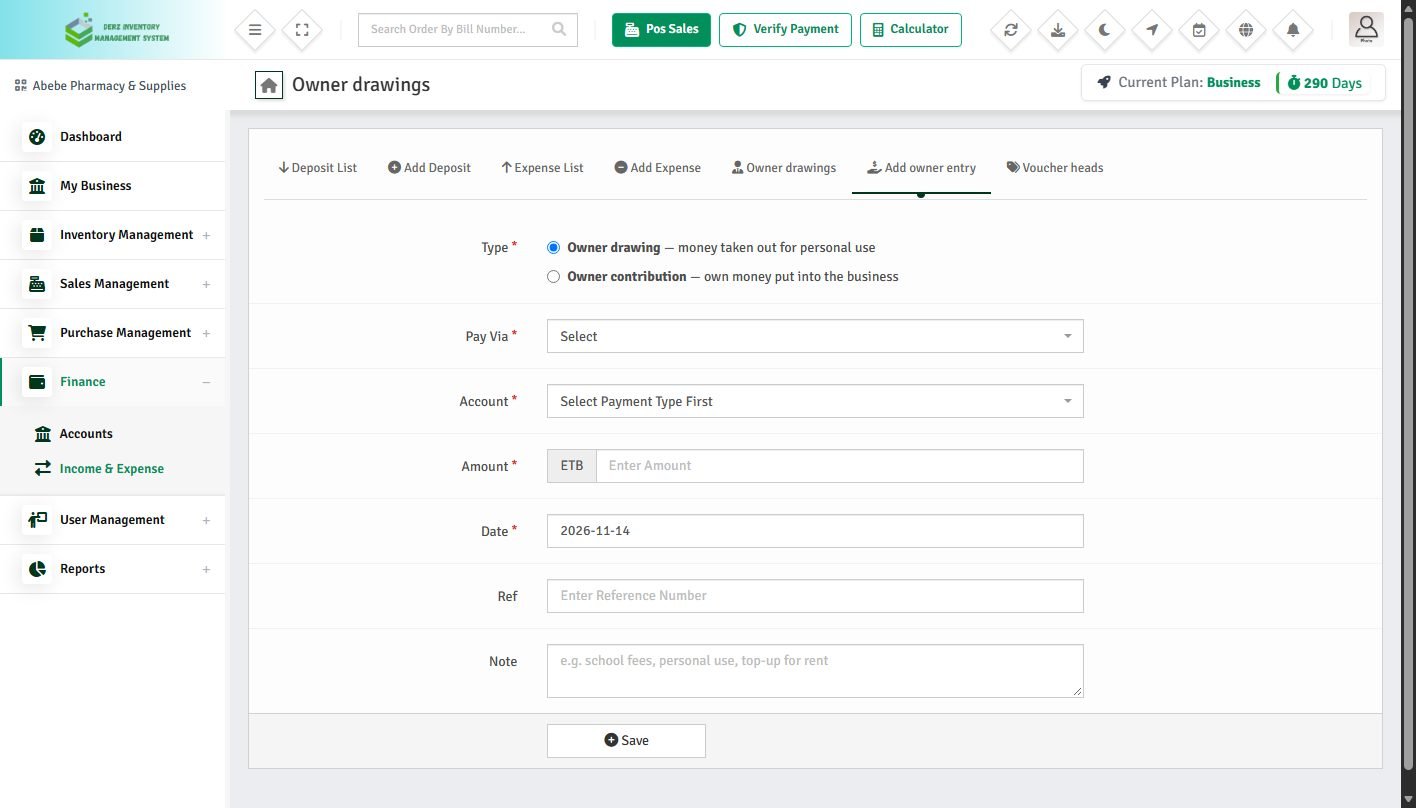
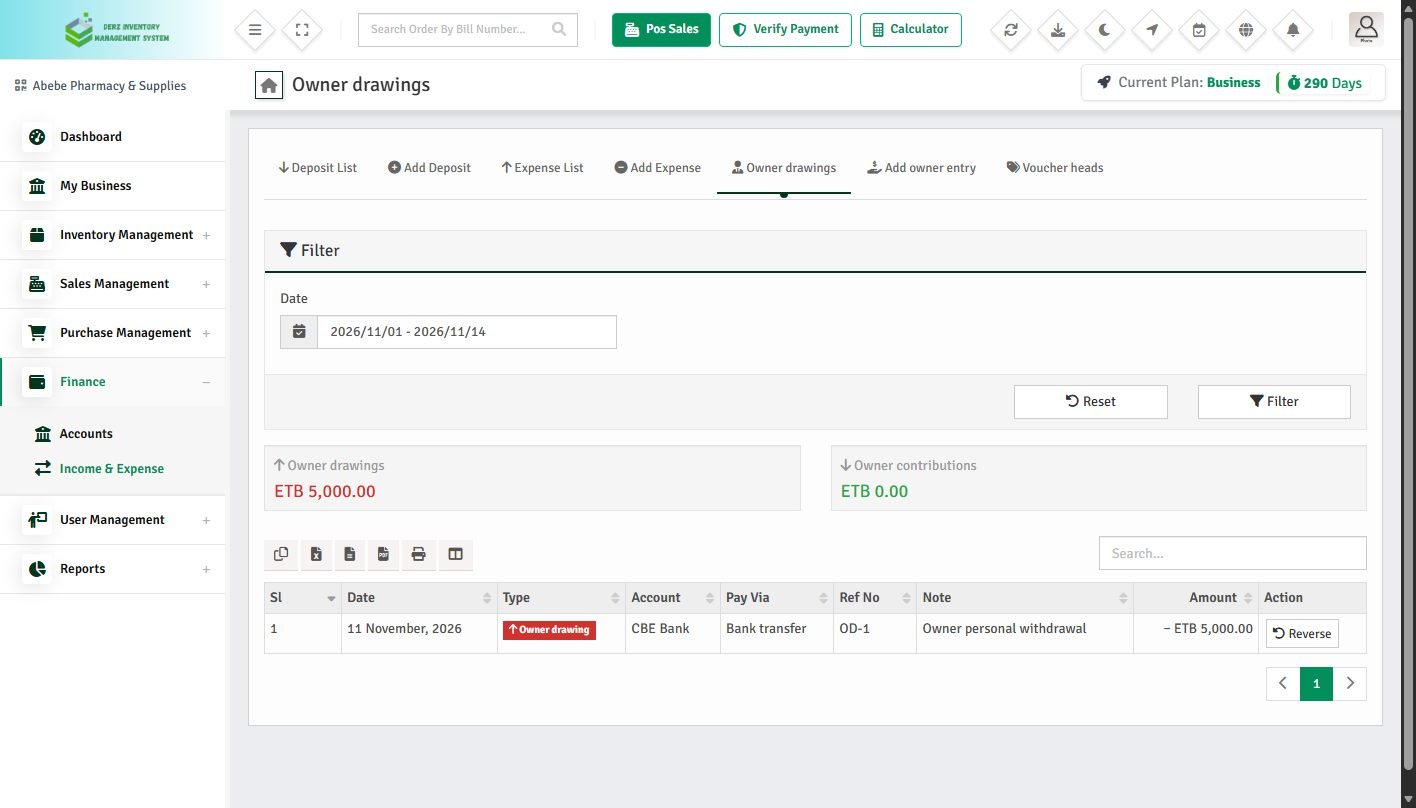
Owner drawings & contributions
Money the owner takes out for personal use is a drawing, not an expense, so it does not lower your profit. Money the owner puts in is a contribution, not income. Both change the account balance and show on the balance sheet under equity.
Part 7
Users & HR
Give your staff their own sign-in, decide what they may do, and (with the HR module) manage attendance, leave and payroll.
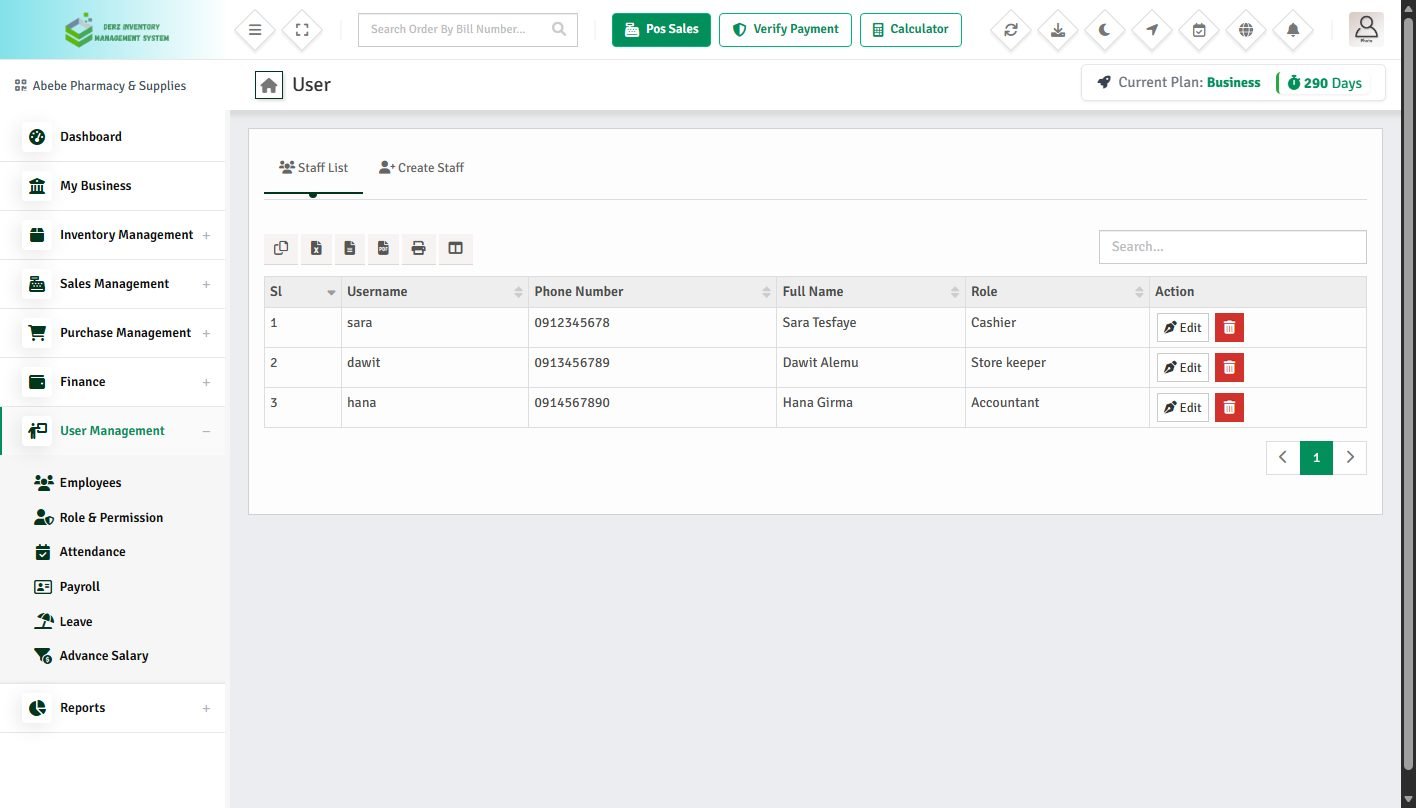
Users
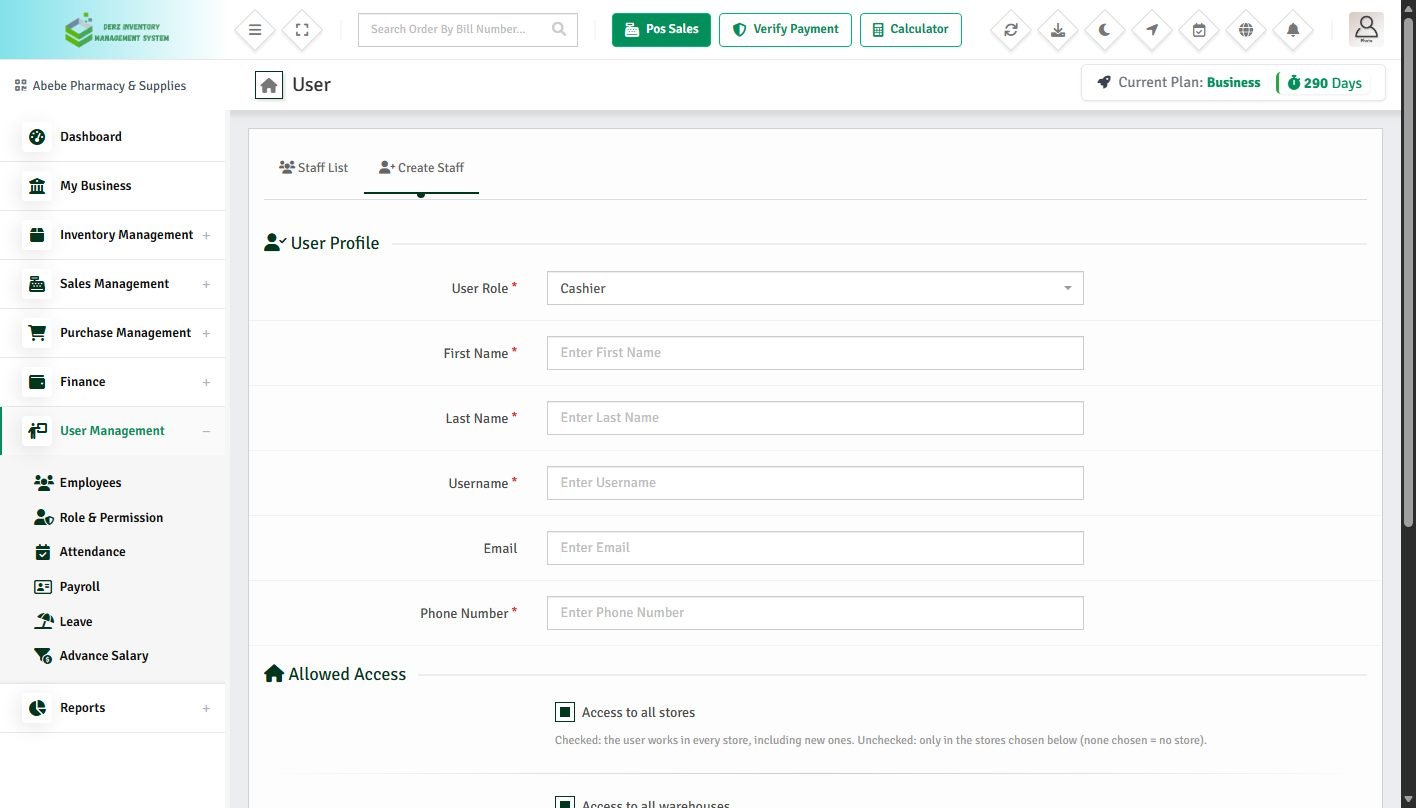
Each staff member gets a username and password. Add a user with their role, name, username, email and phone, then choose Allowed access:
- Stores: all stores (including new ones) or only the ones you tick. A cashier at Bole sells only from Bole.
- Warehouses and Accounts: the same. A user only receives or pays money through the accounts allowed.
Roles & permissions
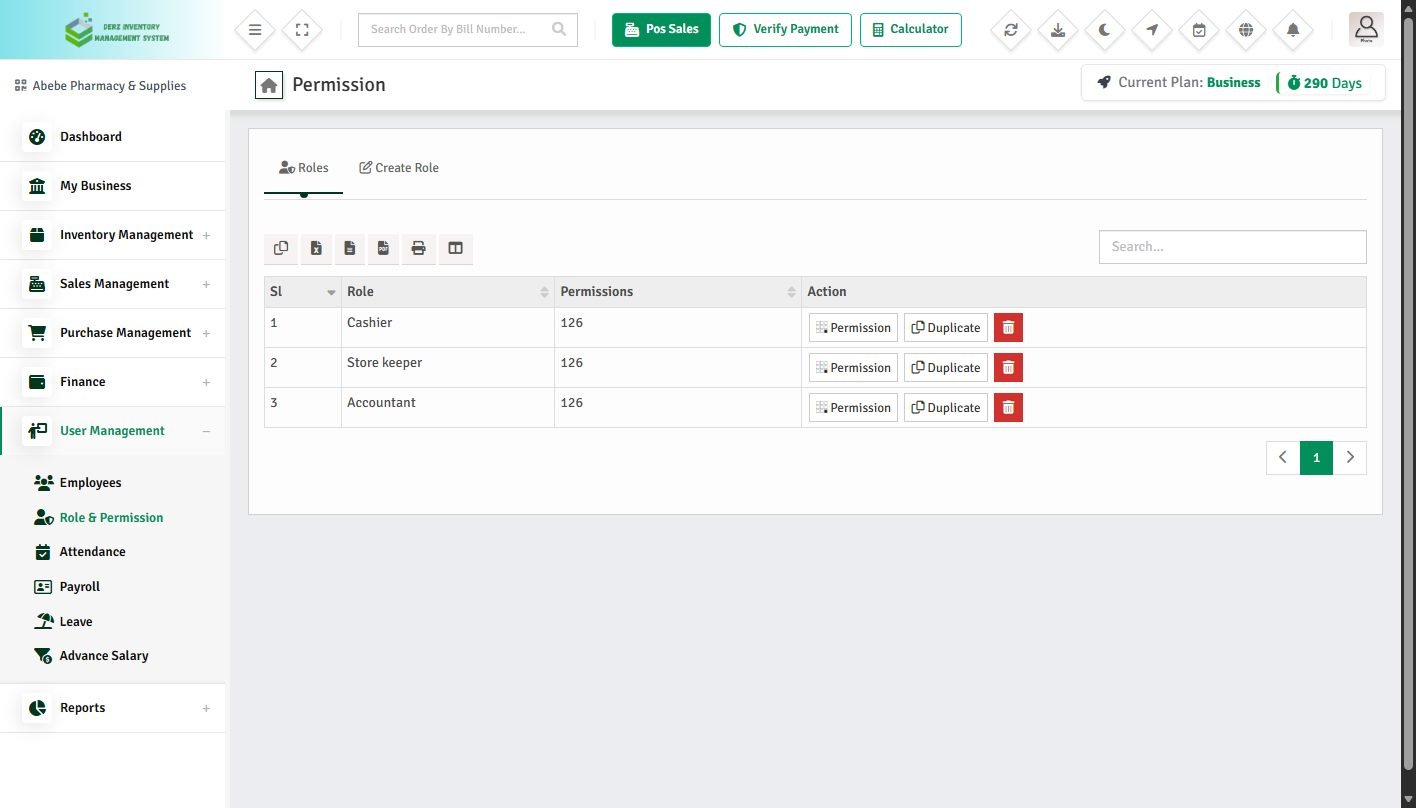
A role is a set of permissions, e.g. Cashier, Store keeper, Accountant. Create a role, then click Permission to tick what it may view, add, edit and delete in each module. Duplicate copies a role so you can make a similar one quickly.
Employees (HR)
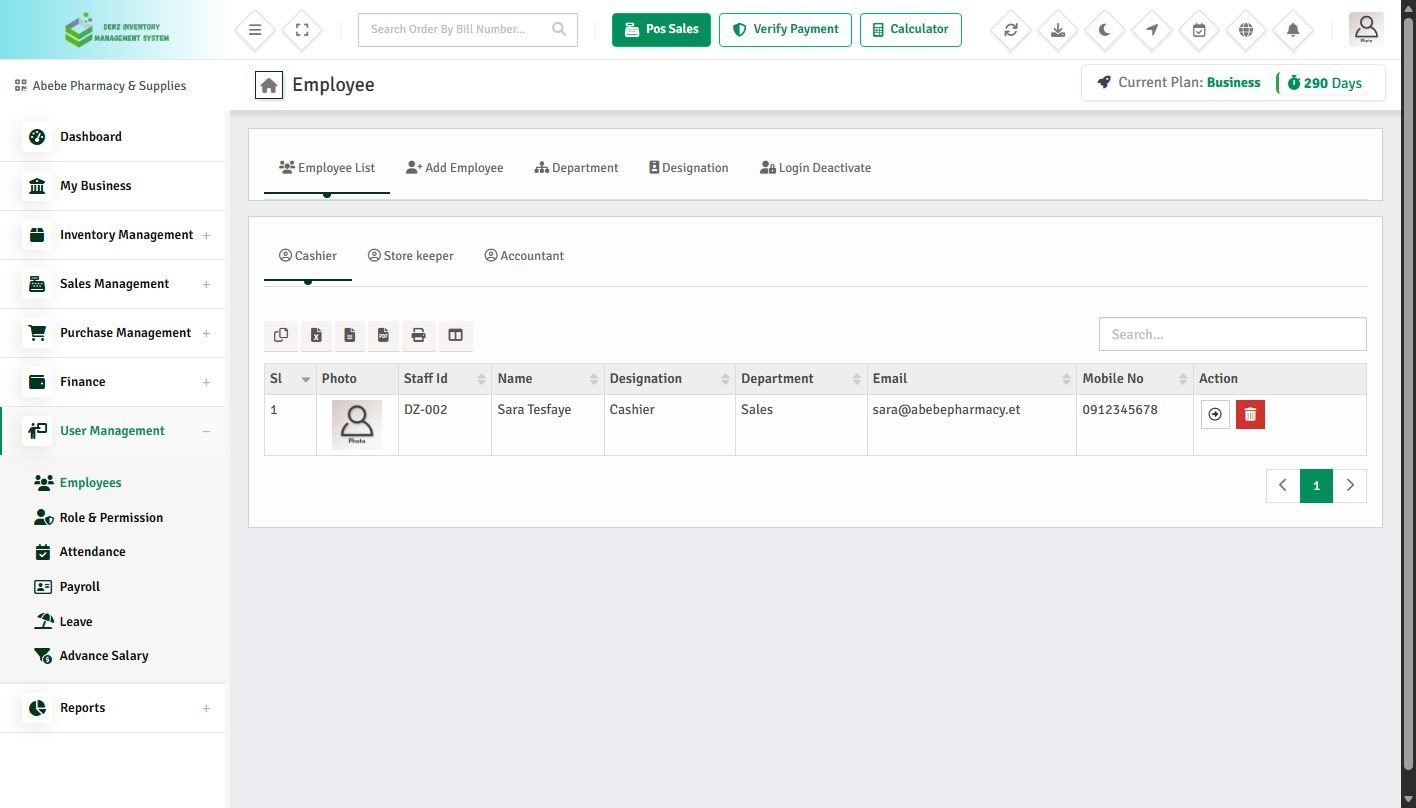
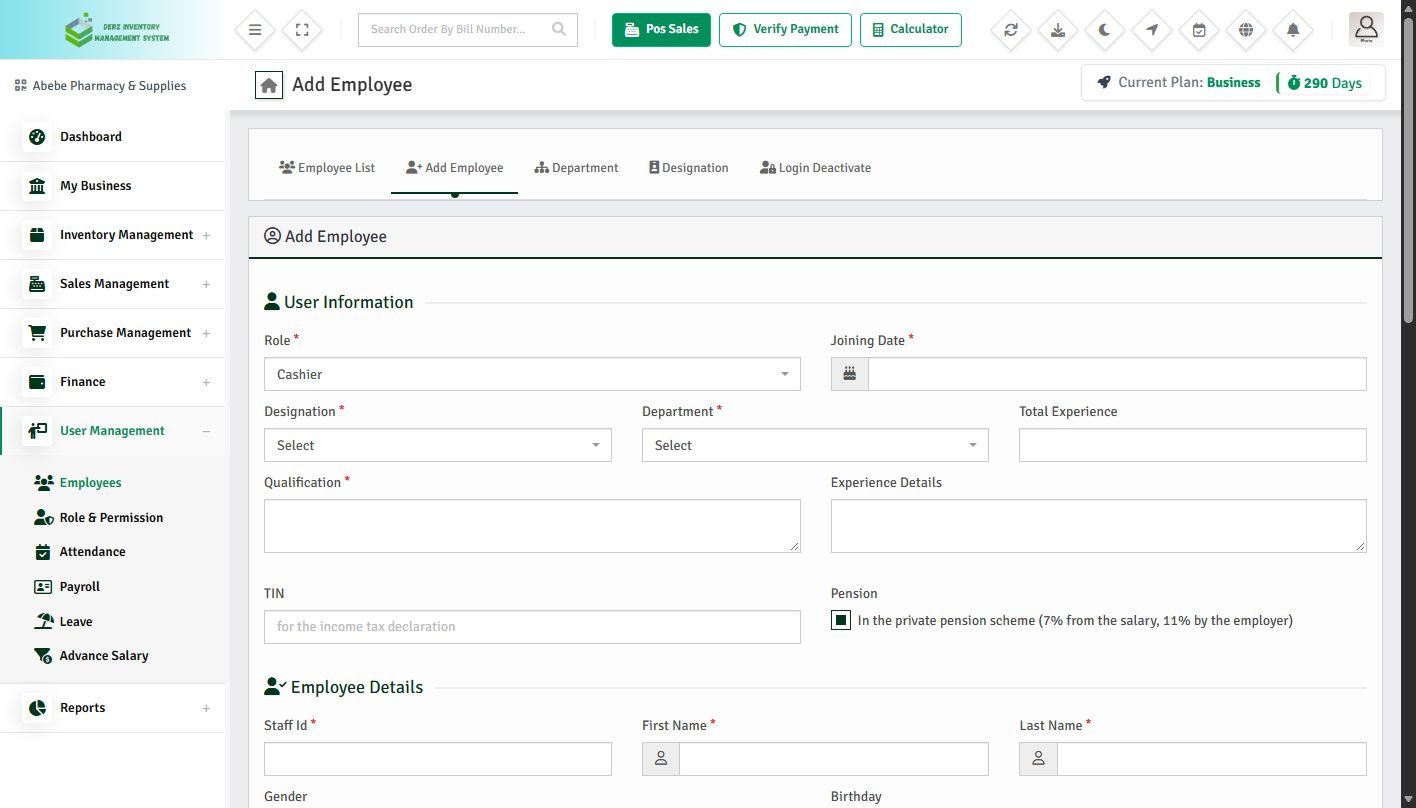
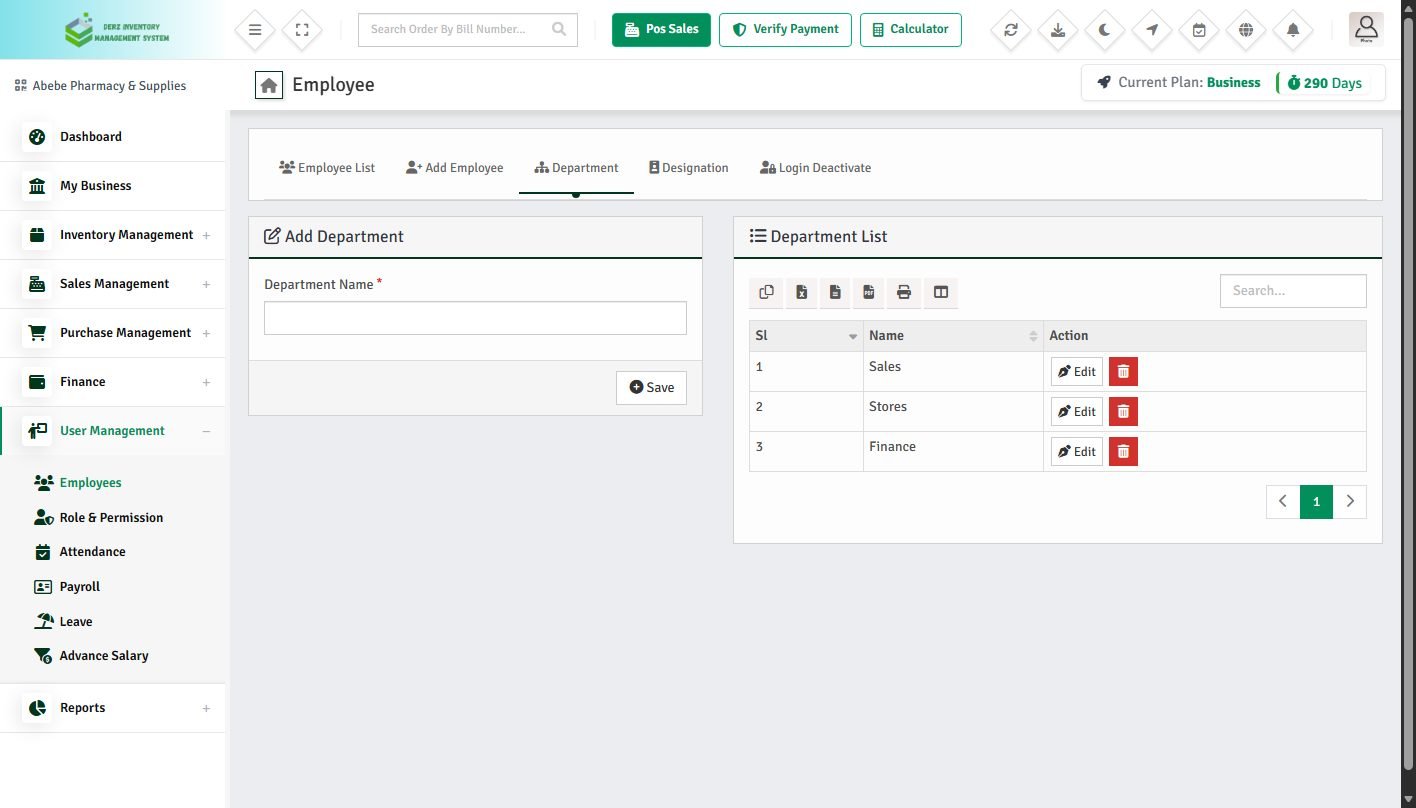
With the HR module, users become full employee records: staff ID, department, designation, joining date, qualification, TIN and pension membership, bank accounts and documents. The list is grouped by role.
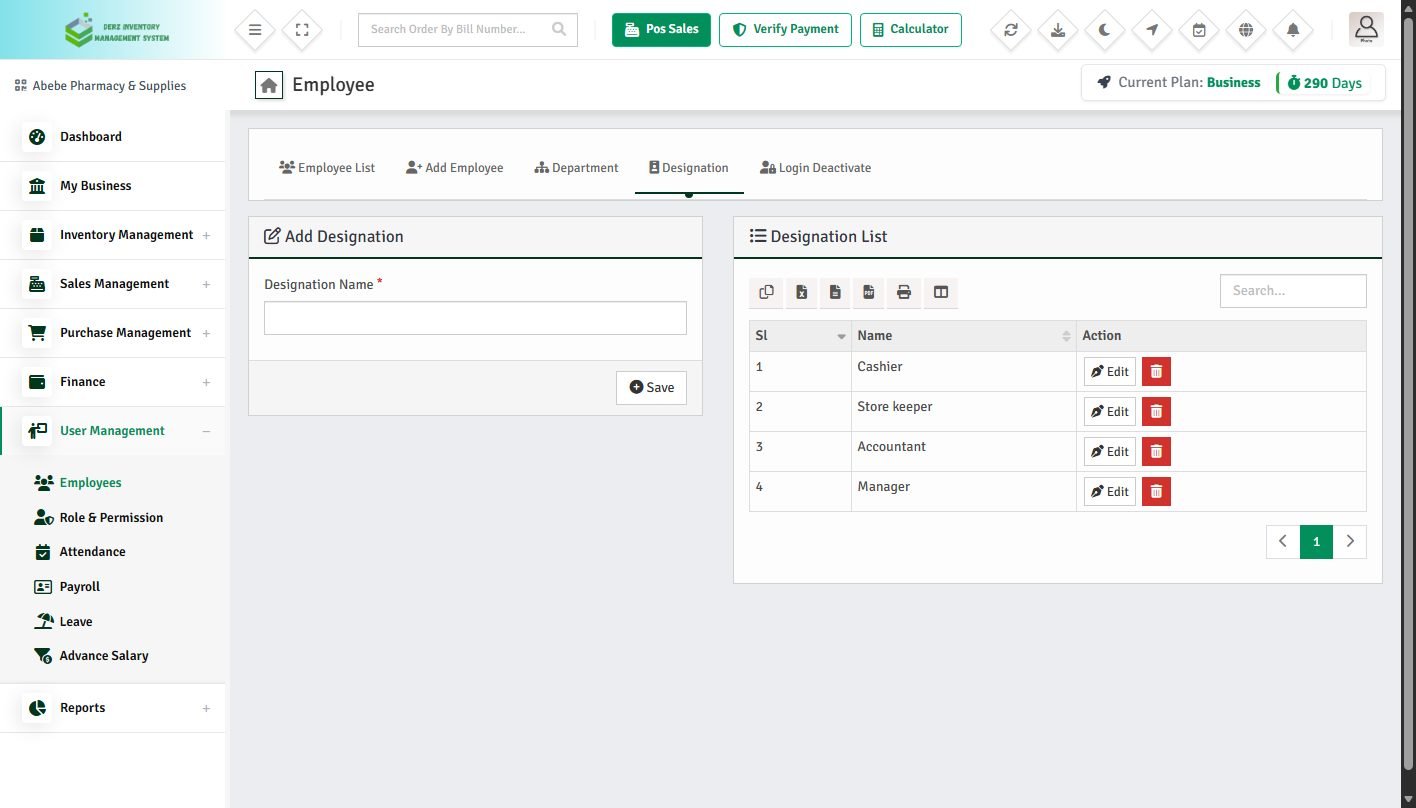
Login Deactivate lets you switch off an employee’s sign-in, e.g. for staff who left, while keeping their records. It can be switched back on.
Attendance
Choose a role and a date and click Filter. Mark each employee Present, Absent, Late or Half day, with a remark if needed, and save. Select for everyone marks all at once.

Payroll
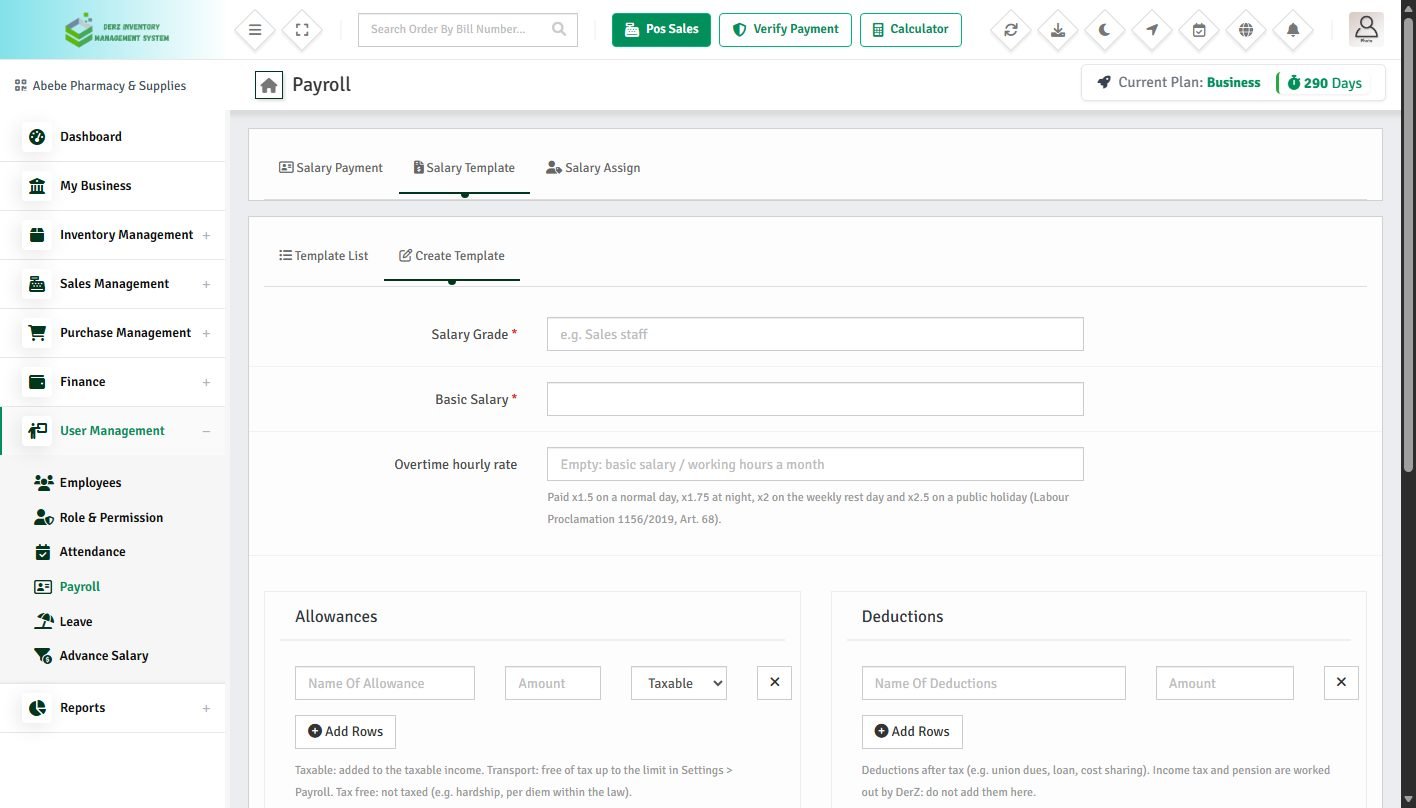
1. Salary templates (grades)
A template is a salary grade: basic salary, overtime rate per hour, allowances (e.g. transport, housing, with their tax treatment) and deductions (e.g. staff loan).
2. Assign salaries
Choose a role, click Filter, and pick each employee’s salary grade.
3. Pay salaries
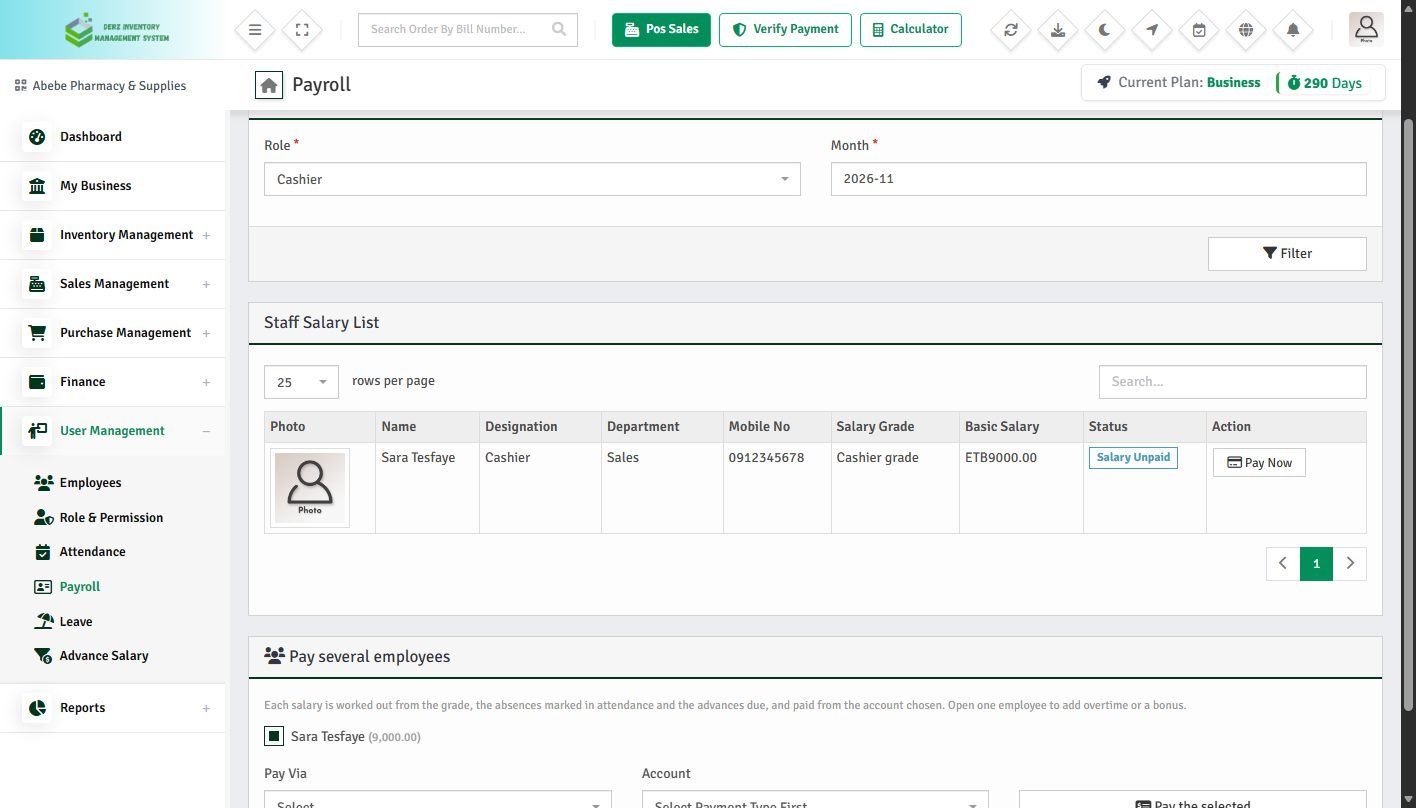
Choose the role and month and click Filter. Click Pay Now for one employee, or tick several under Pay several employees and pay them together. DerZ works out income tax and pension with the rates in payroll settings, deducts advances, creates the payslip and books the expense from the account you choose.
Leave
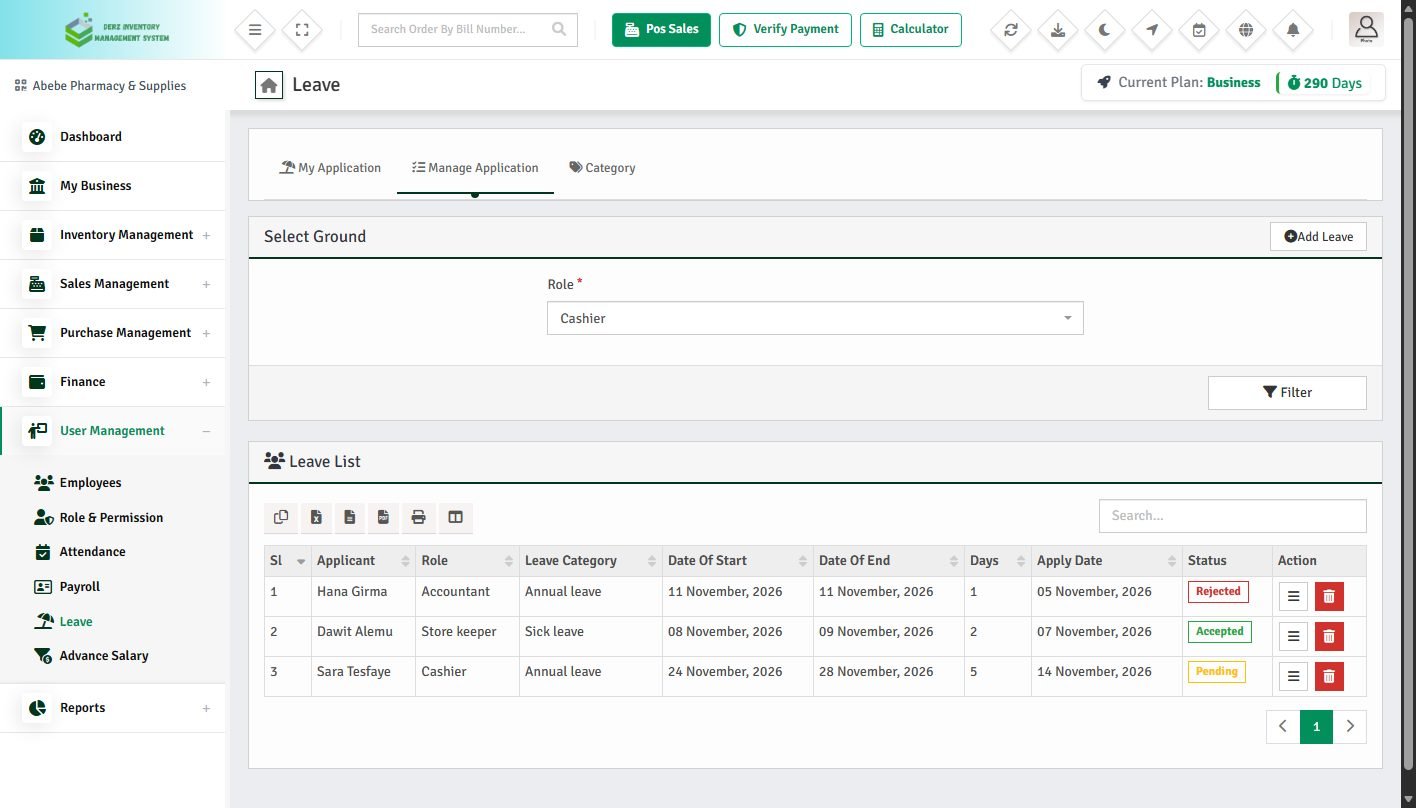
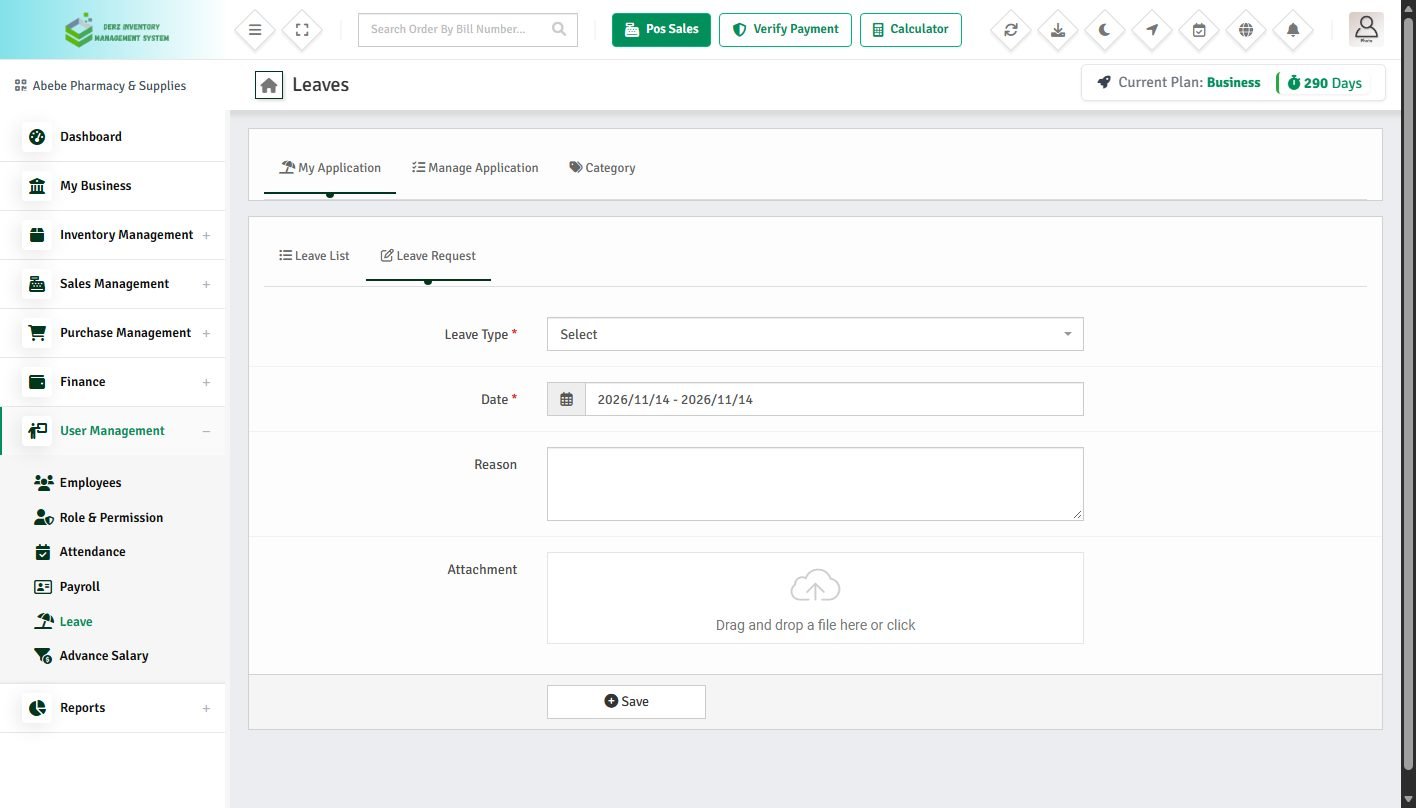
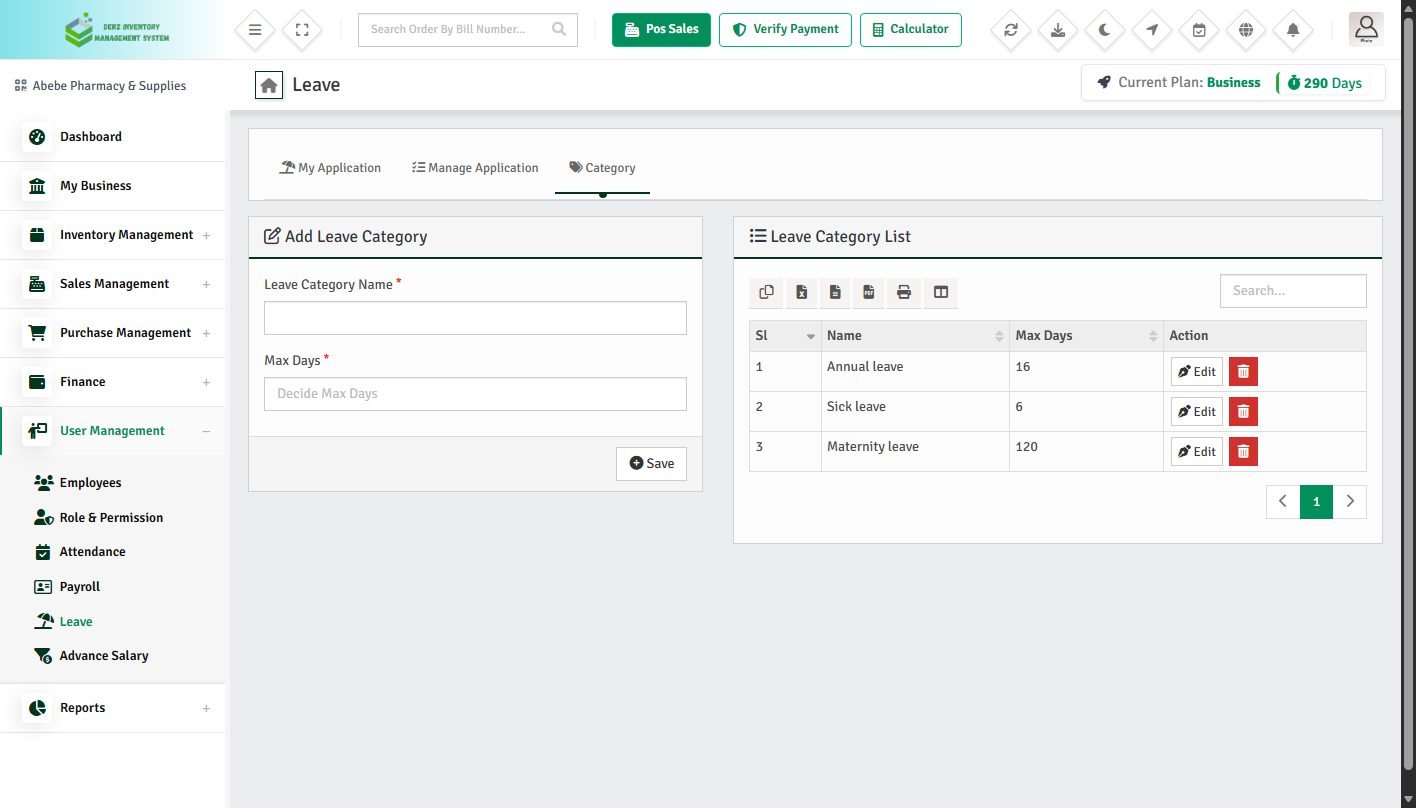
Set up leave categories (annual, sick, maternity…) with the days allowed per year. Employees apply under My Application; the manager approves or rejects under Manage Application, or adds leave on someone’s behalf with Add Leave.
Advance salary
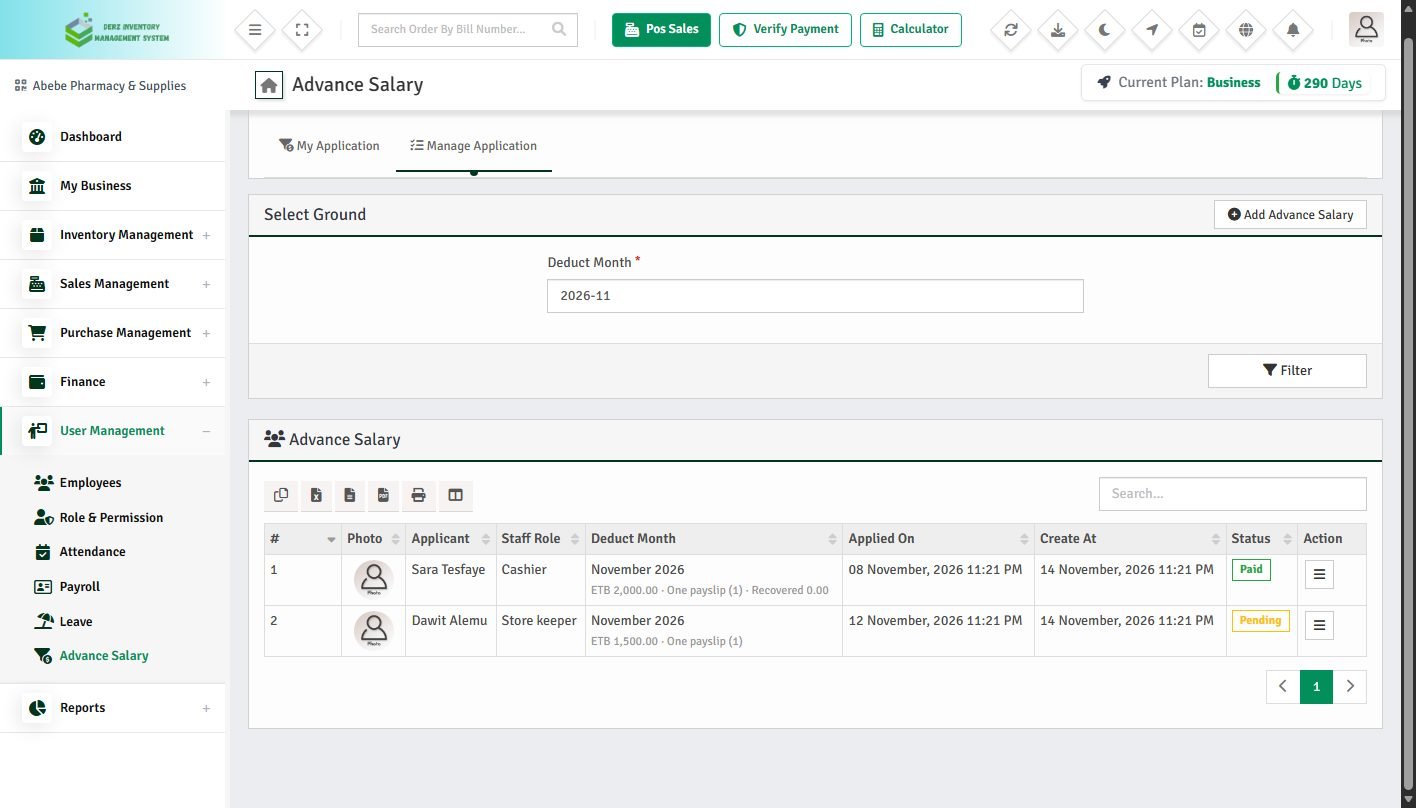
An employee can ask for part of their salary early. The manager approves it and pays it out; the amount is deducted automatically from the salary of the month chosen.
Part 8
Reports
Every report works the same way: choose the filters (dates, store, customer…) and click Filter. Above each table are buttons to copy, export to Excel, CSV or PDF, print, and choose which columns to show. On a phone the rows become cards.
Use the date box’s ready-made ranges (Today, This month, Last month…) instead of picking dates by hand.
Inventory reports
Stock summary
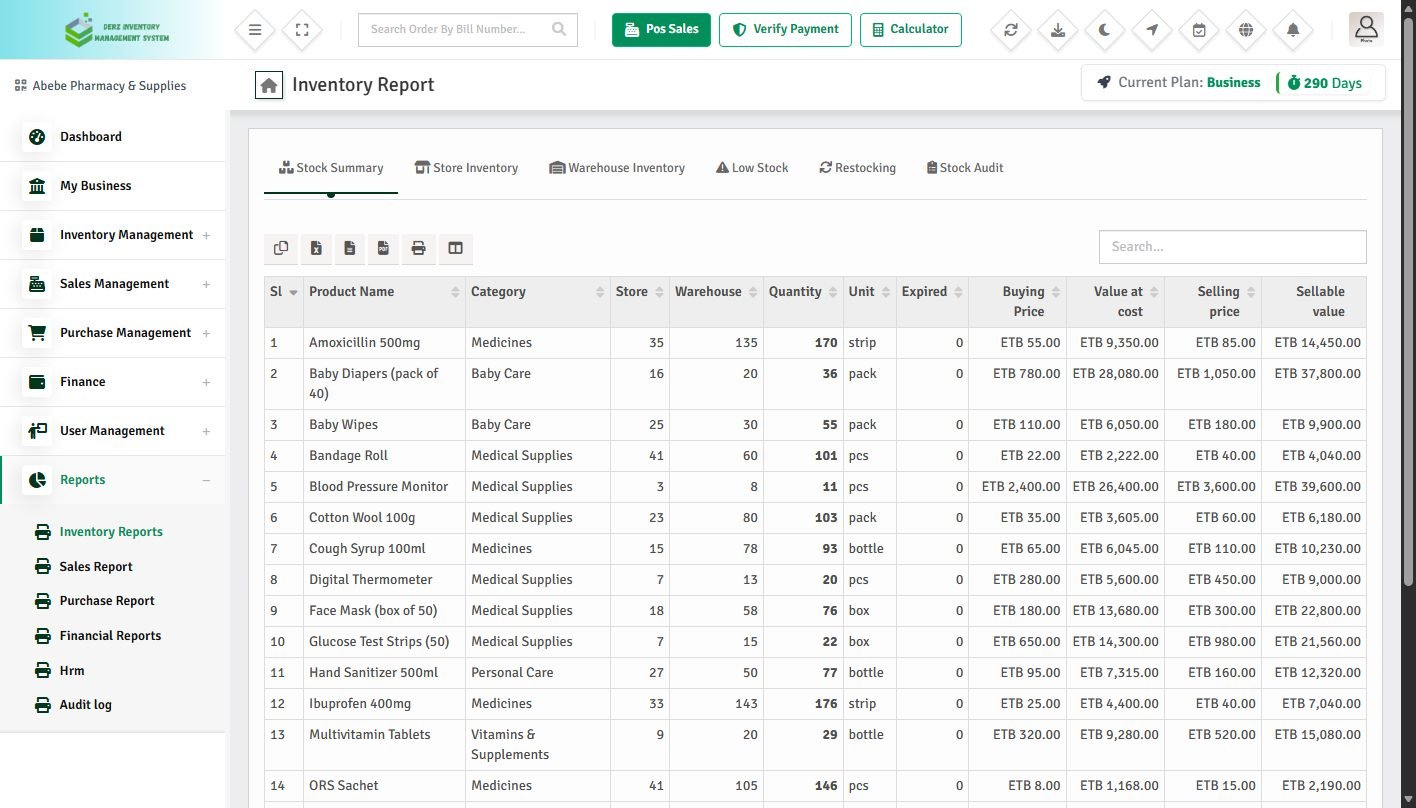
Every product with its quantity in stores, warehouses and in total, expired quantity, the value at cost and at selling price.
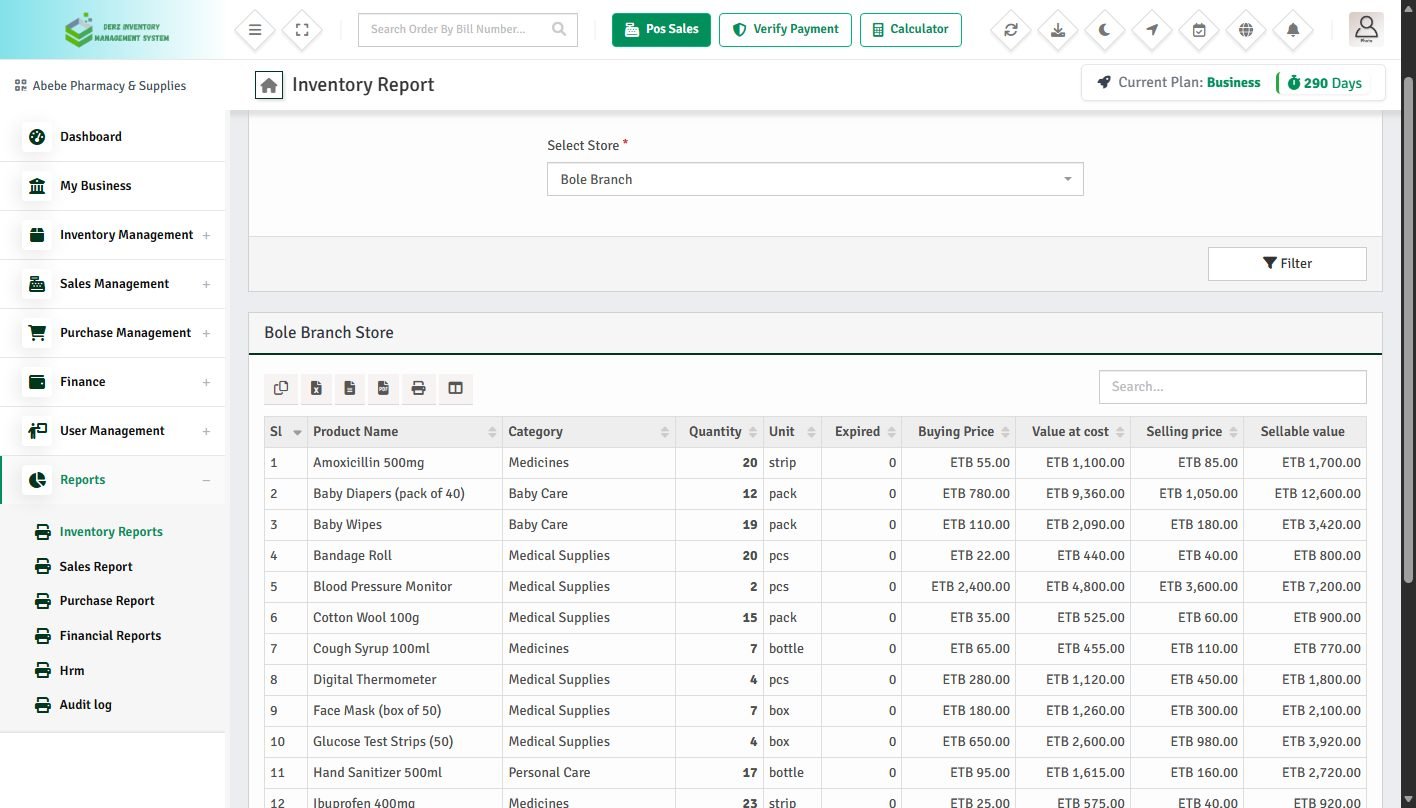
Store and warehouse inventory
The same for one store or one warehouse.
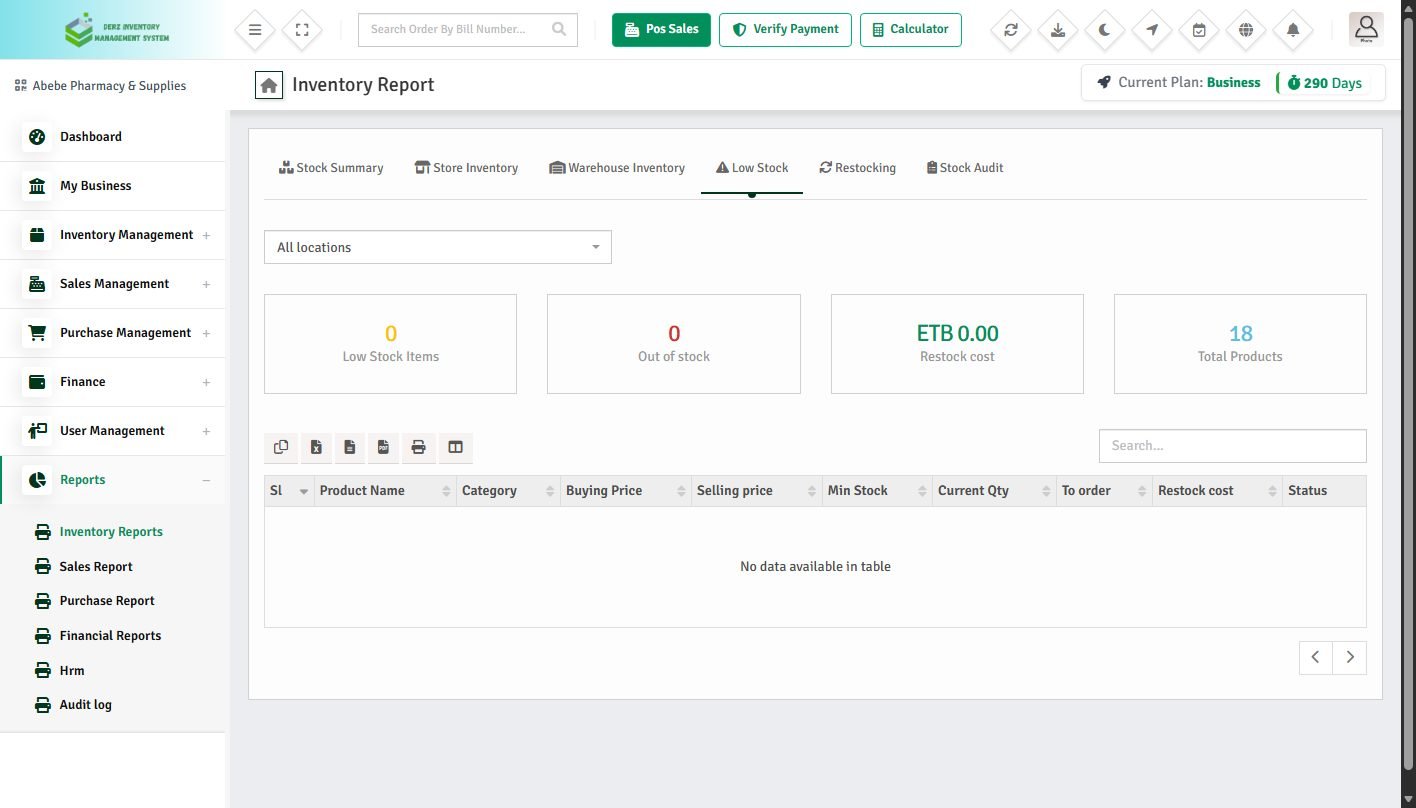
Low stock
Products below their minimum, how many to order and what it will cost.
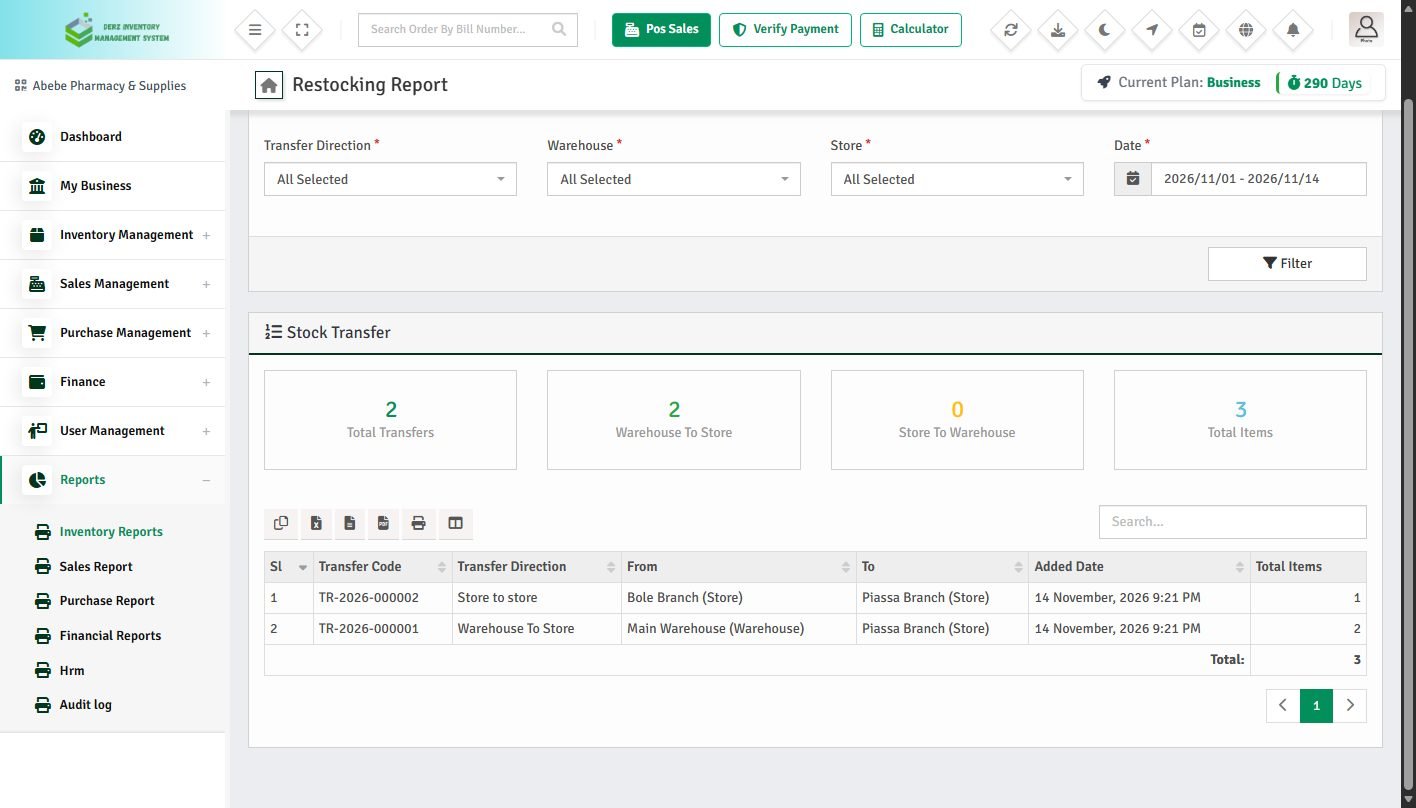
Restocking
What was moved from warehouses to stores (or between locations) over a period.
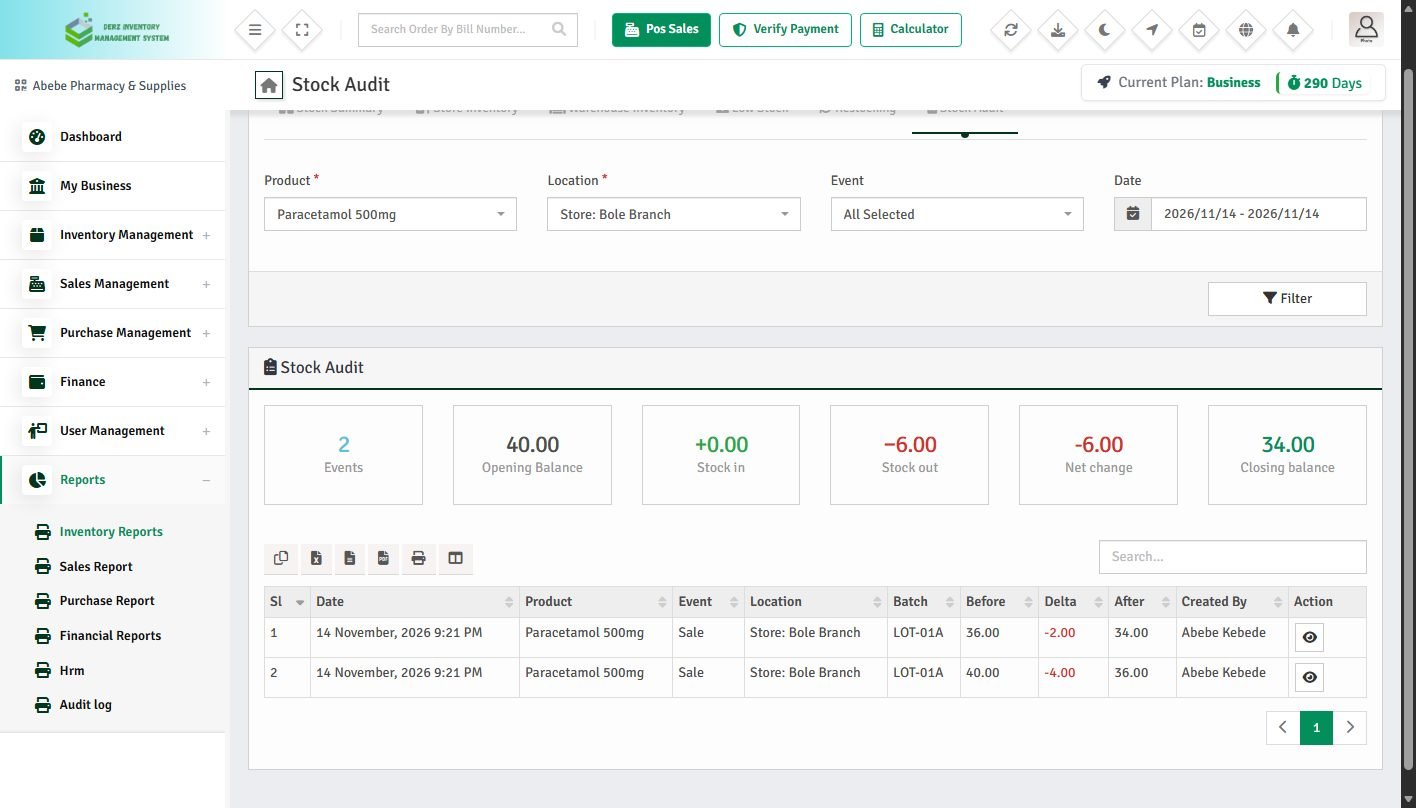
Stock audit
The full history of one product at one location: every sale, purchase, transfer, return, write-off and count, with the quantity before and after and who did it. Use it to find out where stock went.
Sales reports
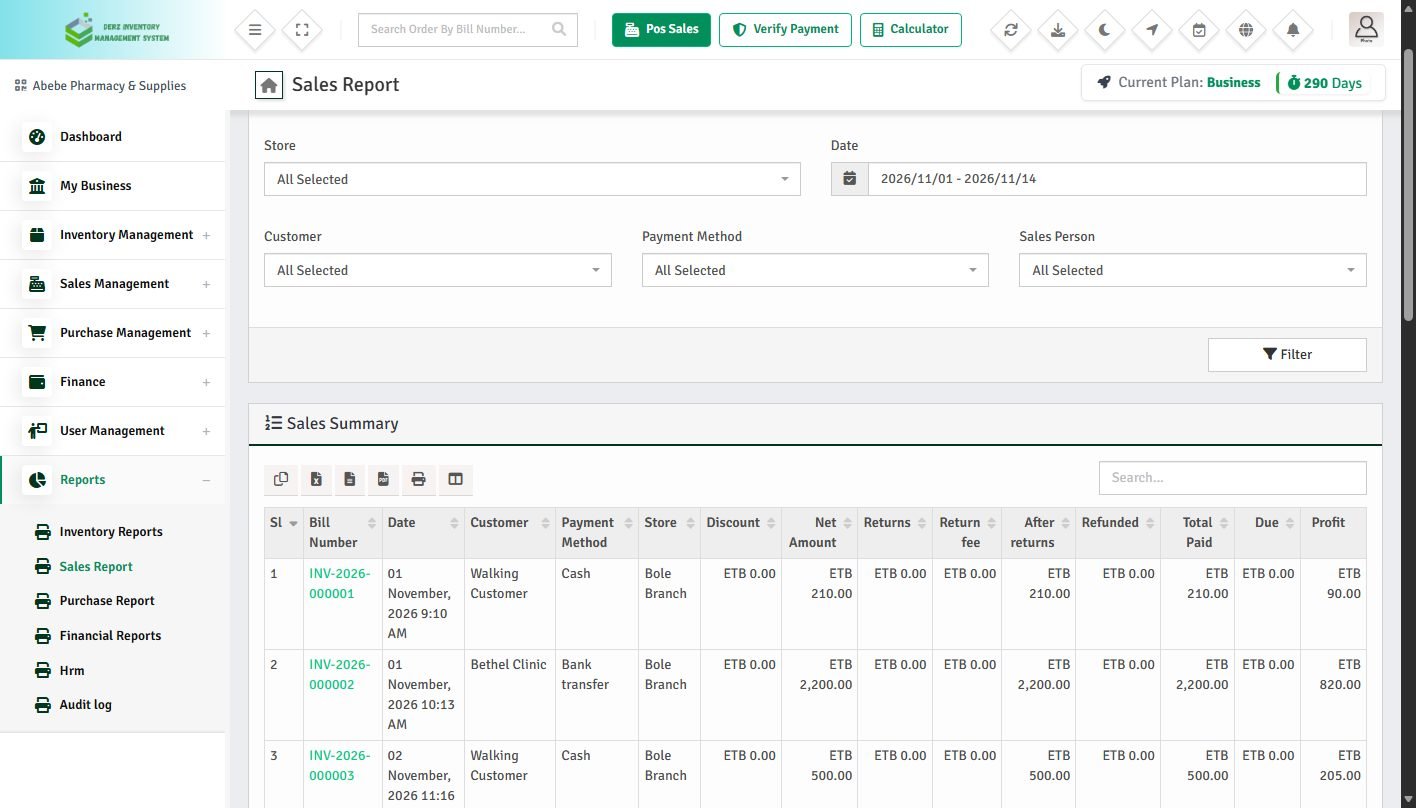
Sales summary
Every sale with its discount, net amount, returns, return fee, amount paid, due and profit. Filter by store, date, customer, payment method and sales person.
Product sales
Totals per product: quantity sold, amount and profit. Shows your best sellers.

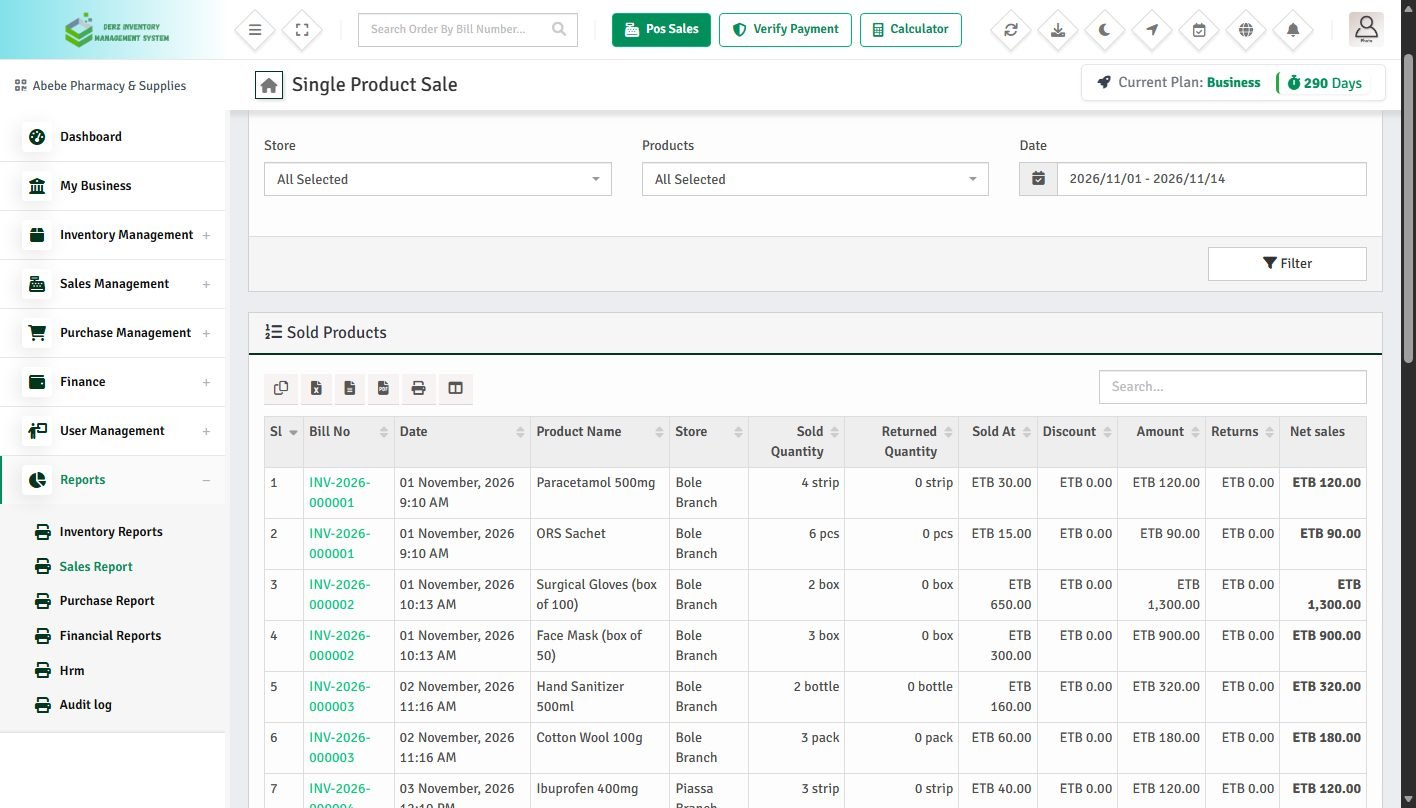
Individual product sales
Each sale line for chosen products, with date, store, customer and price.
Purchase reports
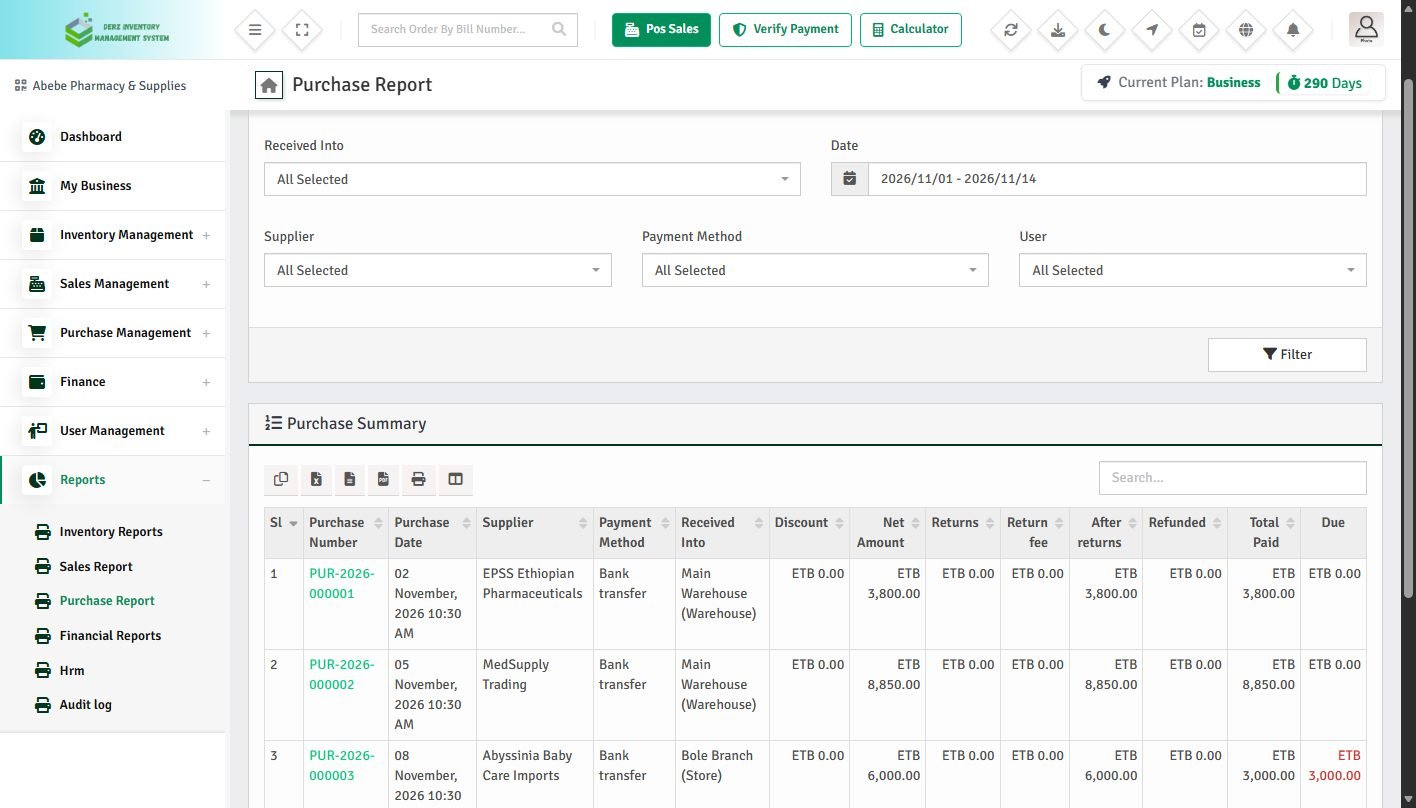
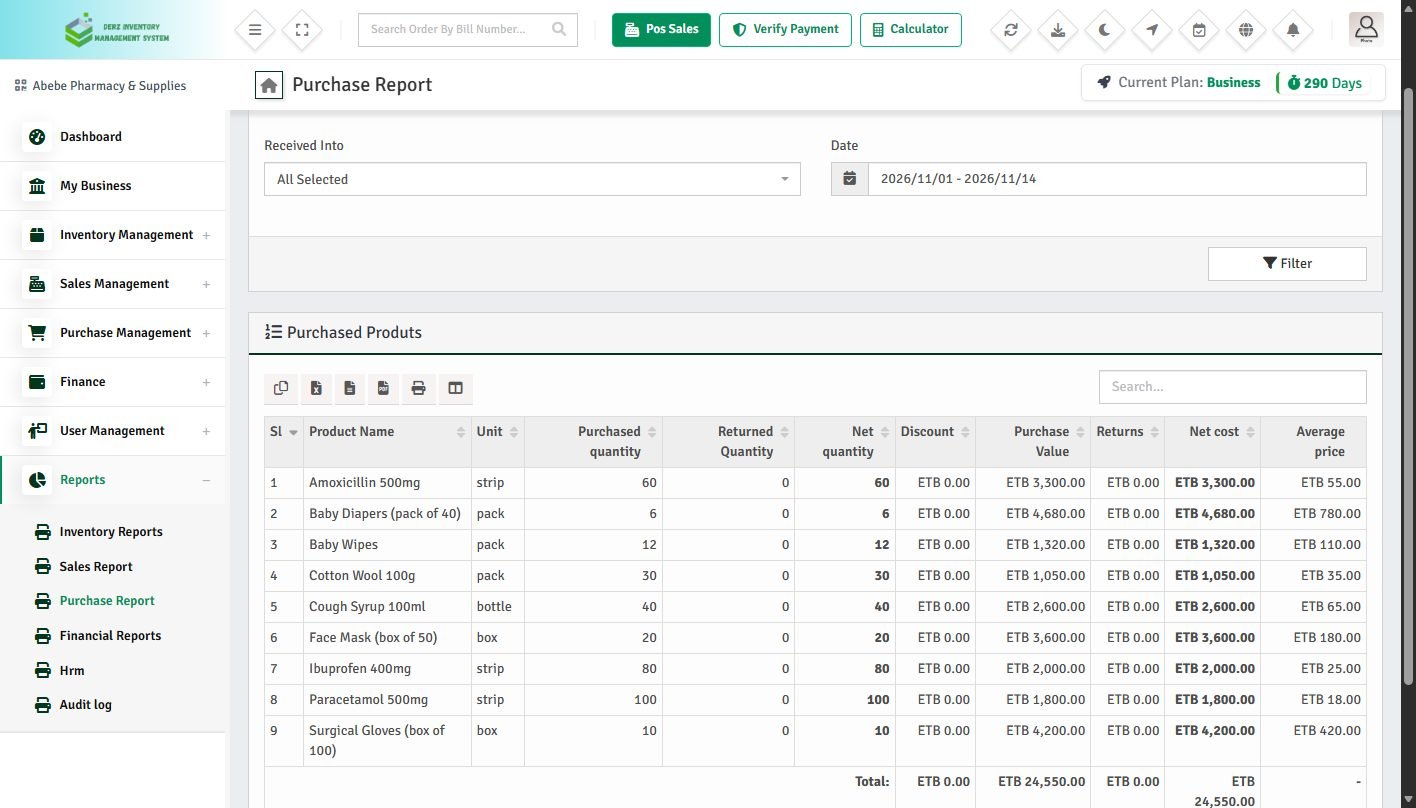
The same three views for purchases: purchase summary (by supplier, location, payment method, user), product purchase (totals per product) and individual product purchase.
Financial reports
DerZ keeps proper double-entry books in the background. Every sale, purchase, payment and expense is posted automatically, so these reports are always ready. The ledger starts on the day the business starts it; earlier figures are in the cash flow report.
Profit & loss
Income (sales, other income) minus the cost of goods sold and expenses, for any period. Available on every plan.

Balance sheet
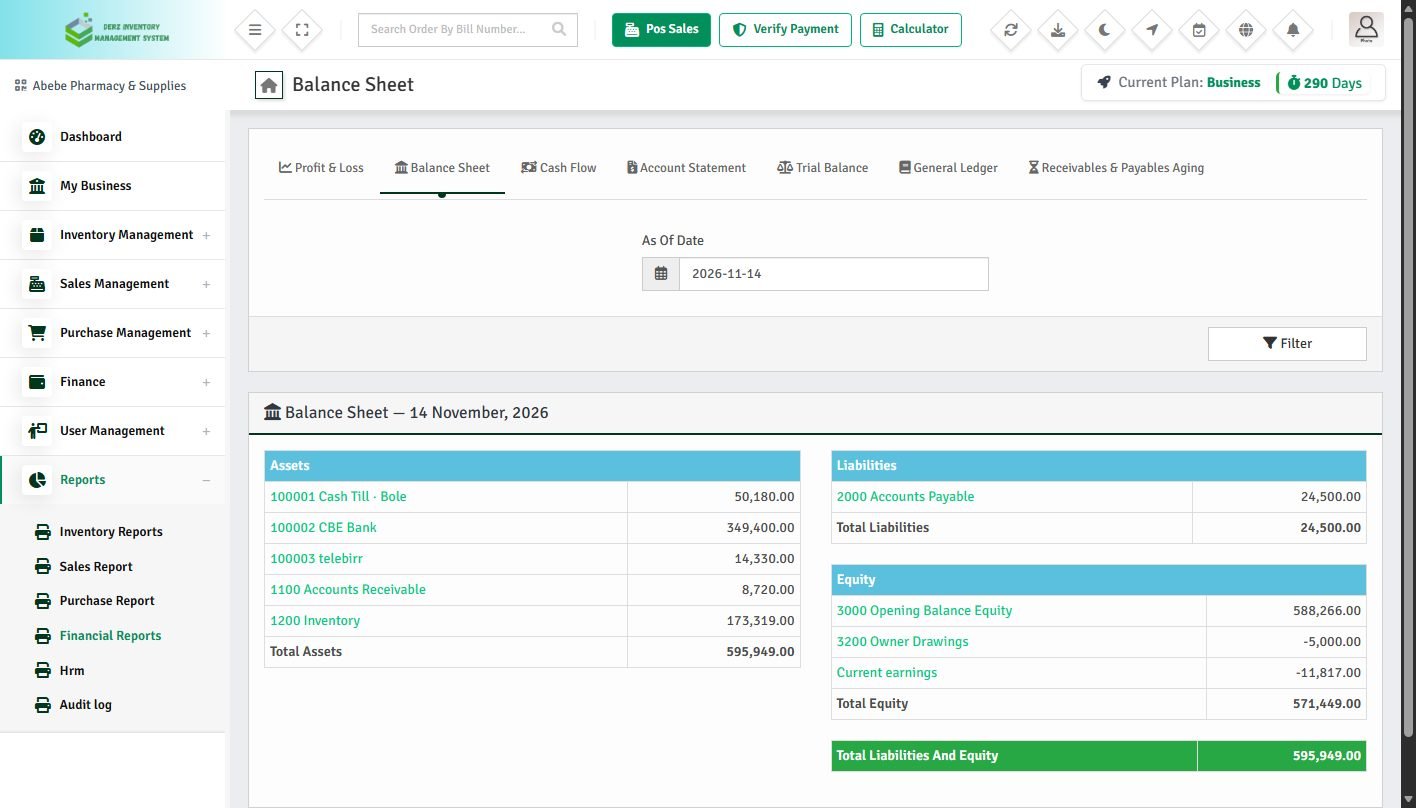
What the business owns (cash, bank, receivables, inventory) and owes (payables), and the owner’s equity, on any date.
Cash flow
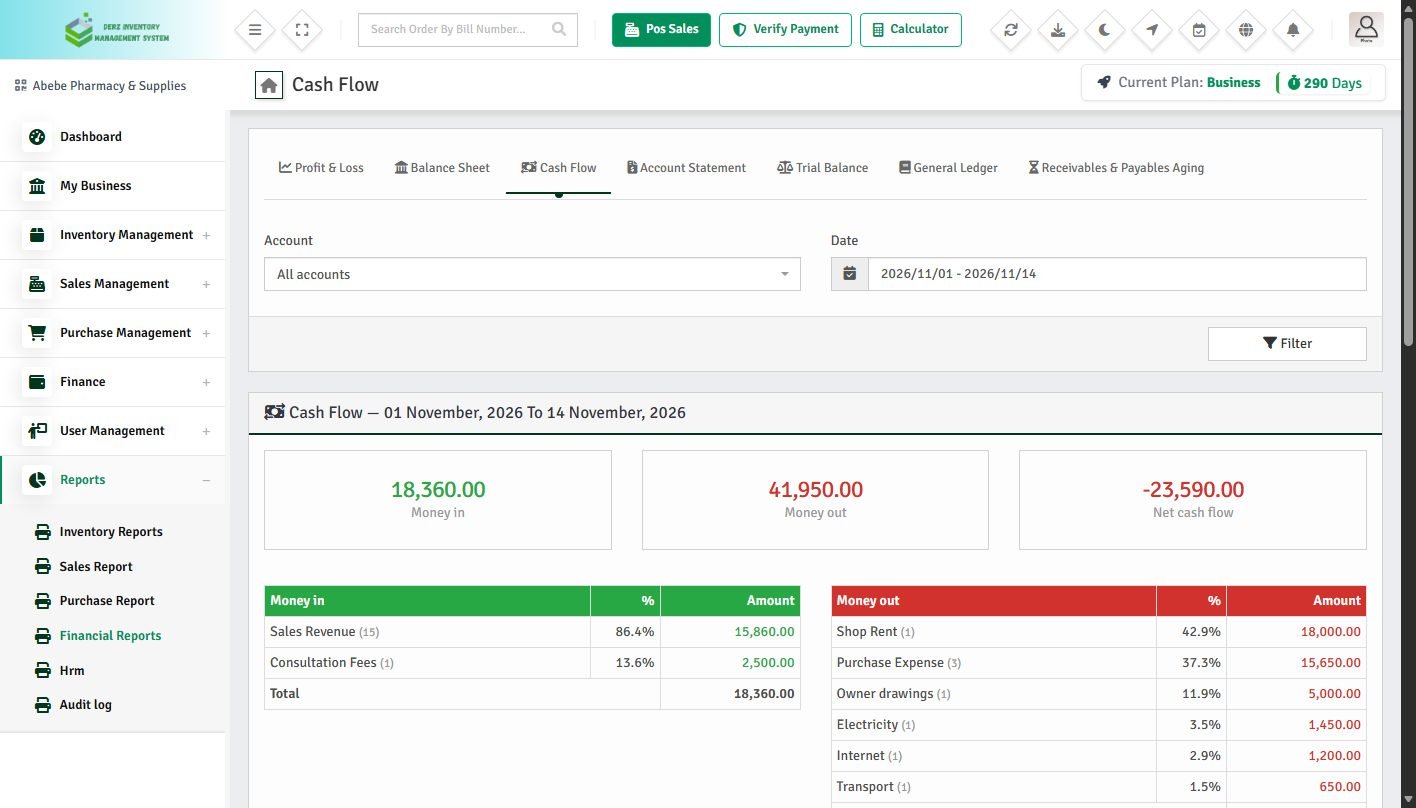
Money in and money out per category, as amounts and percentages, with the net cash flow.
Account statement
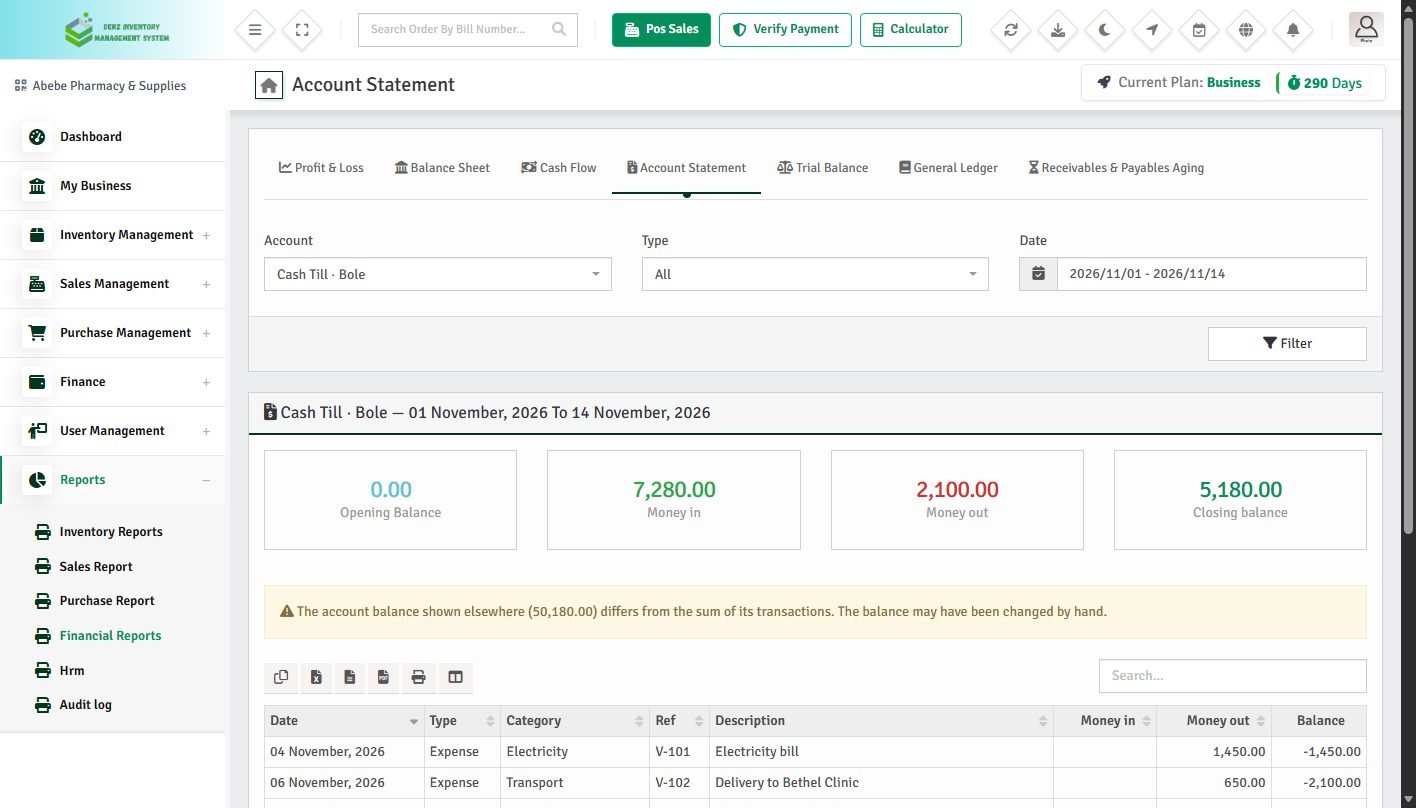
Like a bank statement for one account: opening balance, every movement in and out, and the closing balance.
Trial balance
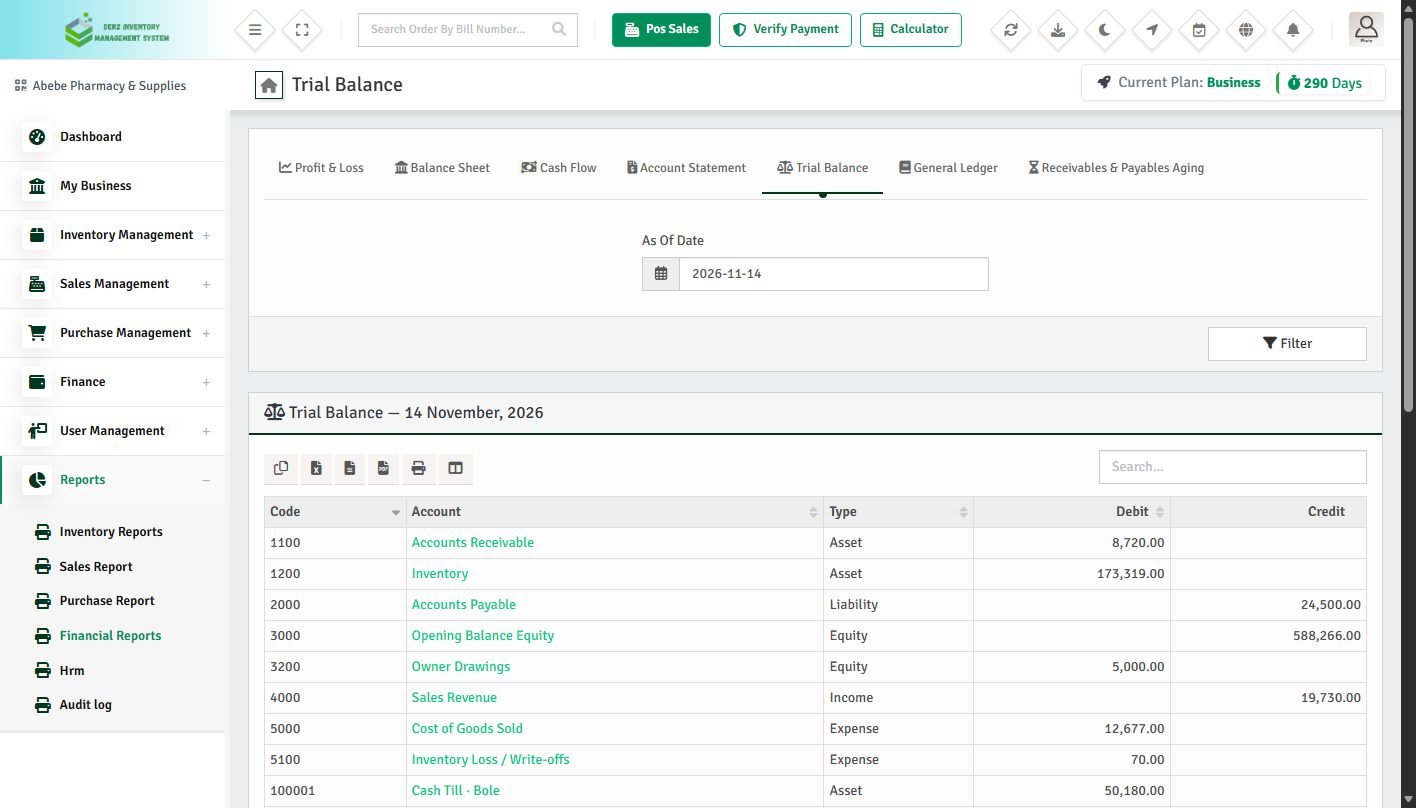
The debit and credit balance of every ledger account on a date. For your accountant.
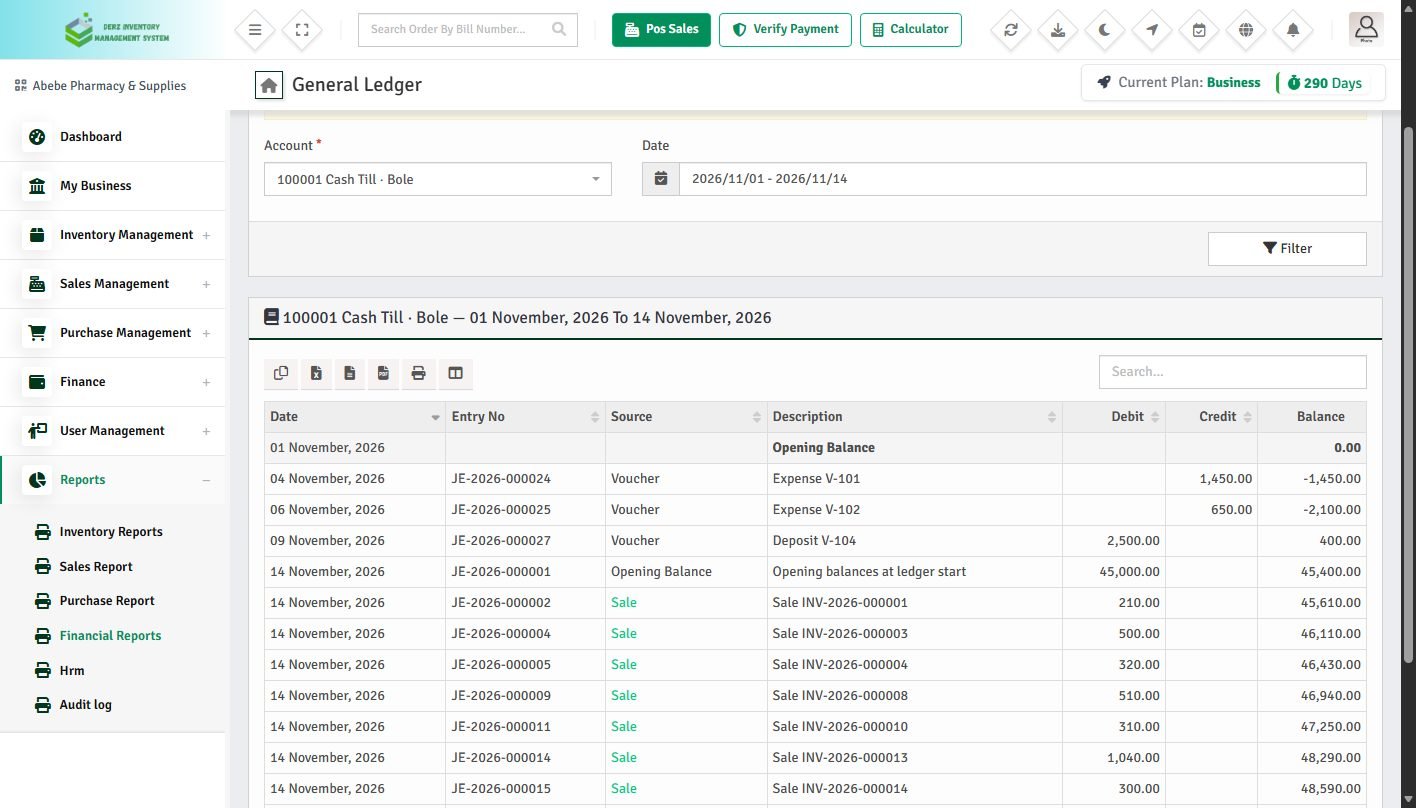
General ledger
Every entry of one ledger account with a running balance. Click an entry to see where it came from.
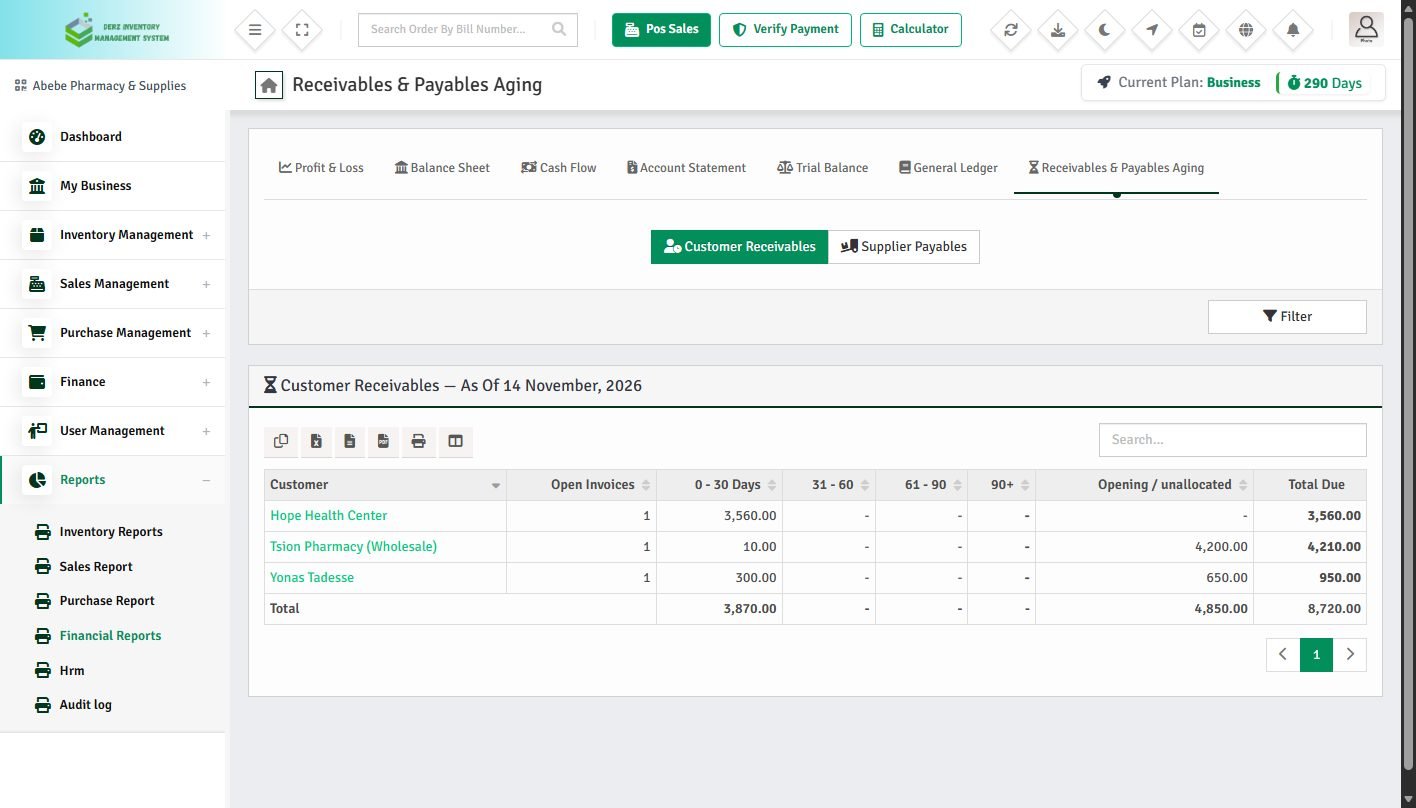
Receivables & payables aging
Who owes you (and whom you owe), split by how old the debt is: 0–30, 31–60, 61–90 and over 90 days. Switch between Customer Receivables and Supplier Payables.
Tax report
VAT or TOT collected on sales and paid on purchases, for your tax return. Shown only when the business is registered for VAT or TOT.
HR reports
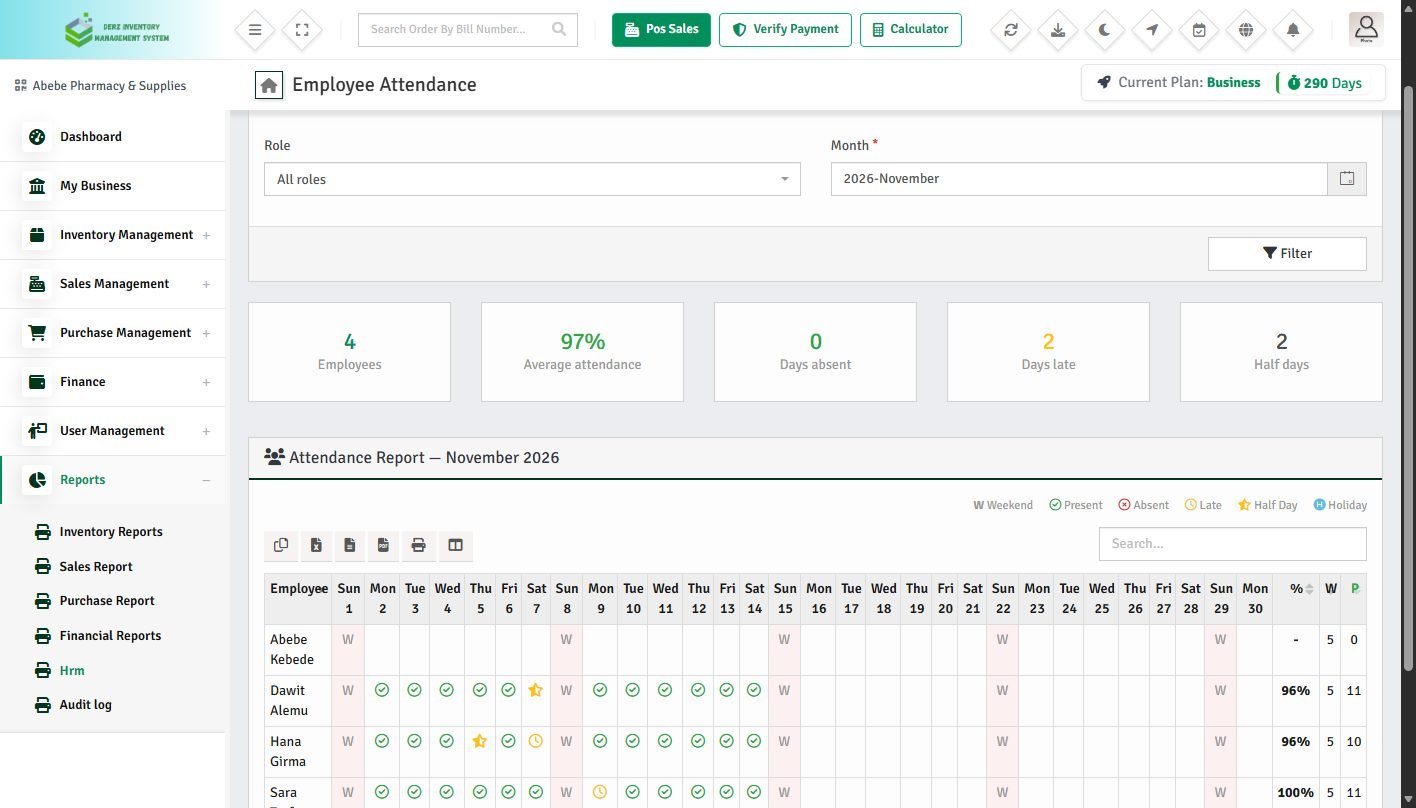
Attendance report
A month grid for every employee: present, late, absent, half day, weekends and holidays, with totals and the attendance rate.
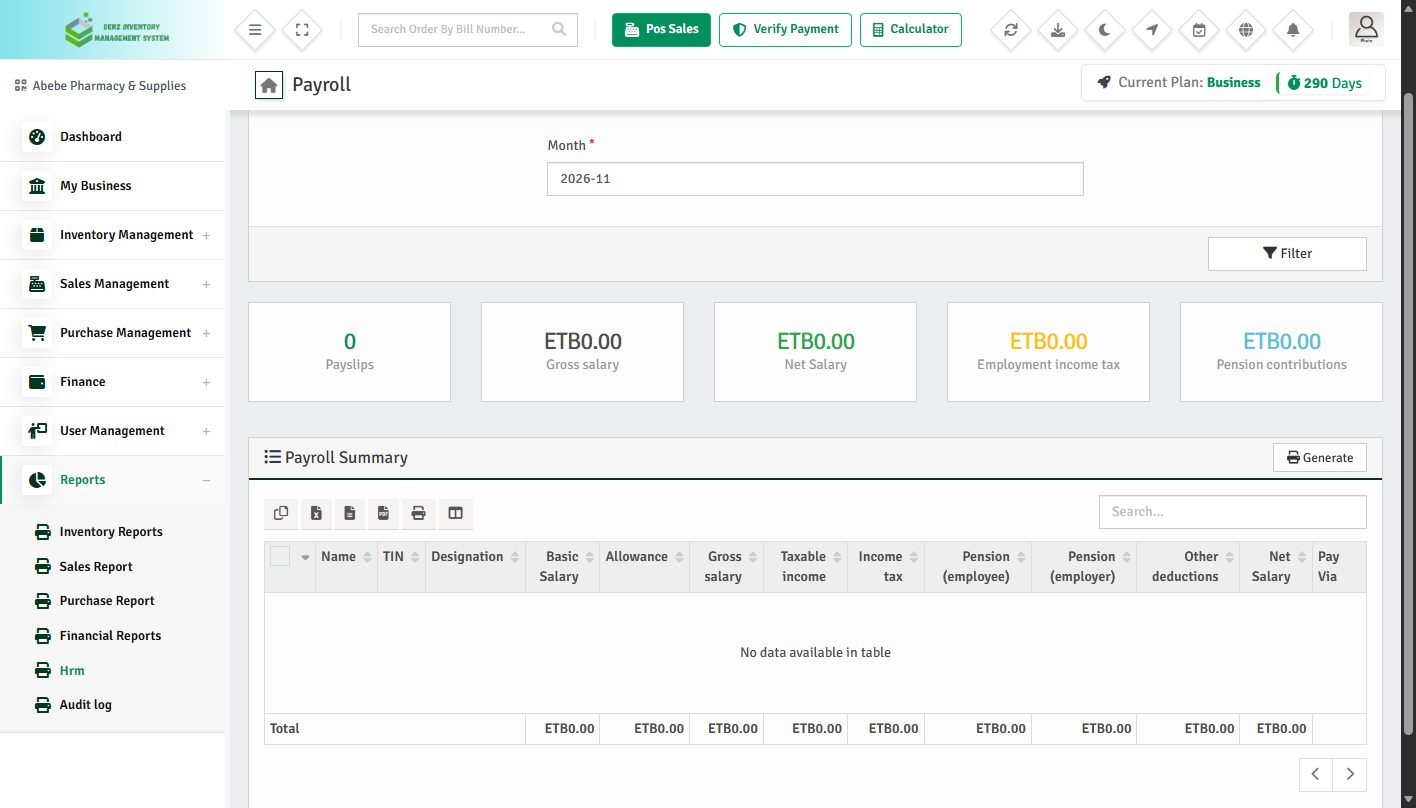
Payroll summary
All payslips of a month: basic, allowances, gross, taxable income, income tax, pension and net salary.
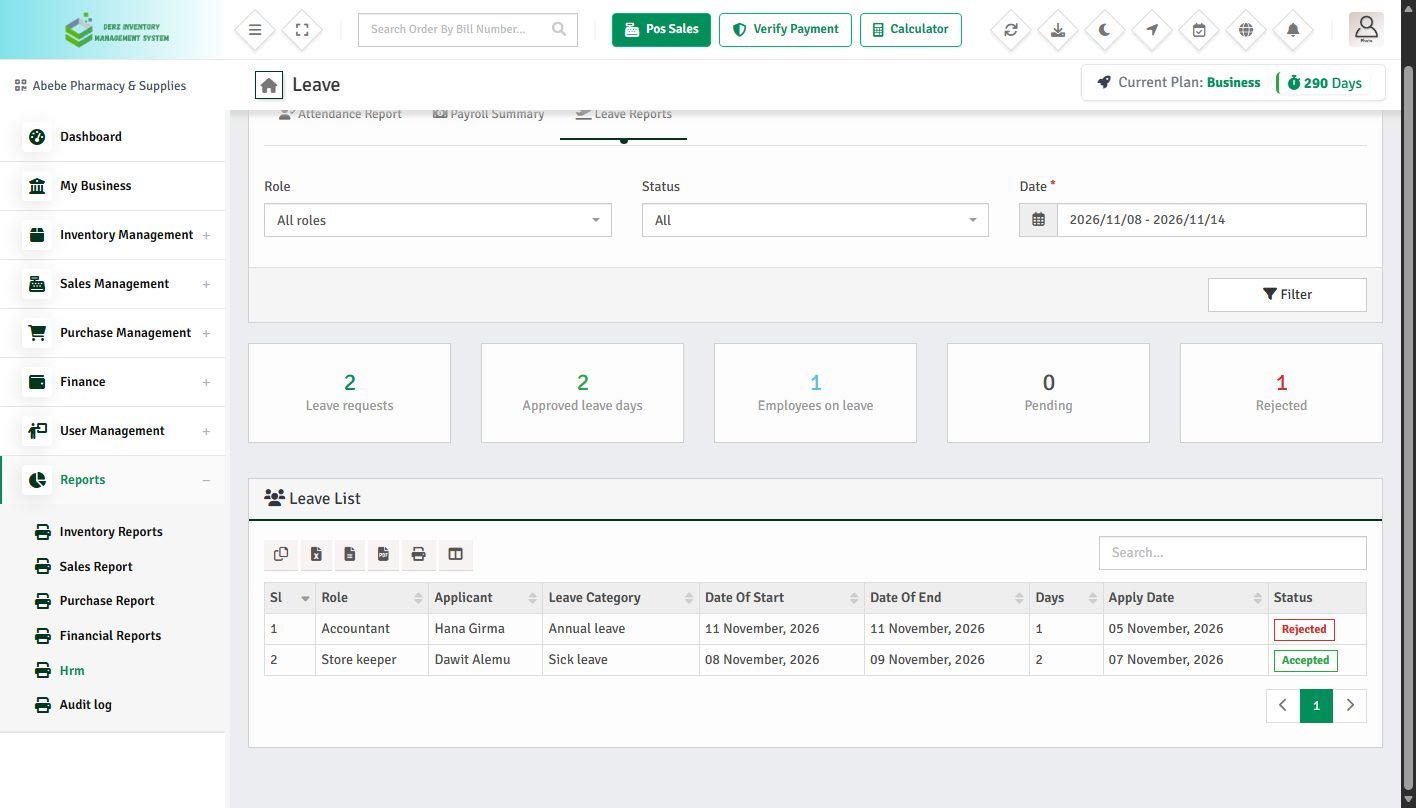
Leave report
Leave taken by role, status and period, with totals.
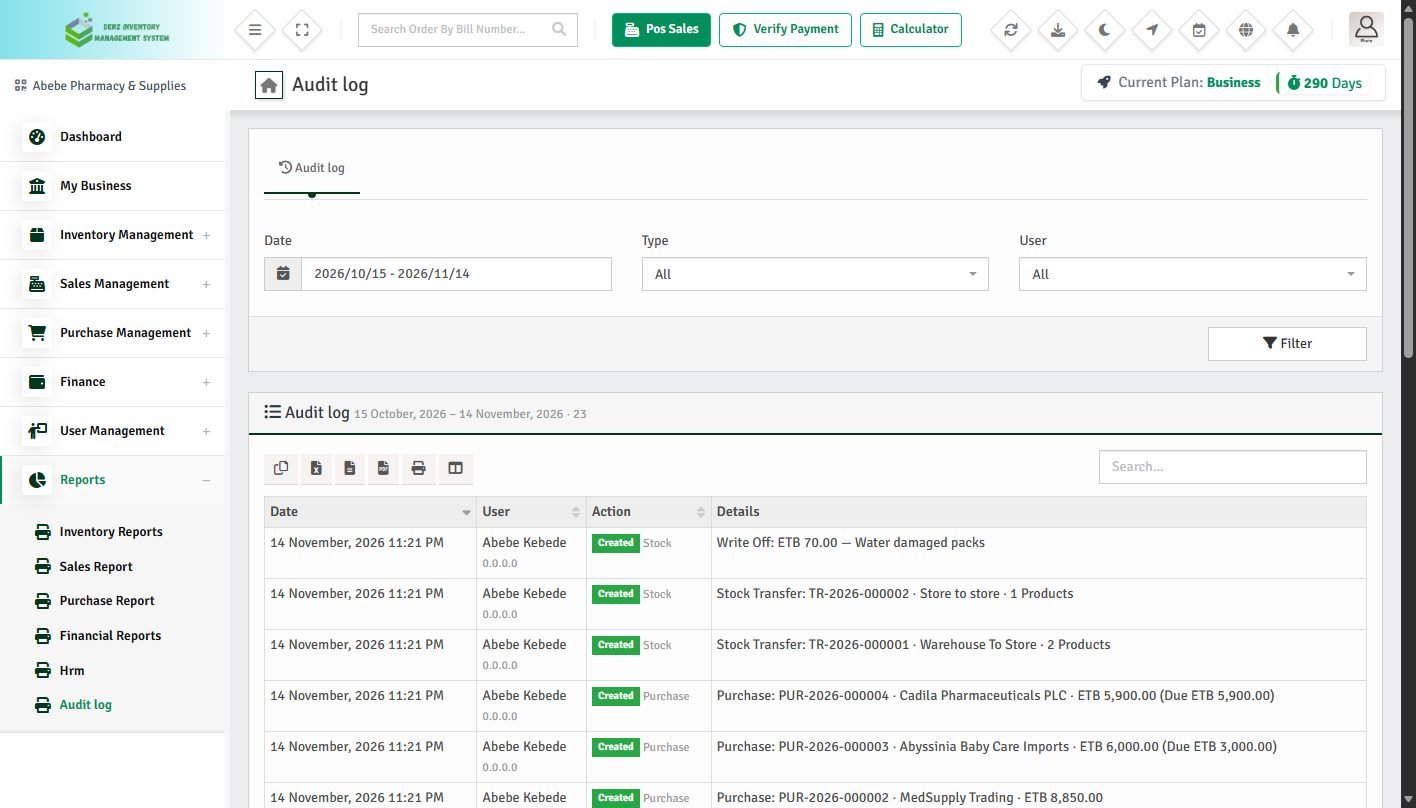
Audit log
Who did what and when: every record created, changed, reversed or deleted, by which user. Filter by date, type and user.
Part 9
Tools
Helpers available on every page.
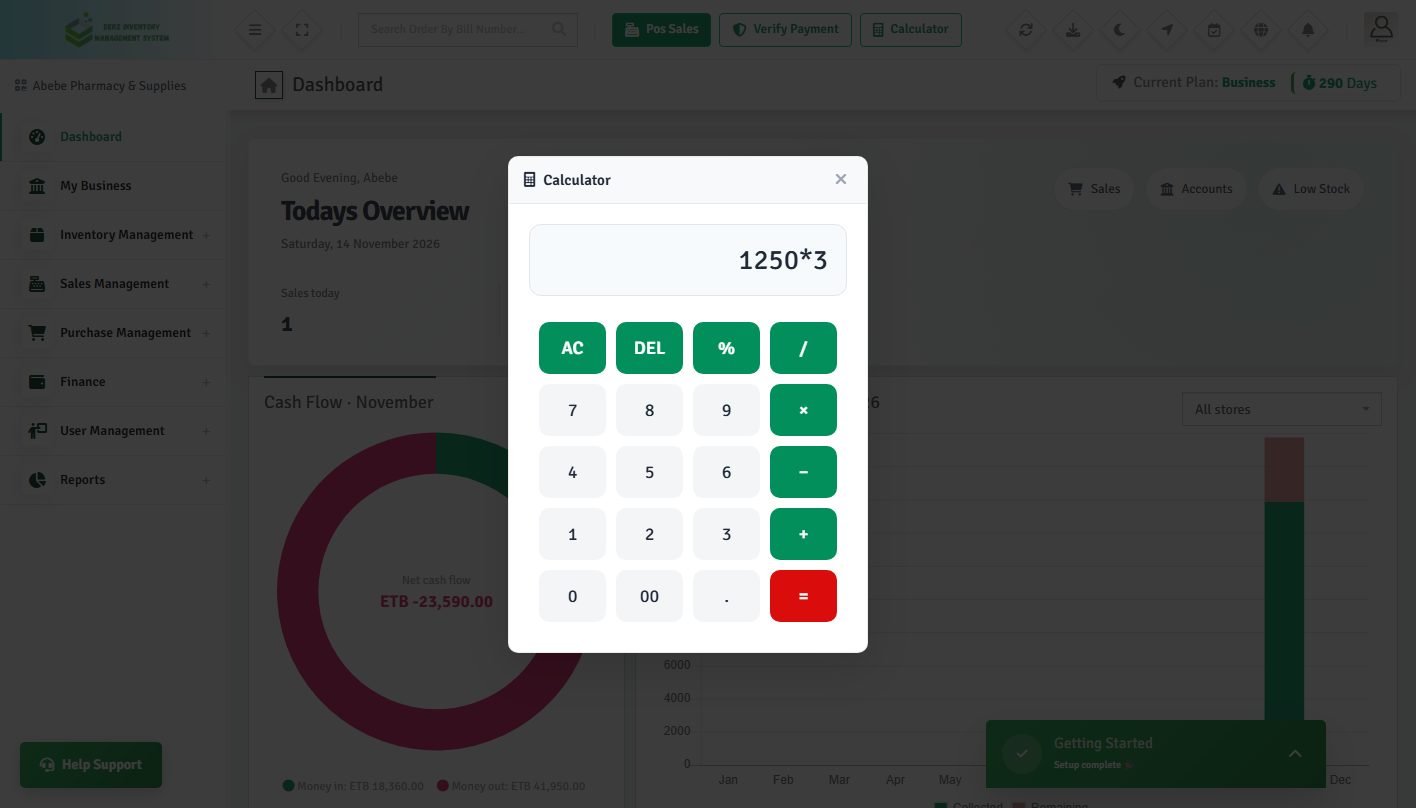
Calculator
Open it from the top bar or with Alt+C on any page. While it is open you can type on the keyboard:
| Key | Action |
|---|---|
| 0–9 . | Numbers |
| + - * / % | Operations |
| Enter or = | Result |
| Backspace | Delete the last digit |
| Delete or C | Clear all |
| Esc | Close |
Verify payment
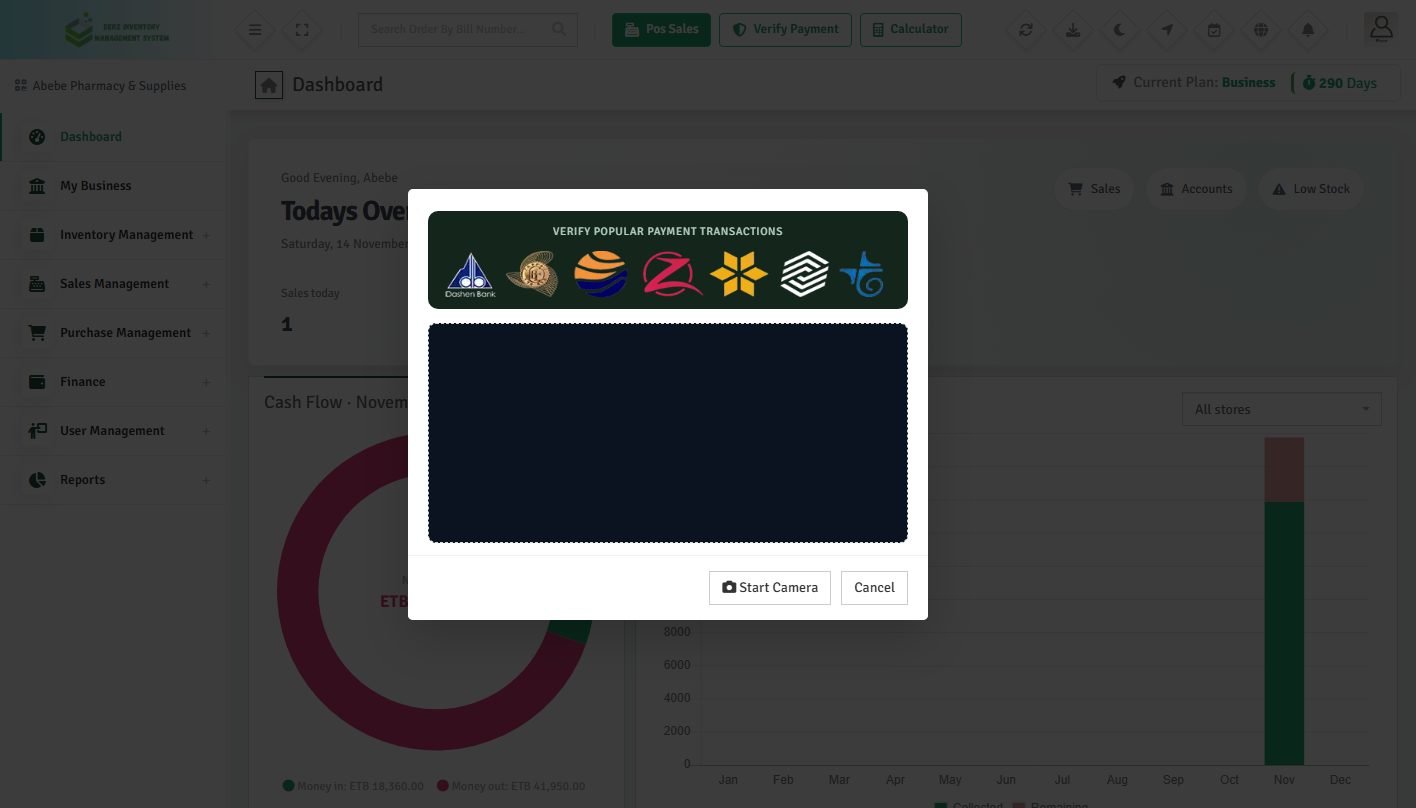
Check that a customer’s bank transfer or telebirr payment is real before you hand over the goods. Click Verify Payment in the top bar (or next to a payment in the sale details), click Start Camera and hold the QR code of the receipt in front of it. DerZ checks the transaction and shows the amount, date, payer and receiver. Opened from a sale, the verified receipt can be attached to that payment.
Quick create
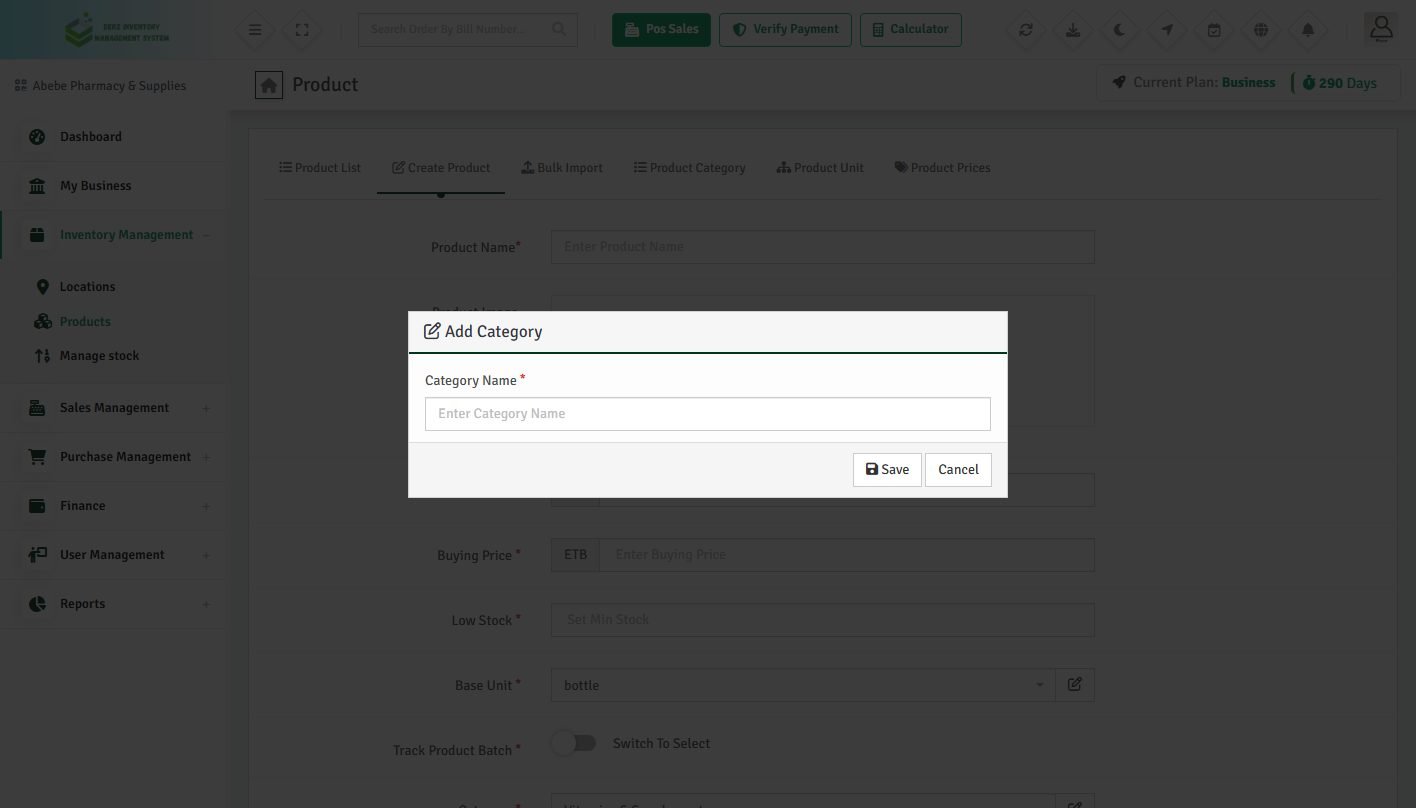
The button next to the unit, category, customer, supplier and voucher head lists adds a new one in a small window, without leaving the form you are filling. The new item is chosen in the list right away.
Alerts
The bell shows your alerts: the daily summary, low stock, batches about to expire, overdue customer dues and your subscription. Choose which alerts you want in Alerts settings, and get them on Telegram too.
Your profile & password
Click your picture at the top right for your profile, to reset your password, open the online store, or log out.
Find a sale by bill number
Type the bill number in the search box of the top bar, e.g. INV-2026-000012, to open that sale directly.
Export & print
Every list and report has the same buttons above the table: copy, Excel, CSV, PDF, print and columns. The export uses the report title and your filters.
Part 10
FAQ & Help
“The product is in stock but I can’t sell it”
- Check that the stock is in the store you are selling from. Stock in a warehouse must be transferred first.
- For batch products, the batch may be expired, or the product may be paused because batch tracking was switched off in settings.
- Check that your user is allowed to work in that store (allowed access).
“I entered a sale, purchase or expense by mistake”
Use Return for sales and purchases, and Reverse for transfers, write-offs and expenses. DerZ never silently deletes money records, so your reports always add up and the audit log shows what happened.
“The sale is refused for a walk-in customer”
Walk-in sales must be fully paid unless Allow credit sales to walk-in customers is on. Create the customer instead, or switch the setting on.
“My plan expired”
You can still see everything, but you cannot add new records. Renew from Available plans; your data is kept.
Error pages
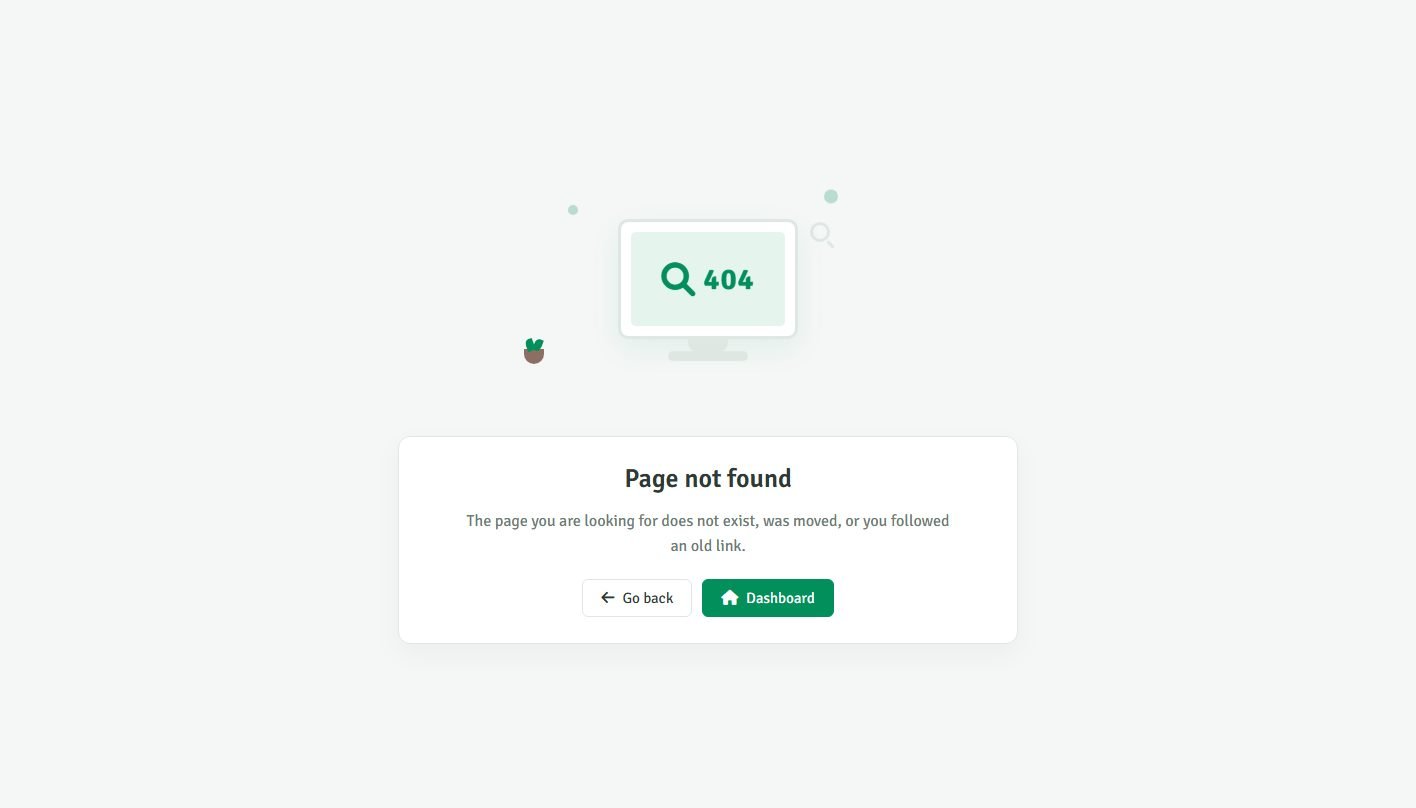
If a link is wrong you see a friendly Page not found page with buttons back to where you were or to the dashboard. During maintenance a page tells you when DerZ will be back and checks again by itself.
Getting help
Click Help Support at the bottom left of any page. It has answers to common questions, video tutorials, and buttons to reach the DerZ team on WhatsApp, Telegram, phone or email. Replay the guided tour from the help menu at any time.
Glossary
| Term | Meaning |
|---|---|
| Base unit | The smallest unit a product is counted in; prices and stock are kept in it. |
| Batch | Goods made together, with one batch number and expiry date. |
| Due | Money still owed: by a customer (receivable) or to a supplier (payable). |
| Opening due / stock / balance | What existed before you started using DerZ. |
| Voucher head | A kind of income or expense, e.g. Rent, Electricity. |
| Walking customer | A sale without a named customer. |
| Drawing | Money the owner takes out for personal use. |
| Reverse | Undo a record with a reason; both the record and its reversal stay visible. |
| Write-off (trash) | Stock removed because it is damaged, expired or lost. |